
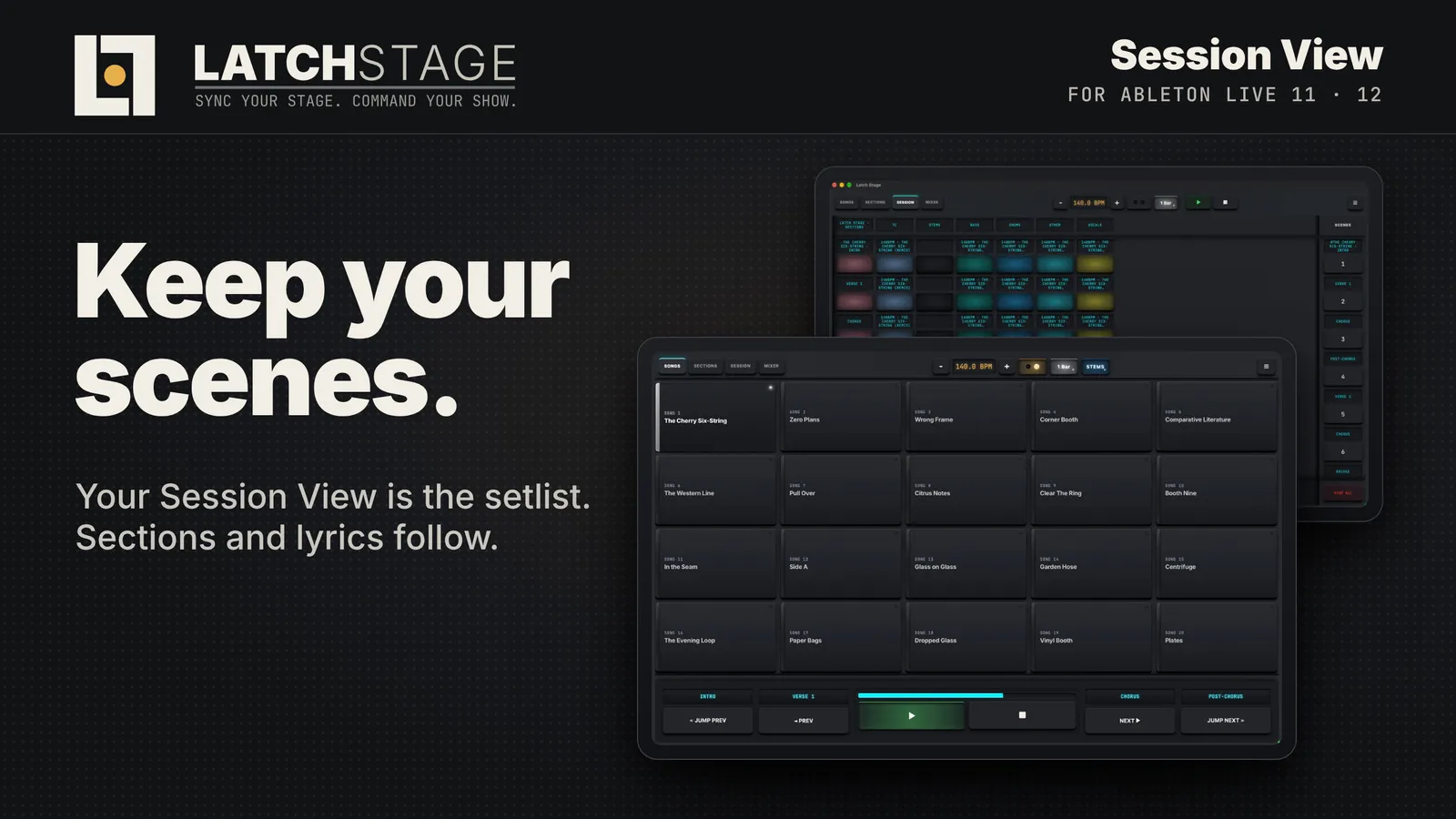
A lot of bands build their show in Session View. Each song is a run of scenes, Intro, Verse, Chorus, Outro. Follow Actions carry the song forward, some clips loop while others play through, and the click stays open while the band decides how long the solo lasts.
The usual advice for running a show is to rebuild all of that in the Arrangement. With Latch Stage you don’t have to. Your scenes become the setlist.
Choose scenes as the source#
In Latch Stage, open Settings and set Setlist Source Mode to Session View (Scenes). The setlist now comes from your scenes instead of locators.

Name the scenes#
Put a # in front of the scene that starts a song. The text after it is the song title, and the text after a spaced dash is the name of its first section. The scenes that follow are the sections of that song, until the next # or a scene named END.
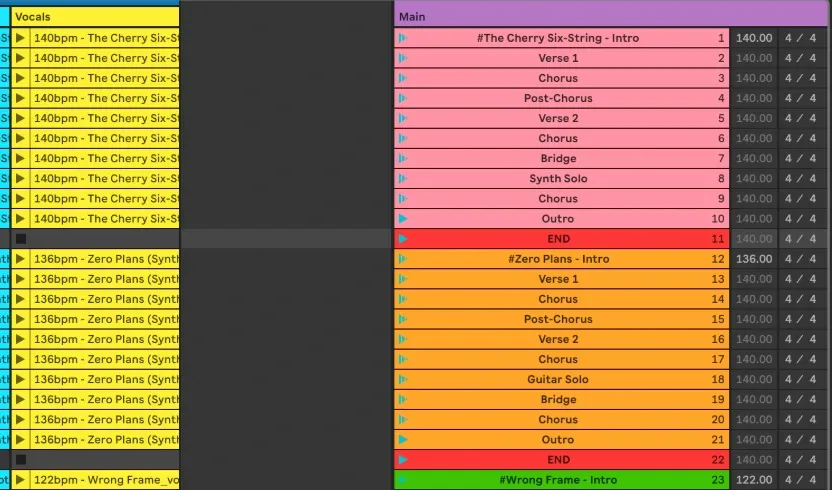
| Scene name | Read as |
|---|---|
#The Cherry Six-String - Intro | Start of a song and its first section |
Verse 1, Chorus, Synth Solo | A section of that song |
END | End of the song |
Working notes can stay in the name: everything after a | is ignored on screen.
Each scene counts as one section. To fill the progress bar and scroll the lyric, Latch Stage takes the longest clip in the scene as the reference; when a looping clip and a clip that plays through are the same length, the one that plays through counts. How long the scene really plays is still up to you and your Follow Actions. The usual setup, with clips as long as the section, keeps the two together.
The whole show on a tablet#
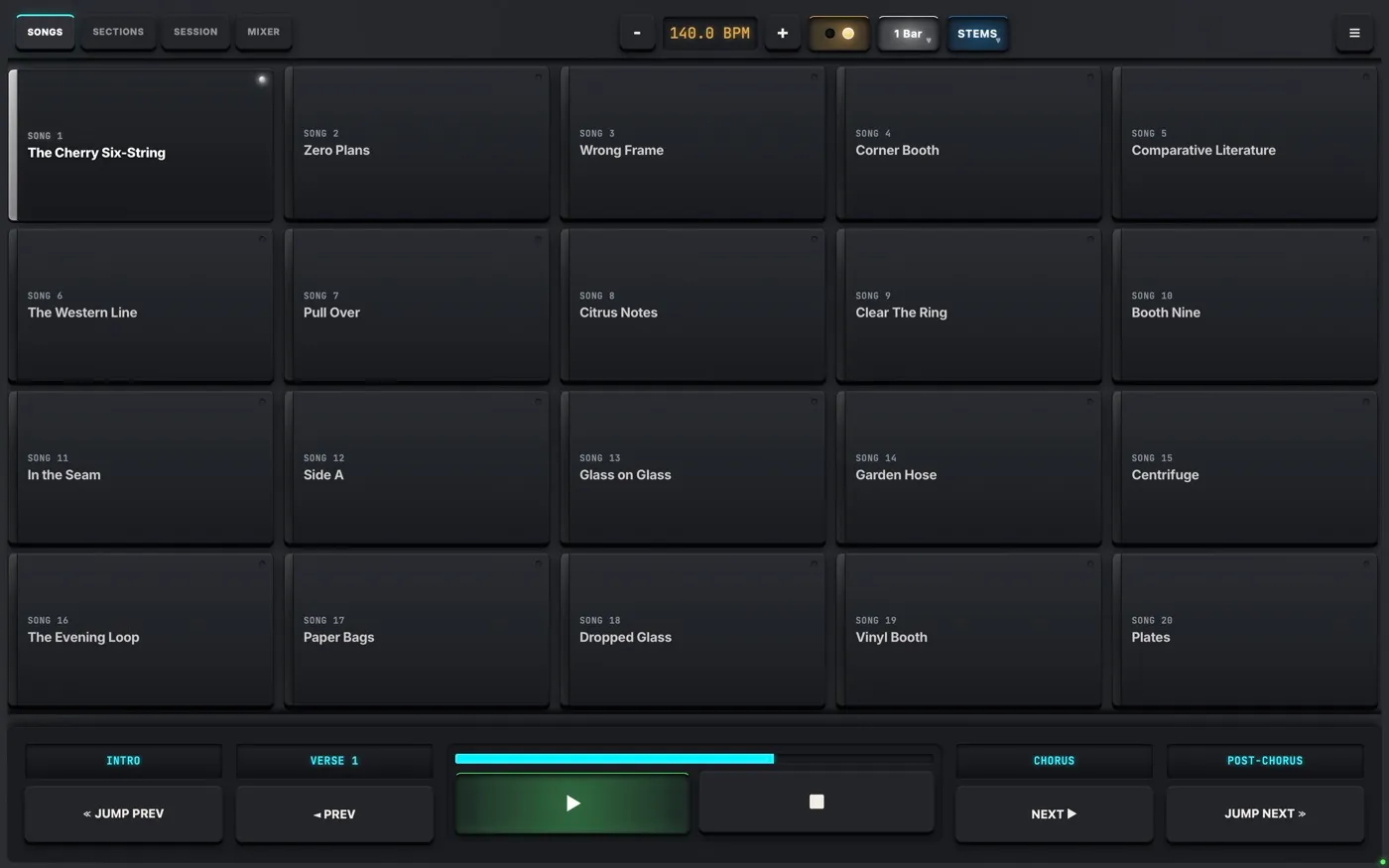
The songs appear as pads on the Songs screen, on any tablet or phone on the same network. Tap a song to fire it. NEXT goes to the next section, JUMP PREV to the previous one, and the name of each target is written above the buttons, so you know where you’re going before you tap.
Change the song while it plays#
In Sections View, each scene of a song is a block. Mute one to skip it, clone the chorus to play it twice, drag a block to a new place, loop a section, or use TAP END to land the change on the bar.
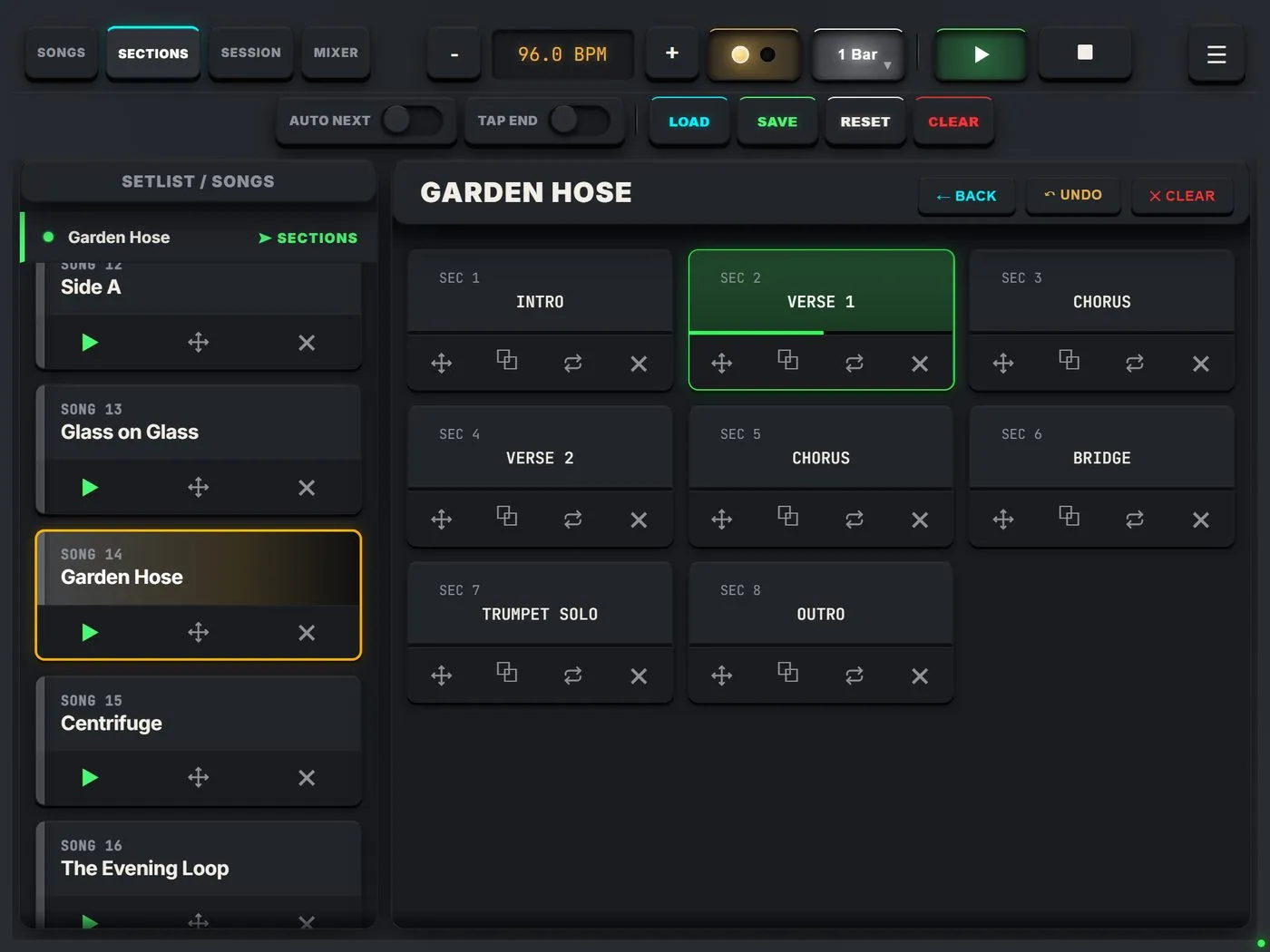
Your Follow Actions keep working. On a section you haven’t touched, Live runs its Follow Actions as programmed. On a section you edited, Latch Stage takes over and fires the target scene in the last quantisation window.
With AUTO NEXT on, the end of a song starts the first section of the next one.
Your Set stays as you built it. The changes live in Latch Stage, not in the Set.
Lyrics that follow the scenes#
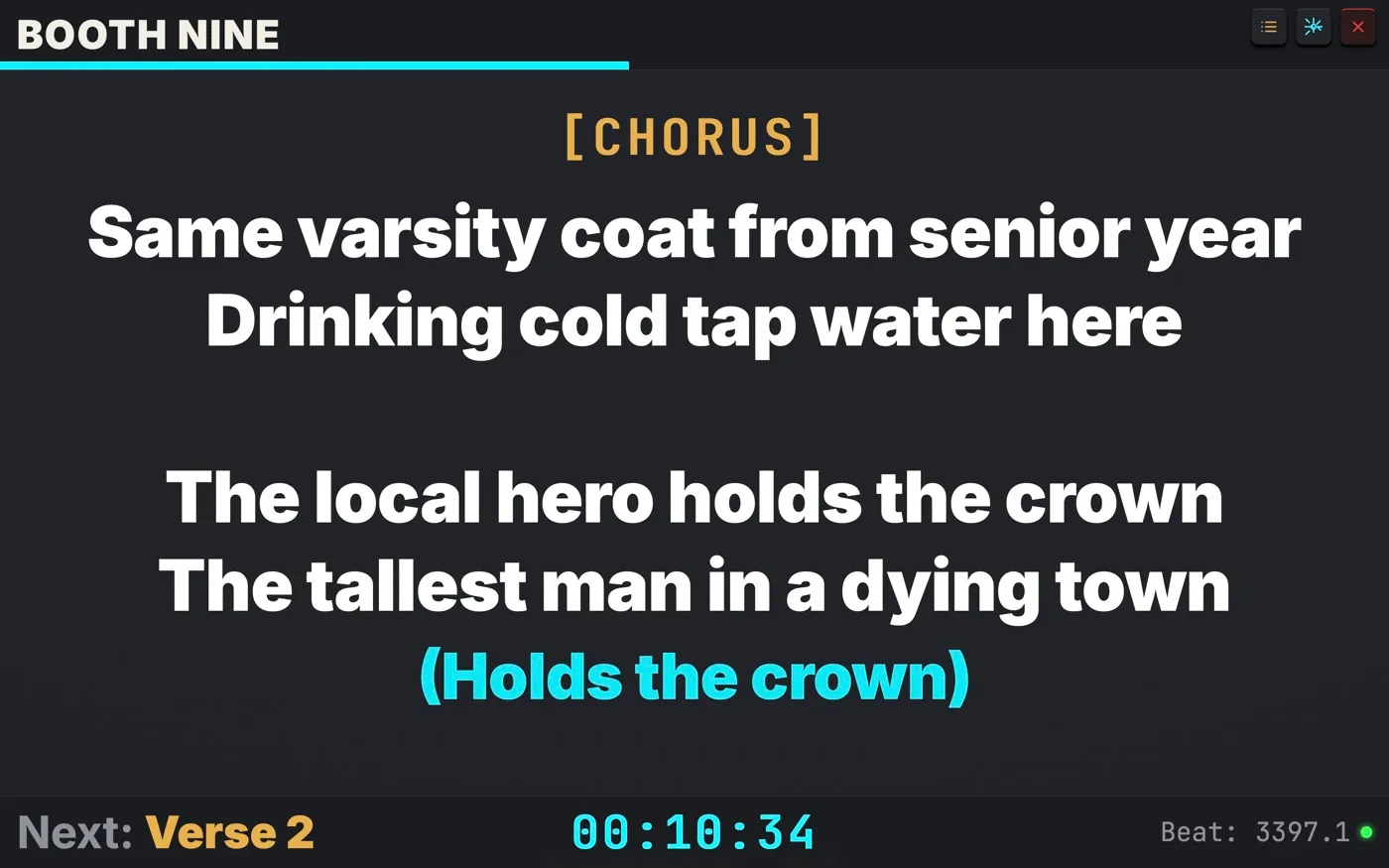
The Stage Teleprompter matches the section tags in the lyric file to your scene names, so [Chorus] follows the scene called Chorus. The lyric scrolls with the scene and follows every jump, loop and route edit, without reloading between sections.
The clip grid, too#
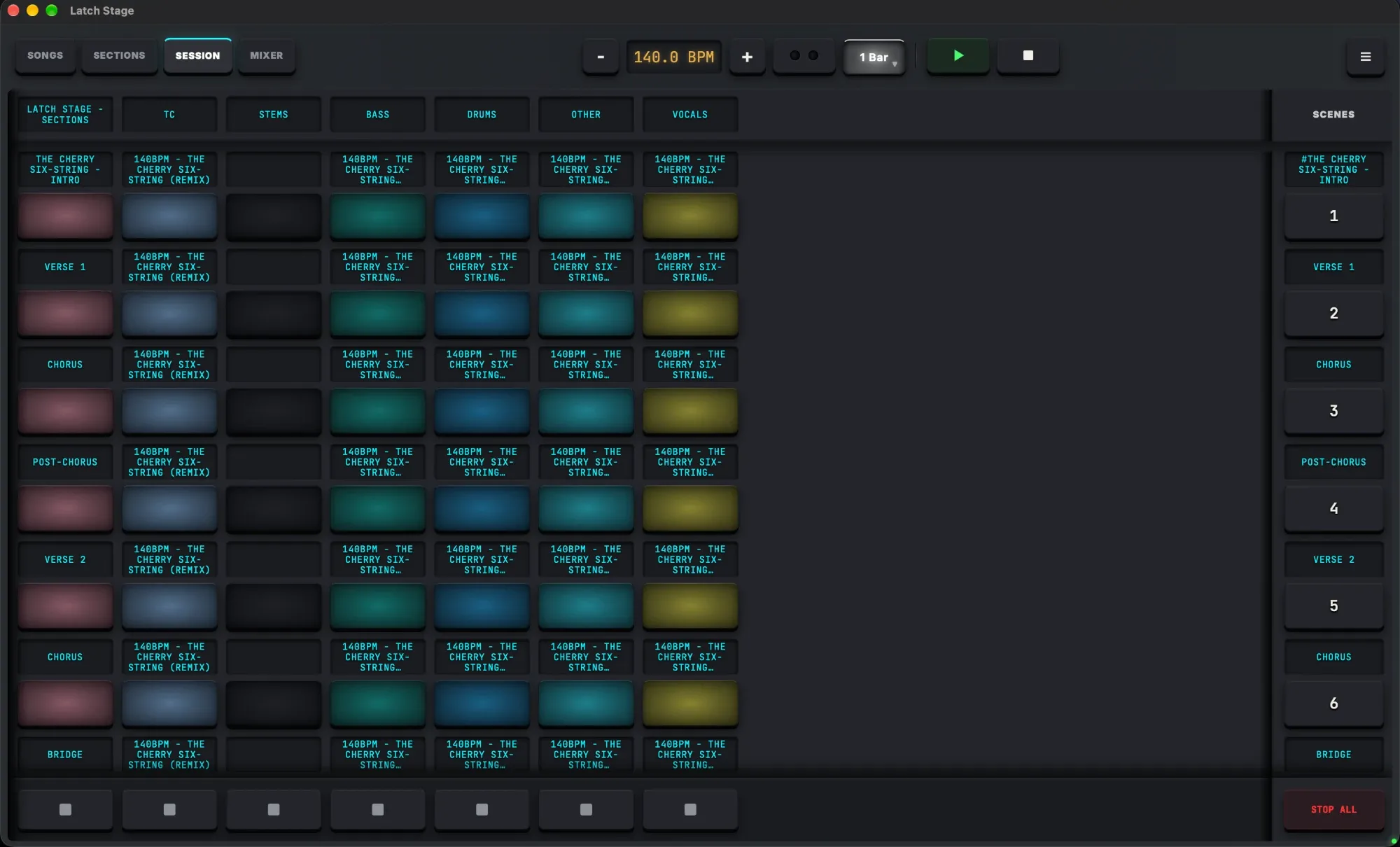
When you need one specific clip in the middle of a song, the Session View screen mirrors Live’s grid on the tablet: tap a slot to launch it, fire a whole scene, stop one track or all of them.
No scenes with #?#
If no scene name starts with #, Latch Stage reads each scene as one song, in order, the way it always did.
Which edition#
Scenes as the setlist work in every edition: Solo, Standard and Suite. Sections View, AUTO NEXT and the Stage Teleprompter are in Standard and Suite. The Session View screen is in Suite. All for Ableton Live 11 and 12.
Session View · Sections View · Read the manual · Compare the editions