Latch Stage — live show control for Ableton Live

One tap. All in sync.

No second take.

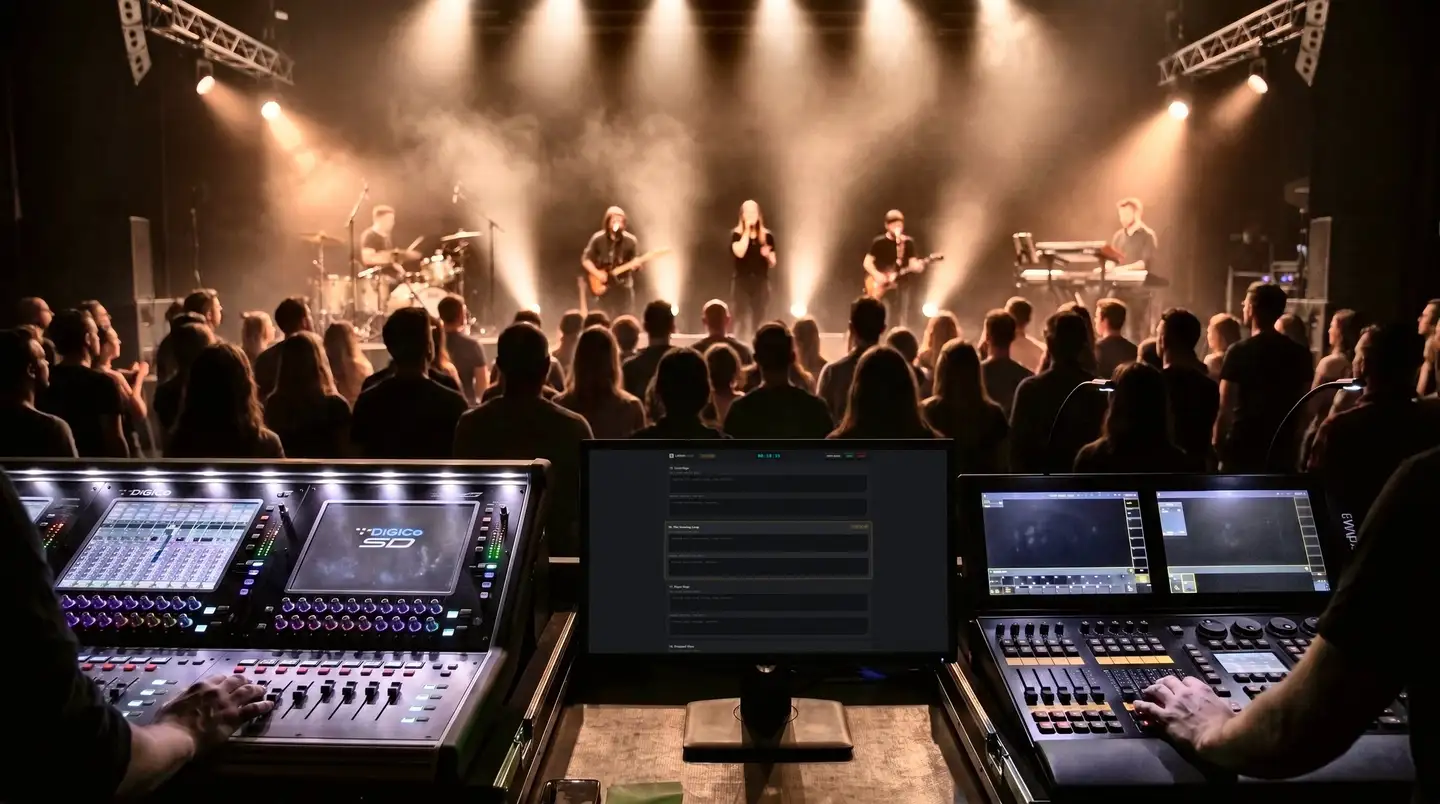
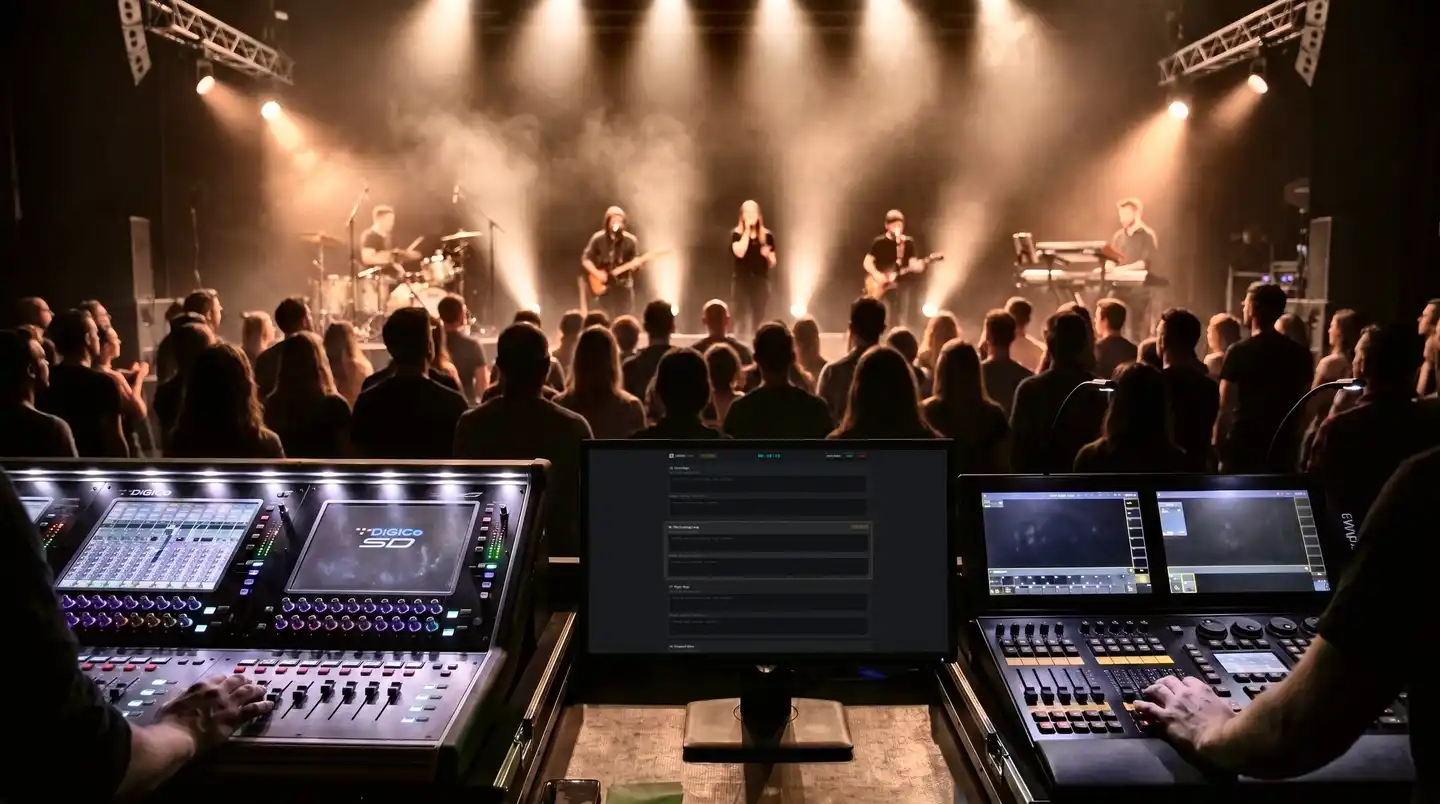
Once the count-in starts, nobody stops to look for the lyrics, the next song or the cue.

Four screens. One Live Set.

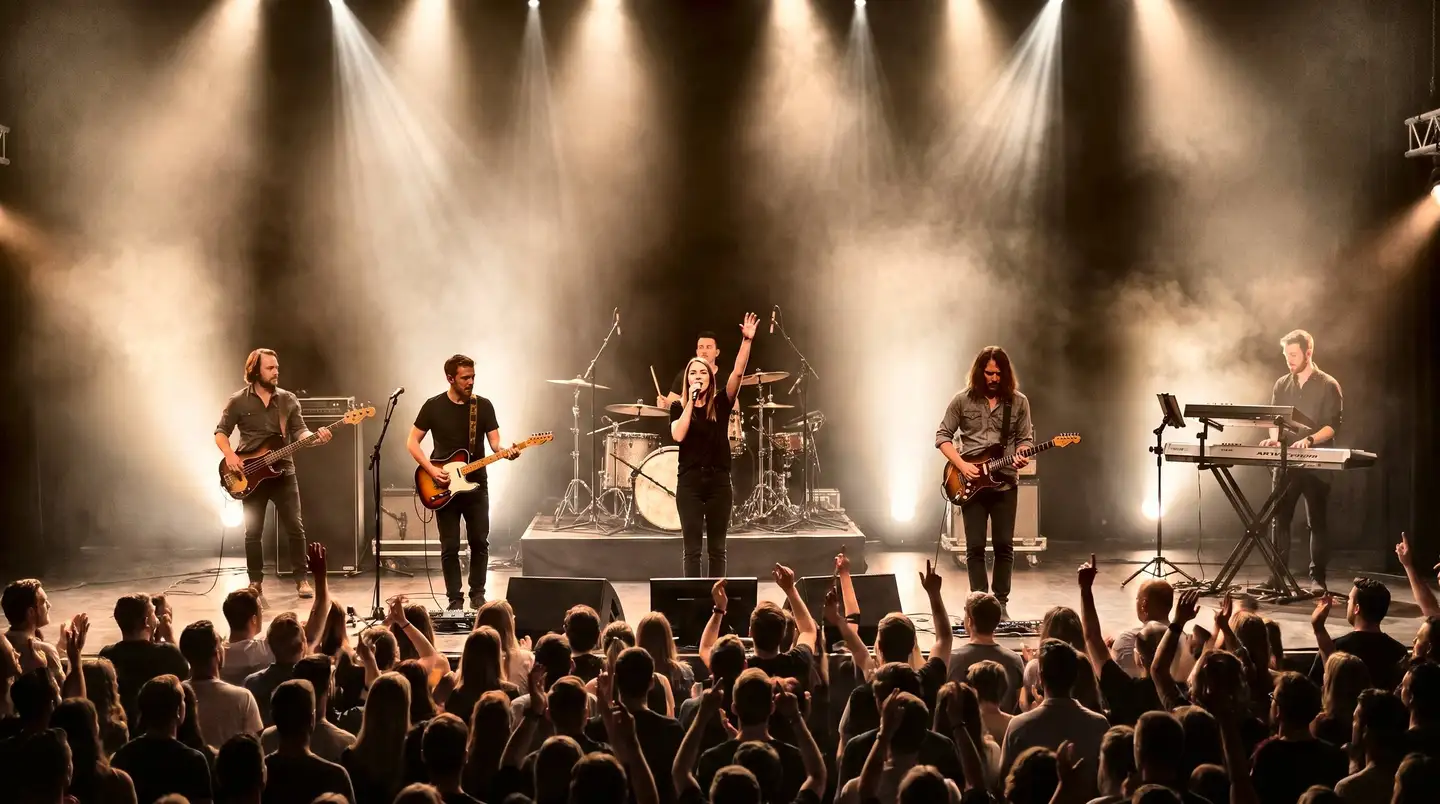
Lyrics on the floor, setlist with the band, cues at FOH, and the Live Set safe in the rack.

Every screen follows the playhead.

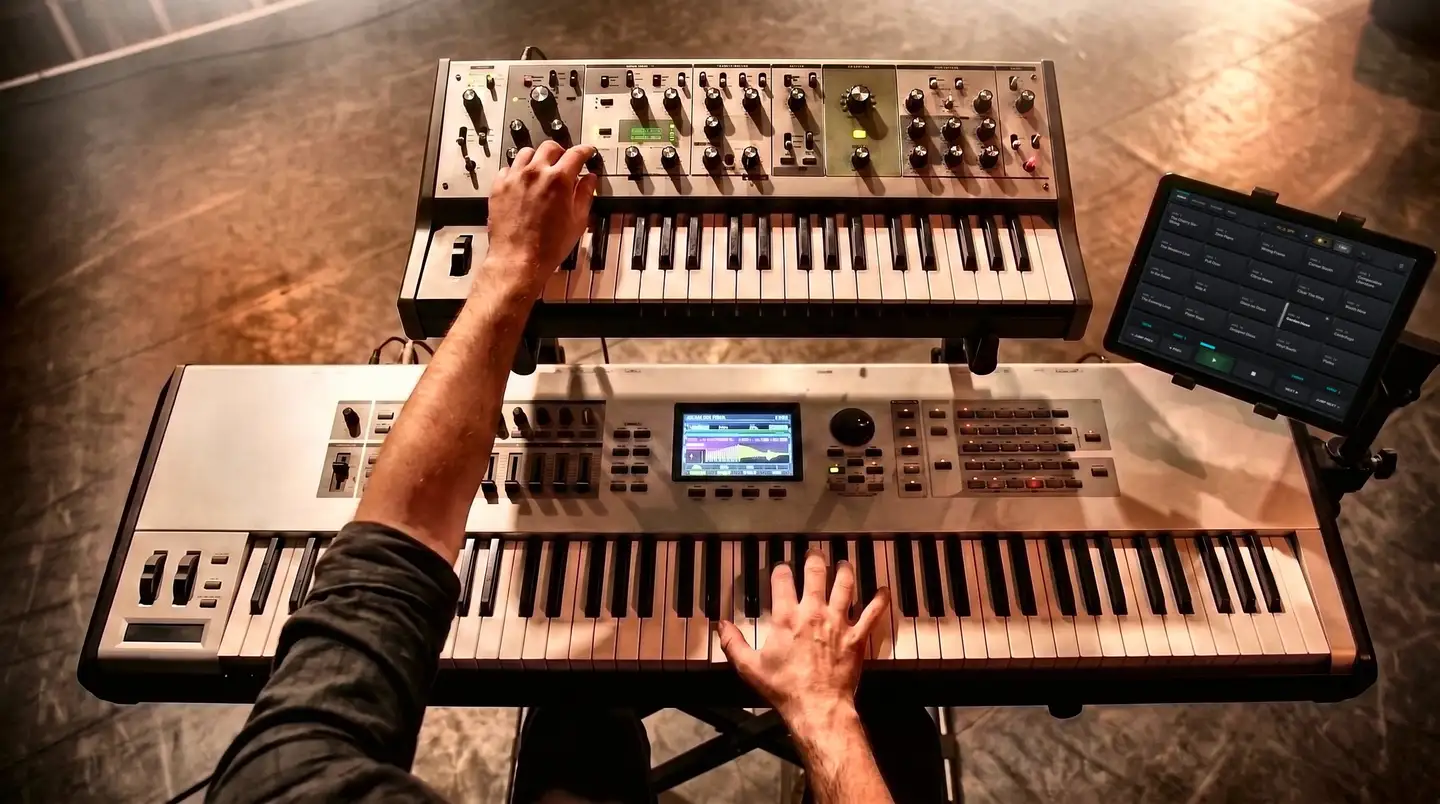
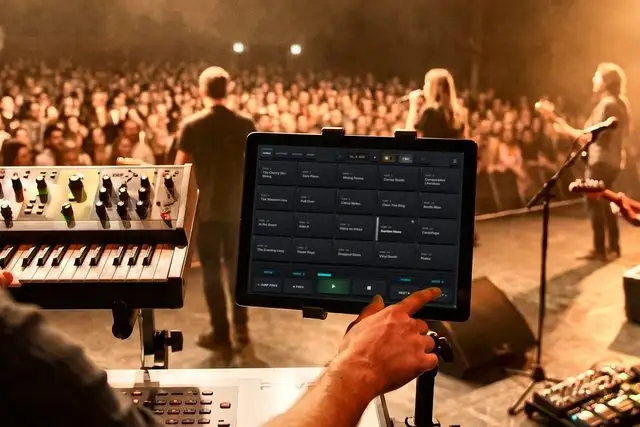
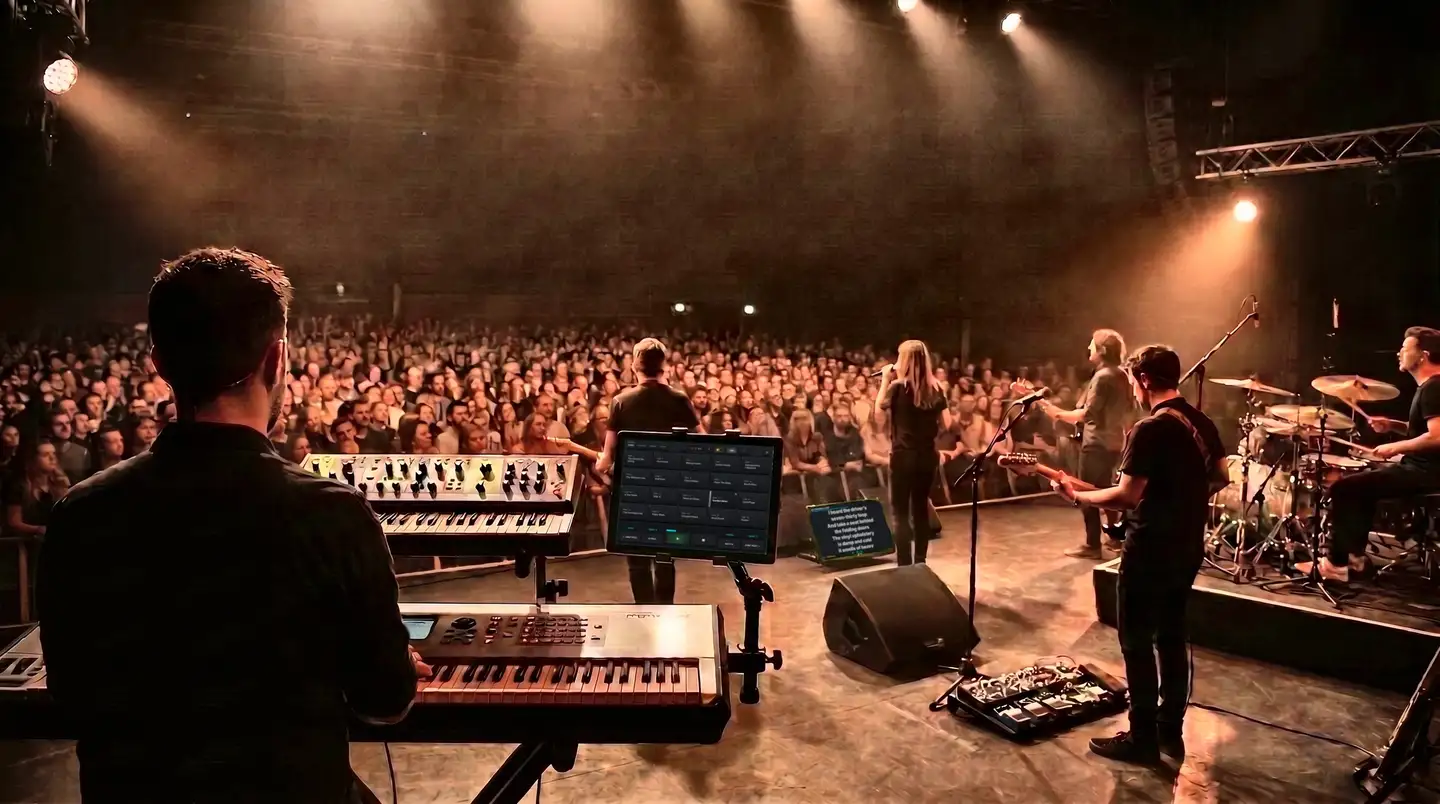
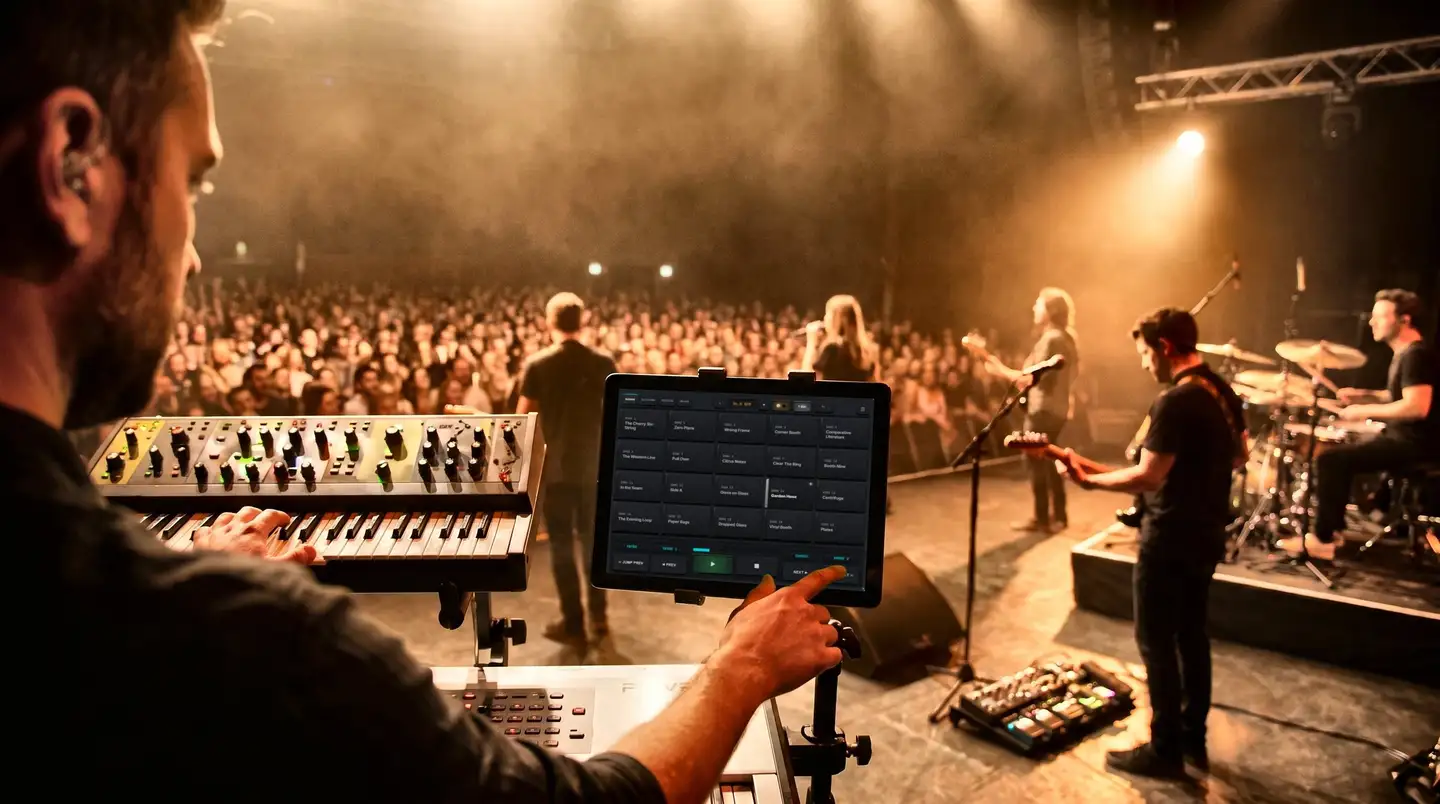
Keyboard player tapping the Songs view on a tablet beside the keys, with the band and the crowd ahead
SONGS
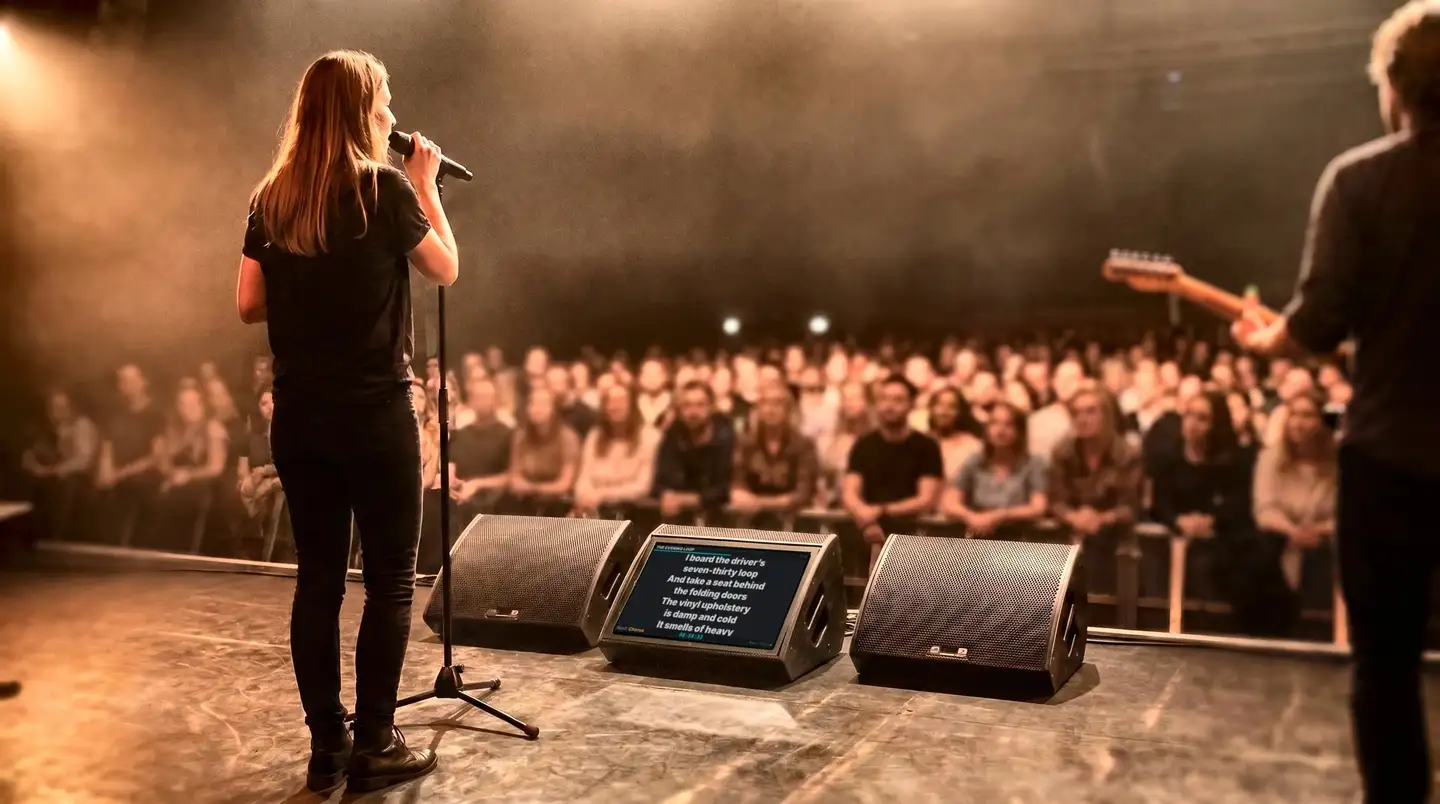
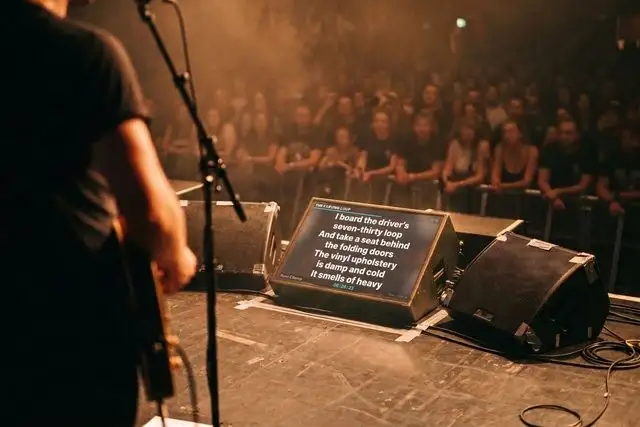
Song lyrics on a stage monitor built into a wedge case, seen from behind the singer
STAGE TELEPROMPTER
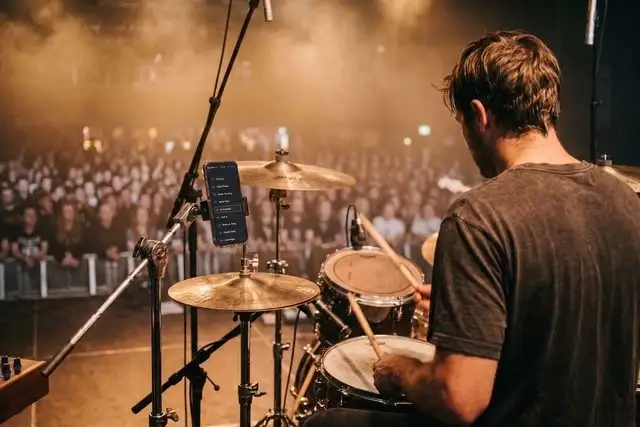
Phone on a mic stand showing the setlist to the drummer
STAGE SETLIST
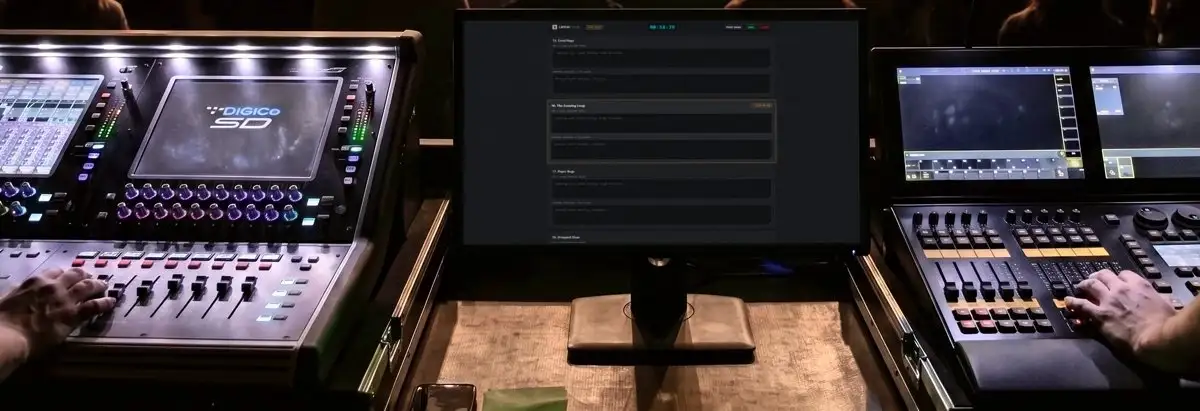
Song cues launcher with locator buttons and track status
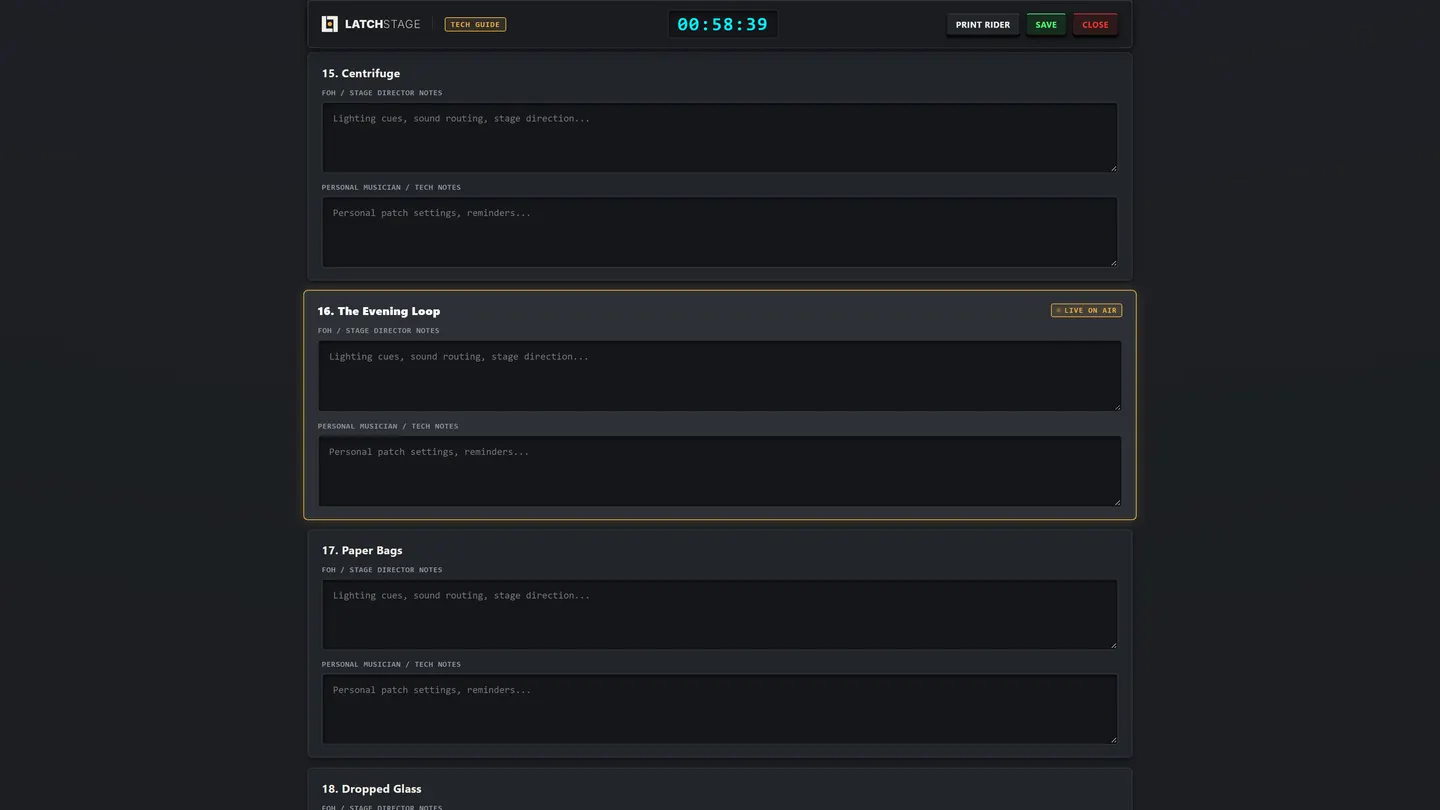
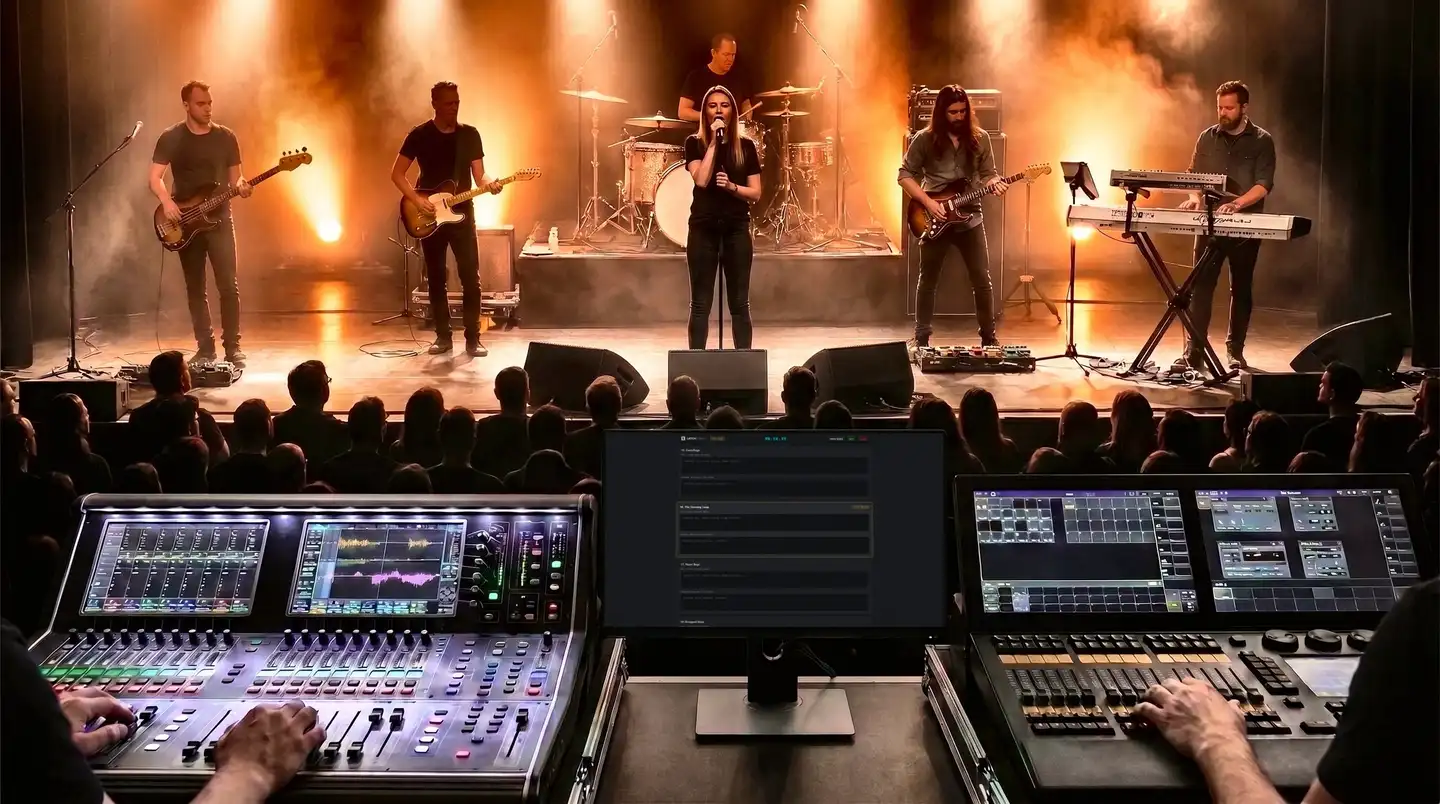
TECH GUIDE · FOH
LATCH STAGE · ENGAGED

It lives inside your Live Set.

Latch Stage turns your Ableton Live Set into a show everyone on stage can read and control. It runs inside Live as a control surface and reads the Set you already built: its locators, tracks and clip names.

#01 - The Cherry Six-StringVerse 1ChorusBridgeENDIntro
TC
Latch Stage - Actions
BPM 128LOC "Chorus"
Latch Stage - Midi Scripts
vl3: preset 12 | mtg: vol 80
Latch Stage - OSC Scripts
decks/10, columns/7
Latch Stage - Sections
IntroVerse 1ChorusBridge
  • #01

    A locator that starts with # starts a song. It becomes a button in Songs.

    SOLO · STANDARD · SUITE

  • VERSE 1 · CHORUS · BRIDGE

    Every other locator is a section. Skip, repeat, loop or reorder it live. The Set on disk is never modified.

    STANDARD · SUITE

  • END

    Ends the song. With Auto Next on, the show moves to the next one.

    STANDARD · SUITE

  • LATCH STAGE - ACTIONS

    Clip names become commands when the playhead reaches them: tempo, jumps, loops, metronome.

    STANDARD · SUITE

  • LATCH STAGE - MIDI SCRIPTS

    Clip names become MIDI for your hardware.

    SUITE

  • LATCH STAGE - OSC SCRIPTS

    The same idea, sent as OSC to external software.

    SUITE

  • LATCH STAGE - SECTIONS

    Prefer clips to locators? Name the clips on this track and Smart Locators builds the locators for you.

    SOLO · STANDARD · SUITE

The clips are never heard. Only their names are read.

Timeline, Session View or Arrangement Clips: use the mode that fits your Set.

Manual →

Plug into Live. Scan. Play.

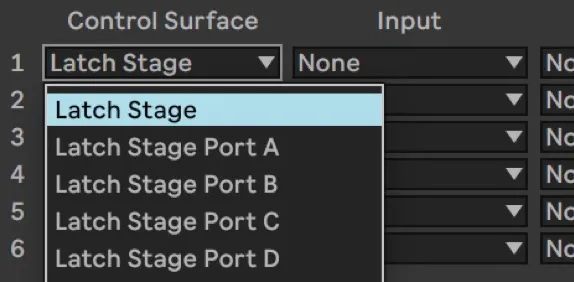
Ableton Live Link MIDI preferences with Latch Stage selected as Control Surface
  1. Install

    Latch Stage installs into Ableton Live as a control surface. macOS and Windows.

    Manual →
  2. Scan

    Tablets and phones join over the local network with a QR code. No IP to type. No app to install.

  3. Play

    Launch a song. Every screen follows the playhead.

One Live Set. A screen for every role on stage.

MUSICAL DIRECTOR

Run the show from one screen.

Tempo, metronome, quantisation and transport in one header, above everything else on the screen.

  • BPM, metronome and quantisation, always in view
  • TC mutes and unmutes one chosen track, such as your stems or backing-track group, right from the Songs header.
  • One tap launches a song
  • MASTER HEADER · SOLO · STANDARD · SUITE
  • Manual →
Songs list showing track names, BPM values, and cue buttons for live performance control

SINGER

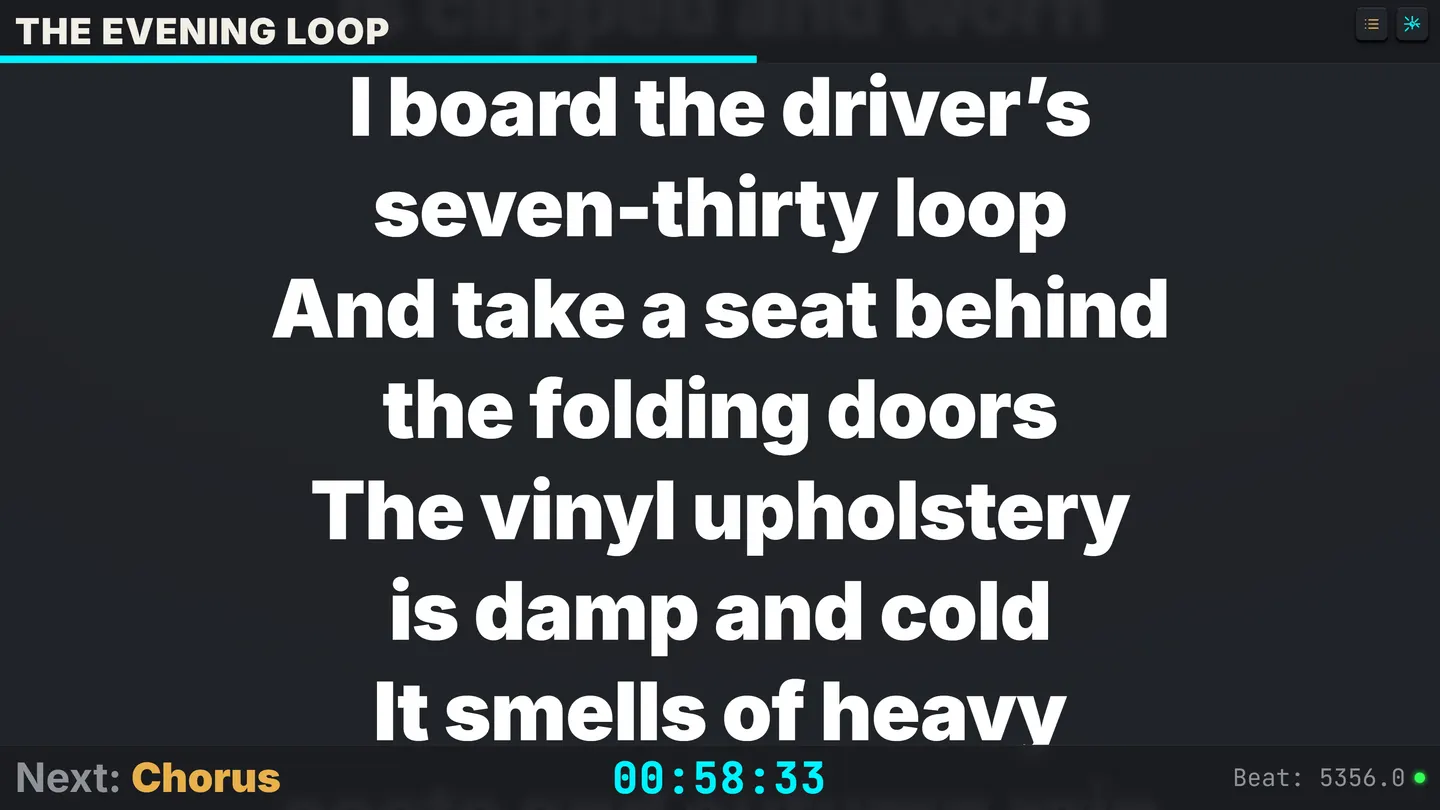
Lyrics on cue.

The lyrics of the song being played, in sync with Live, legible from a distance under stage light.

  • Section tag and progress show where the band is
  • Backing vocals set apart by colour
  • Plain .txt files. No database, no import step.
Stage teleprompter displaying scrolling lyrics synchronized with playback position

THE RIG

Patch changes, written in the clip name.

Write the change in a clip name. When the playhead reaches the clip, the message goes out to your hardware.

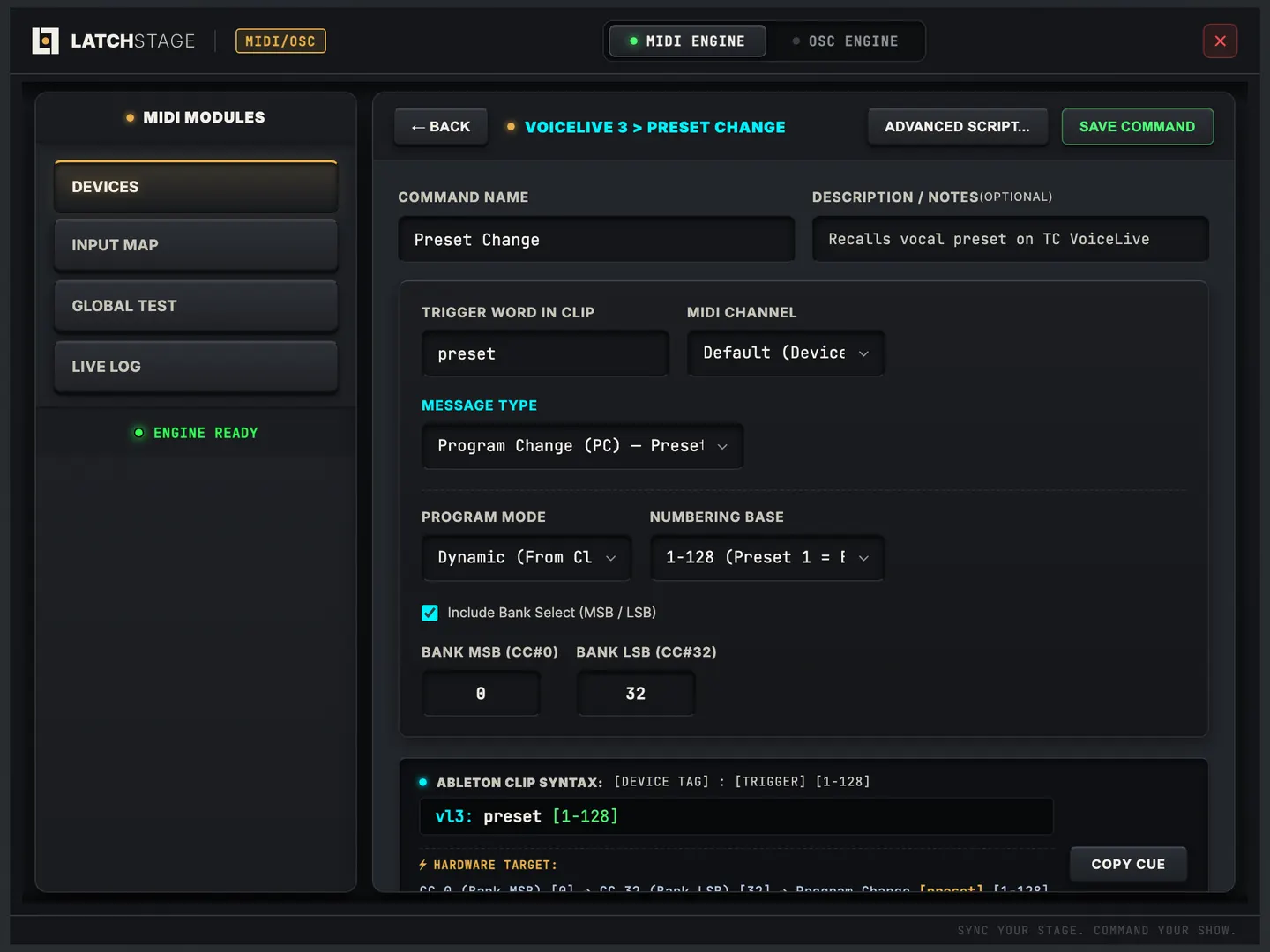
  • Program Change, CC or SysEx behind a friendly clip name, set once in the editor
  • Several devices in one clip: vl3: preset 12 | mtg: vol 80
  • OSC to external software over the network
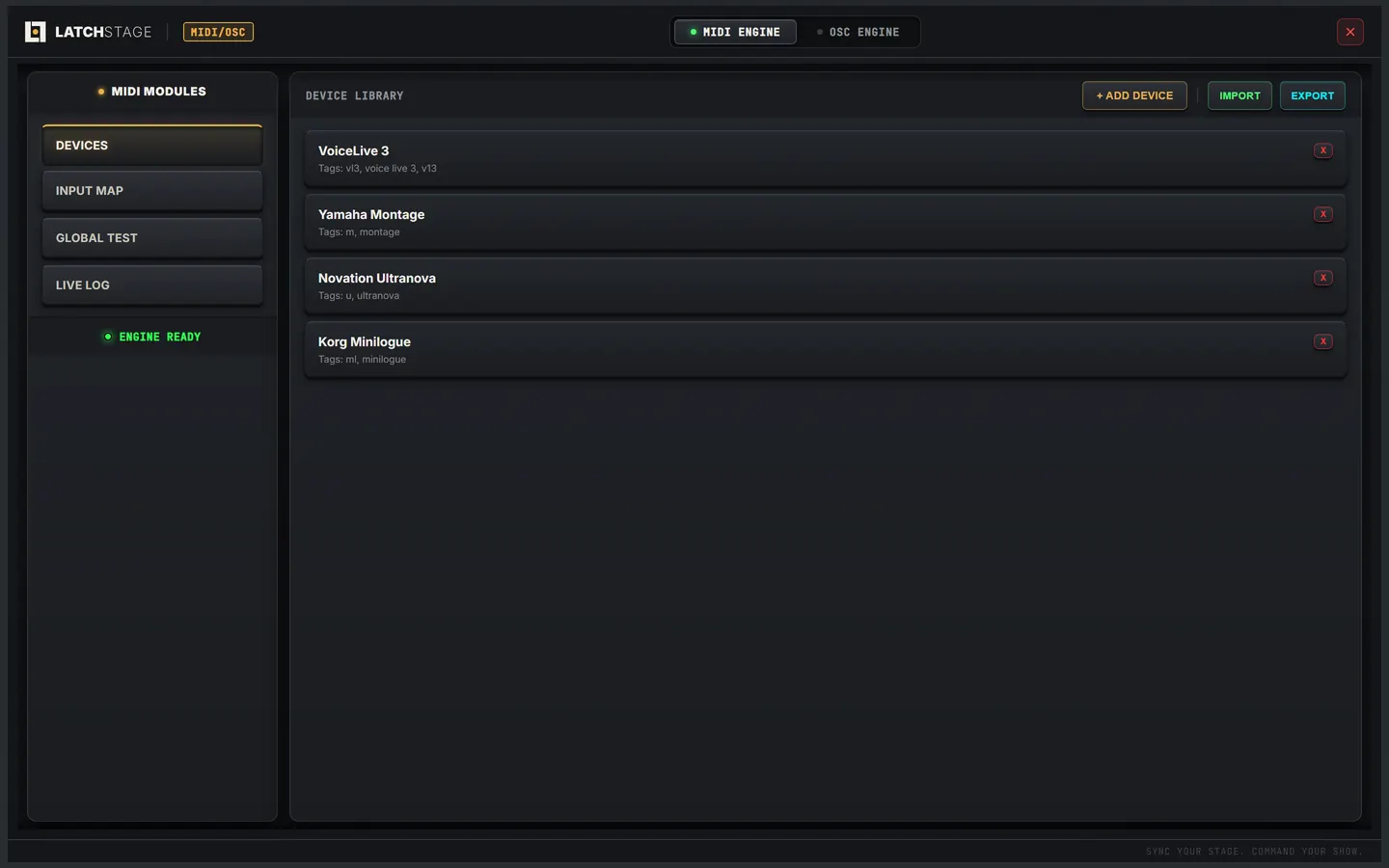
MIDI Engine device list showing hardware instruments, output routing, and clip syntax triggers
MIDI command editor displaying message type selection, clip syntax, and program change parameters

THE BAND

Nothing to press. Nothing to break.

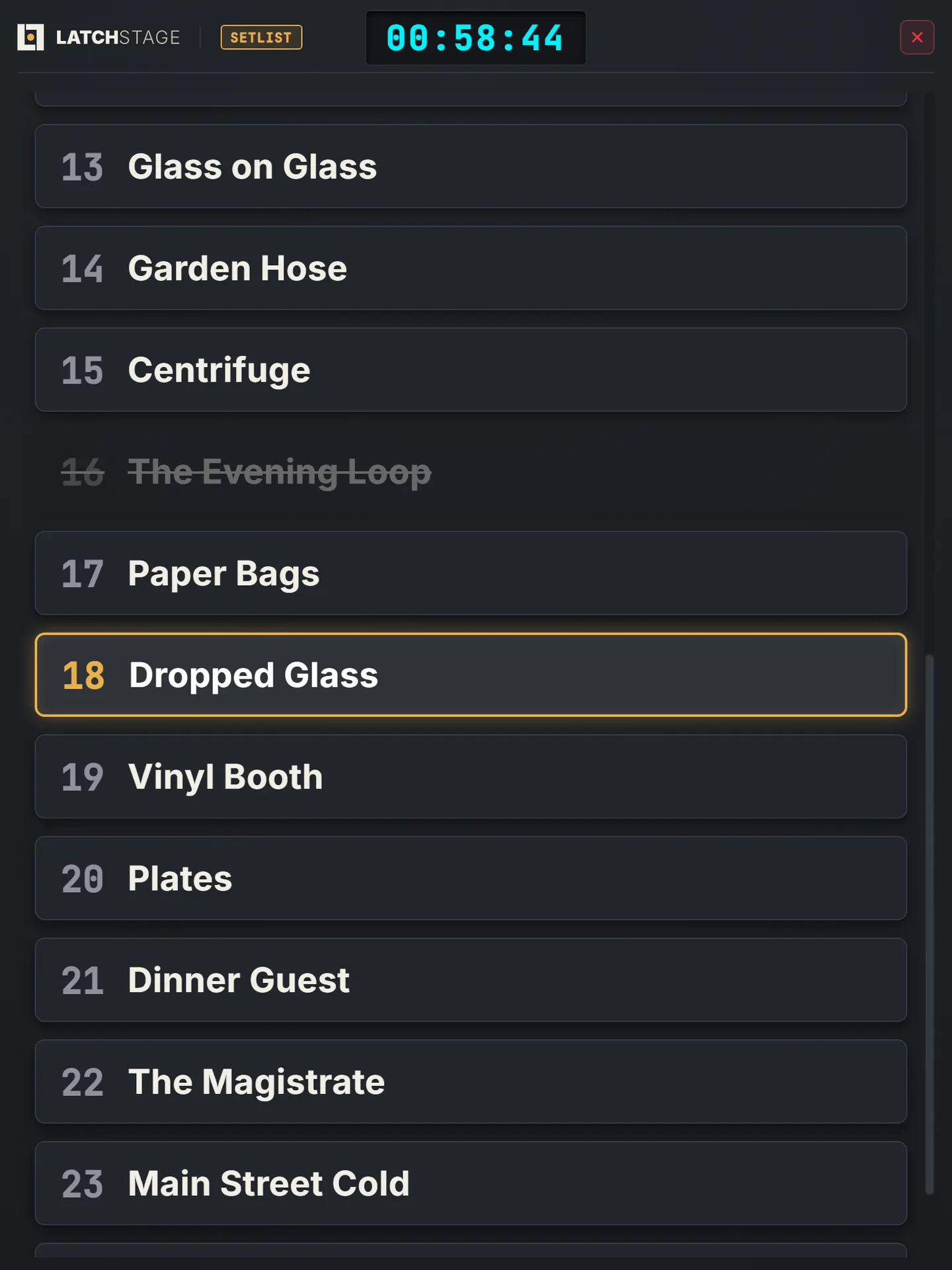
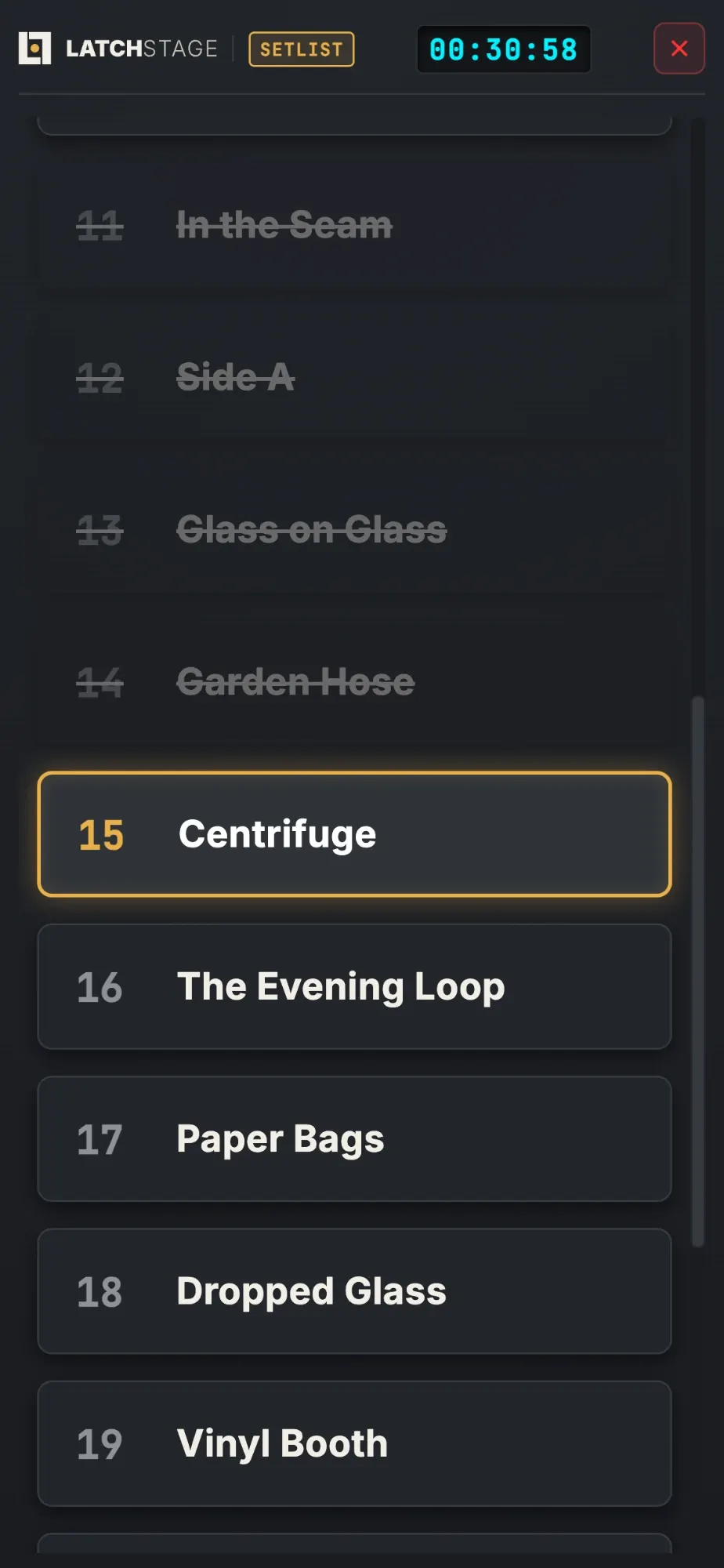
A phone on a mic stand, a tablet at the drum riser: the setlist with the playing song highlighted, and the show timer.

  • Opens with a scan
  • Add it to the home screen with its own icon
  • The playing song, always lit
Stage setlist view in portrait mode showing ordered songs, tempos, key signatures, and notes
Stage Setlist on a phone: the songs already played struck through, the playing song outlined, and the show timer in the header

THE CREW

The crew reads along.

The show's technical guide, inside the app and synced across the crew. The card for the playing song lights up as the show runs.

  • Show notes plus FOH / Stage Director notes for every song
  • Personal notes, private to each device
  • Print the guide on A4 for the crew
Tech Guide dashboard showing stage cues, crew notes, instrument patch numbers, and song order

Pick the view for the job.

The same Set, four ways in, each built for a different pair of hands.

Songs list showing track names, BPM values, and cue buttons for live performance control
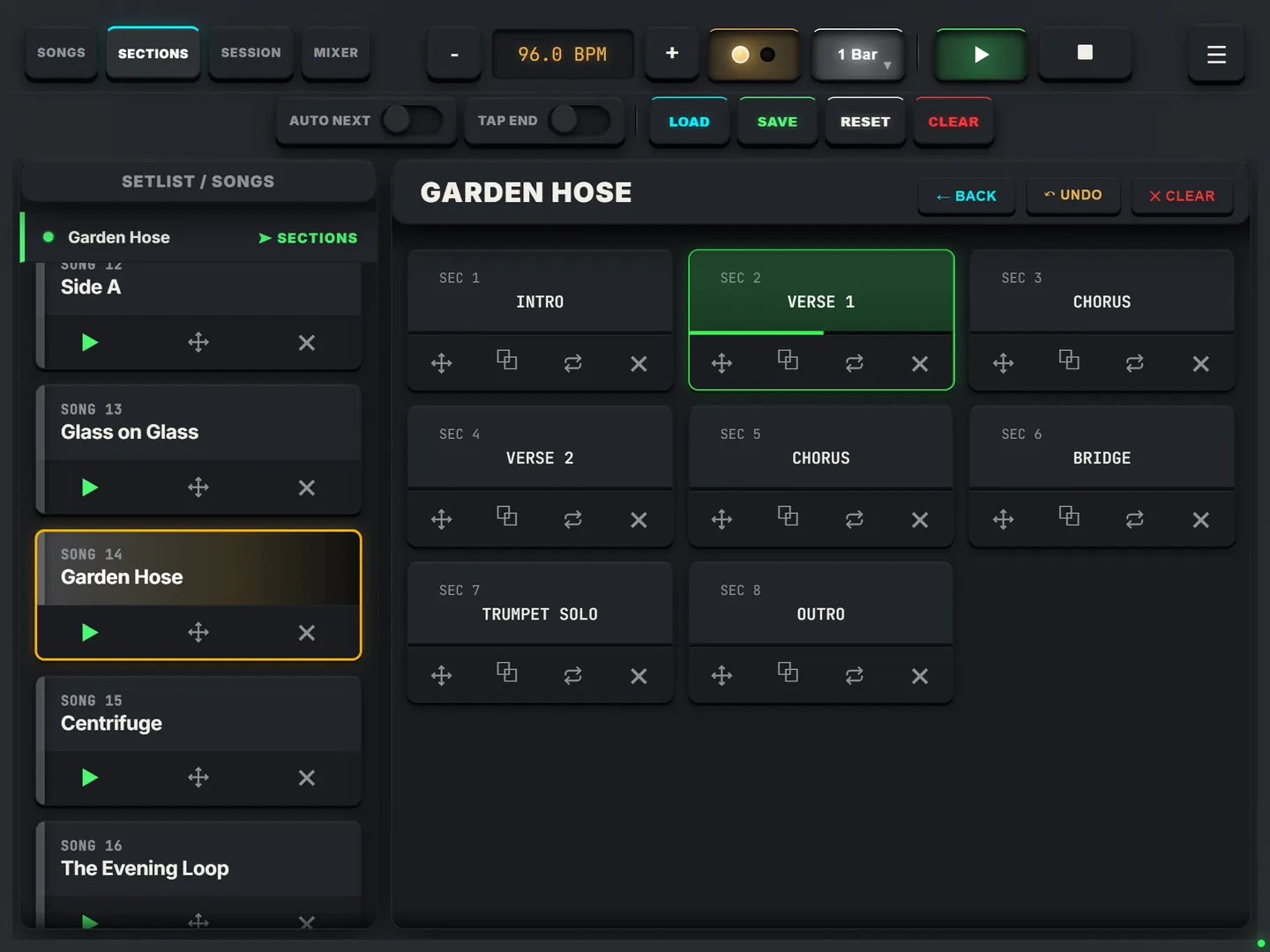
Sections view displaying song arrangement blocks, bar lengths, and section trigger pads
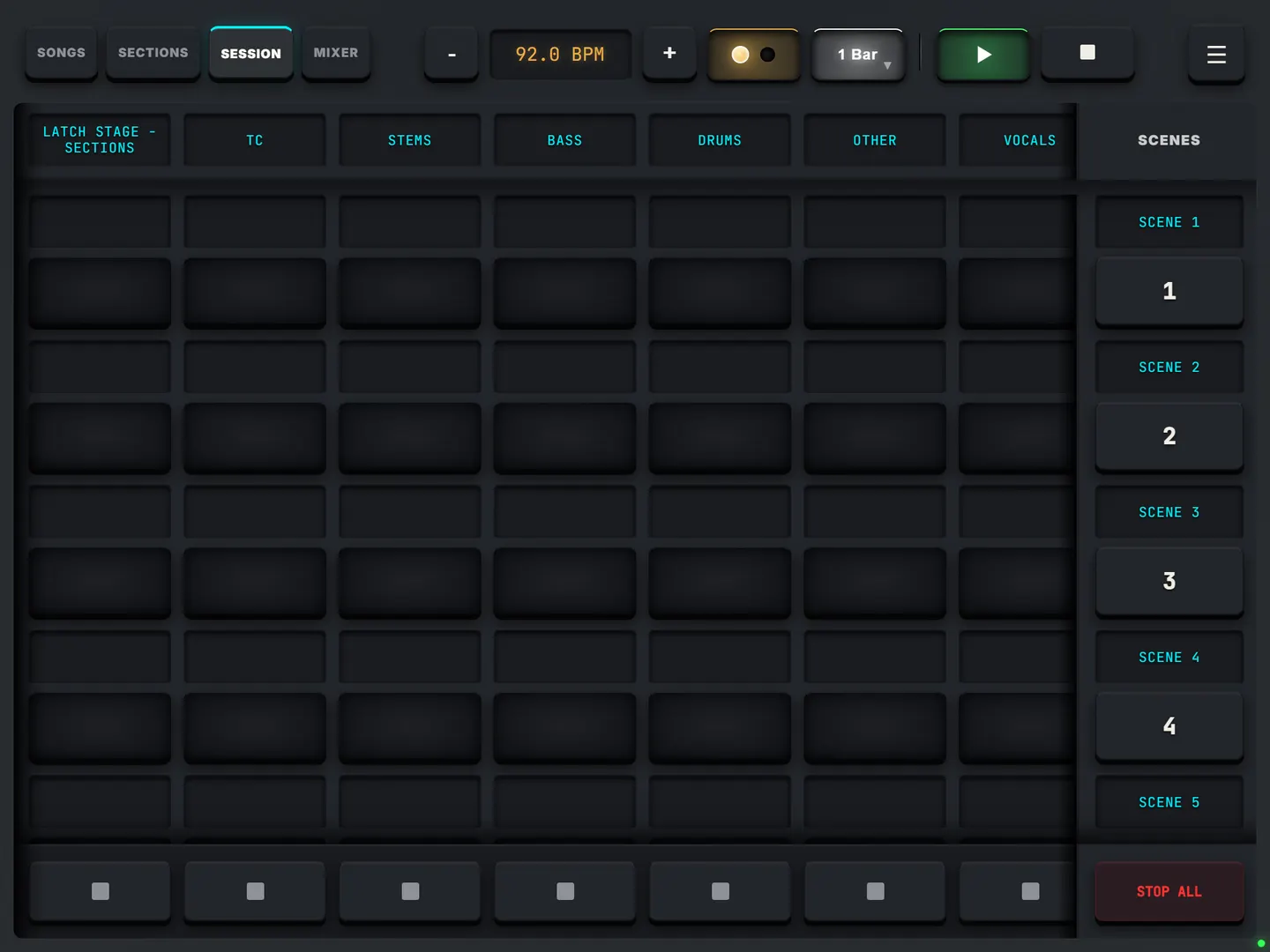
Session view grid with track columns, scene launch rows, and active playing clip indicators
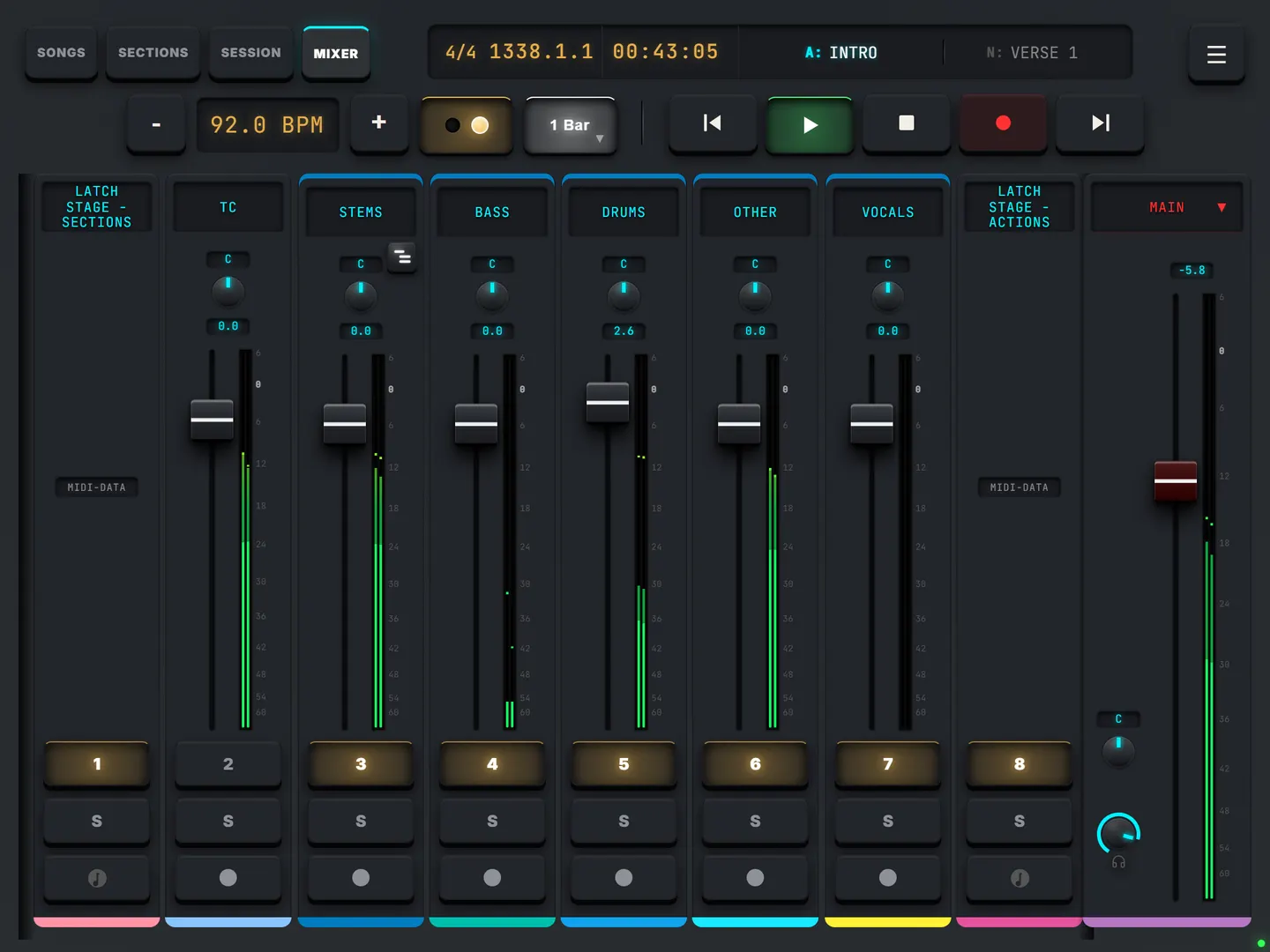
Mixer view with 8 channel faders, pan controls, and VU meters displaying signal levels
Songs list showing track names, BPM values, and cue buttons for live performance control

FOR THE MUSICAL DIRECTOR

SONGS · SOLO · STANDARD · SUITE

Manual →More about Songs →

The show, one button per song.

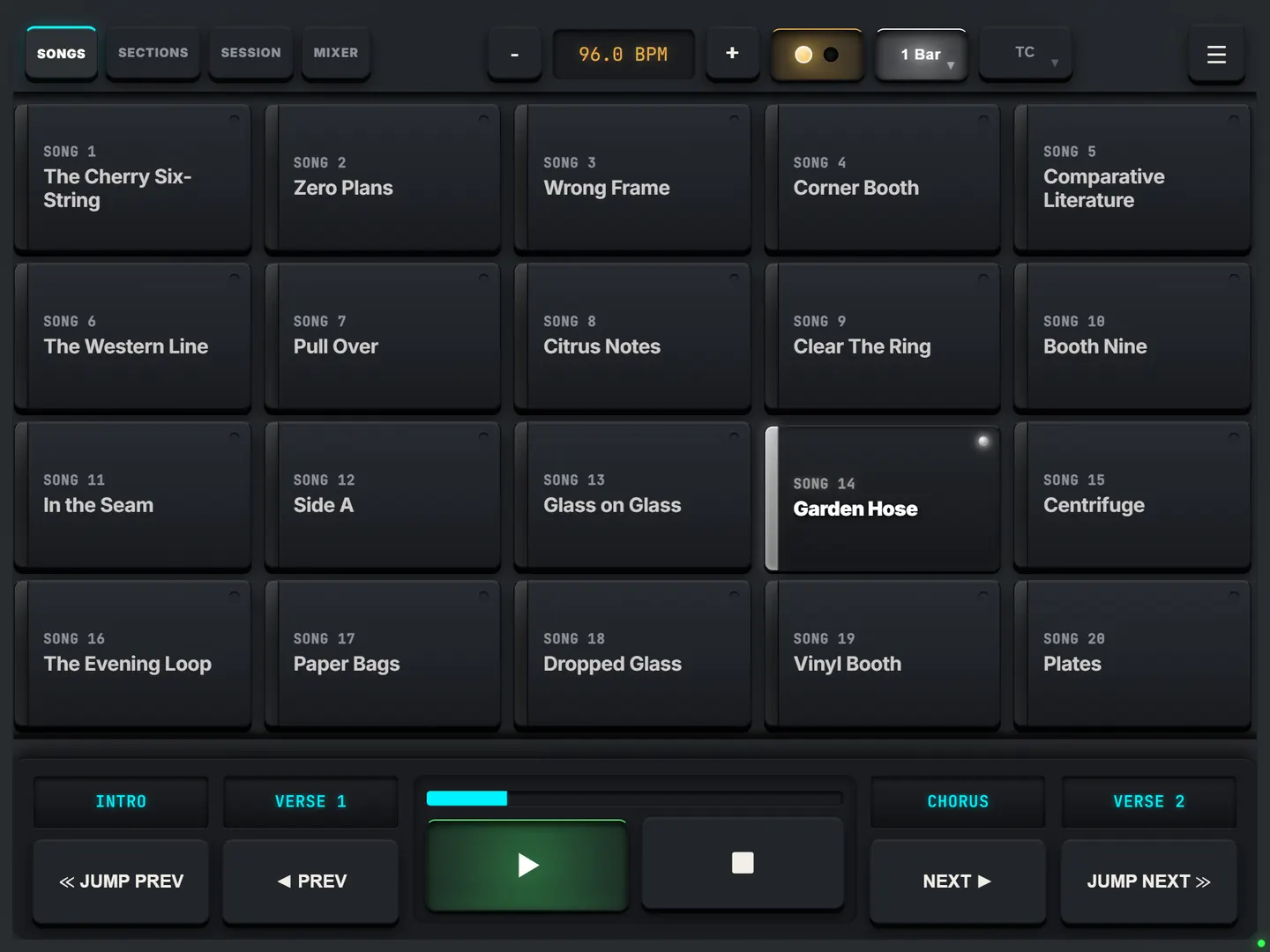
The main screen, and the only one you need in Solo. Every song is a large button with its colour, number and title.

  • Pulsing: fired, waiting for the quantisation point. Solid: playing. Struck through: played.
  • The grid follows the show to the playing song.
  • The transport names the sections either side of the playhead.
  • A show timer starts with the first song, shared by every screen.
Sections view displaying song arrangement blocks, bar lengths, and section trigger pads

FOR THE MUSICAL DIRECTOR

SECTIONS VIEW · STANDARD · SUITE

Manual →More about Sections View →

Reshape the song. Not the Set.

Skip a verse, repeat a chorus, loop a section or reorder the setlist during the show. The Set on disk is never modified.

  • Clone a block to play a chorus twice. Copies share a colour.
  • Every jump lands on the bar line.
  • One preset per show format: "Festival Set", "Acoustic 45m".
  • Undo the last 40 edits.
Session view grid with track columns, scene launch rows, and active playing clip indicators

FOR SHOWS BUILT AS CLIPS, AND THE CLIP YOU NEED NOW

Live's clip grid, in your hands.

Tracks across, scenes down, every clip with its name and colour. Tap to launch, fire whole scenes, stop one track or everything.

  • Launches obey the global quantisation.
  • Playing clips pulse. Triggered clips blink until they land.
  • A drag scrolls the grid. It never fires a clip by accident.
Mixer view with 8 channel faders, pan controls, and VU meters displaying signal levels

FOR WHOEVER MIXES FROM THE STAGE

A mixing console for your Set, on the tablet.

Every track with its name and colour from the Set: fader, pan, live VU meter, mute, solo and arm, mirrored on every screen.

  • Switch the console to a return and mix the sends: a monitor mix from the stage.
  • Groups fold and unfold. Child channels keep their parent's colour.
  • Channels always fit the screen. Faders sized for fingers.

Once it's latched, it stays latched.

From the count-in to the encore, from planned to improvised, the same show on every screen. Always.

How it holds →

Built from the stage.

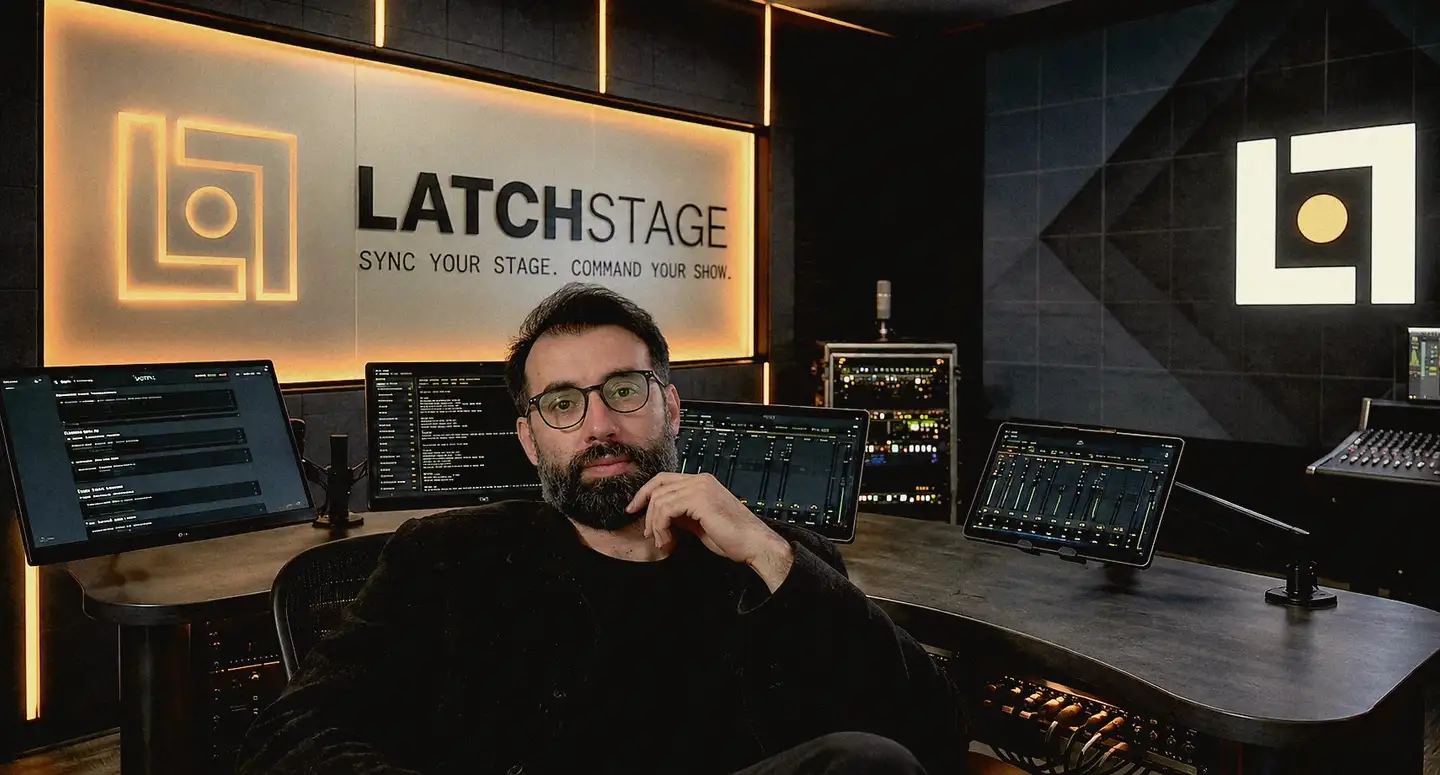
I've played shows on Ableton Live for more than twenty years. To get the stage I wanted, I chained apps together, wrote scripts and invented workarounds that only I could rebuild. It worked, but I was a prisoner of my own system: I couldn't share it with other musicians. Latch Stage is that system, simple enough for anyone who plays live and solid enough to trust on stage. No programming.

Sergio Golivek · Founder

  • ABLETON LIVE 11 · 12
  • macOS 11+ · APPLE SILICON · INTEL
  • WINDOWS
  • ANY MODERN BROWSER
  • NO APP TO INSTALL ON SCREENS

Pick the size of your band.

LAUNCH OFFER · STANDARD 20% OFF · SUITE 30% OFF

  • SOLO

    $79

    2Devices, total
    1External devices
    • Songs (the launcher view)
    • Master header: BPM, metronome, quantize, TC (Track Control: mutes and unmutes a chosen track), transport
    • Stage Setlist page
    • Settings · licensing · QR connection · address failover
    • Show timer
    • Smart Locators
  • LAUNCH OFFER · 20% OFF

    STANDARD

    Regular price $149Launch price

    $119

    5Devices, total
    4External devices

    Everything in Solo, plus:

    • Sections View
    • Virtual Route Engine
    • Quantised jumps
    • Tap End mode
    • Auto Next
    • Project presets
    • Stage Teleprompter
    • Actions Track
  • LAUNCH OFFER · 30% OFF

    SUITE

    Regular price $279Launch price

    $195

    UnlimitedDevices, total
    UnlimitedExternal devices

    Everything in Standard, plus:

    • Mixer View
    • Session View
    • MIDI Engine
    • OSC Engine
    • TP Builder
    • Tech Guide

Compare every feature →

One tap. All in sync. Every night.

SETUP

+01Does it change my Ableton Set?

No. Sections View reshapes songs live; the Set on disk is never modified.

+02Do the screens need an app?

No. They're web pages: scan the QR code and they open in any modern browser. Add them to the home screen to run full-screen.

+05Which versions of Ableton Live does it work with?

Ableton Live 11 and 12, on macOS and Windows.

+07How do lyrics get into the Teleprompter?

Plain .txt files in a folder you choose. When a song starts, Latch Stage matches it to the file by name. No database, no import step.

+16Do I have to rebuild my Set?

No. Latch Stage reads the Set you already have. Add a # to the locator that starts each song. In Session View, just name the scenes.

+17Does it add anything to my tracks?

Only if you want commands: tracks named Latch Stage - Actions, - Midi Scripts or - OSC Scripts. Their clips are never heard; only their names are read.

ON STAGE

+03What if the network drops mid-show?

Every screen tries the host's other addresses and reconnects on its own.

+04Do I need internet at the venue?

No. Once activated, Latch Stage runs fully offline.

+08Can it change presets on my hardware?

Yes, with the MIDI Engine (Suite): write the change in a clip name and the message goes out when the playhead reaches the clip. 15 message types, from Program Change to SysEx.

+18Does it work with backing tracks and a click?

Yes. It reads the Live Set your stems and click already run in. Point the TC button at your stems group to mute and unmute it right from the Songs header; the metronome has its own button in the header.

Free trialBUY30% OFF