
Locators, scenes and setlist modesSoloStandardSuite
Latch Stage reads a normally built Set, provided a few naming conventions are respected. Those conventions are the contract between the Set and the application.
8.1 Choosing the source#
Settings → Core Engine & Connectivity → Setlist Source Mode decides where the setlist comes from.
| Mode | Setting value | The setlist is built from | Use when |
|---|---|---|---|
| Timeline | Timeline (Locators) | Arrangement View locators | The show is one continuous arrangement, song after song |
| Session | Session View (Scenes) | Session View scenes | Each song is a scene (legacy mode), or scenes named #Song - Section group into songs with sections |
| Arrangement Clips | Arrangement Clips (Latch Stage - Sections) | Clips on a track named Latch Stage - Sections | The arrangement is already laid out in clips and you would rather name those than maintain a parallel row of locators |
Timeline is the default, and the mode in which Sections and the Virtual Route Engine are at their most useful.
About Arrangement Clips mode. Instead of reading locators, Latch Stage reads the clips
of one dedicated track: each clip is a song or a section, and its name and colour are what
the screens show. A song is marked the same way as anywhere else, with a # in front of the
clip name, and in this mode the # is required: a clip without it is read as a
section of the song before it.
The track must be named exactly Latch Stage - Sections. Capitals do not matter, a
leading track number is tolerated (12 - Latch Stage - Sections) and so is the slip Lacth.
Nothing else counts: a track called Sections, Guide Sections or Drum Sections is read
as an ordinary track, so a guide track never turns into the setlist by accident. If you built
a Set with a shorter name, rename the track, or the setlist will come up empty.
Keep one track with that name. With two or more, the setlist is read from the first one in the Set, and Smart Locators locks itself until only one is left (§8.5).
Triggers still come from locators. Only the setlist changes source. Actions clips, jumps and everything the Actions track fires keep working from the Arrangement locators exactly as in Timeline mode. The two live side by side, so the mode is usable without rebuilding a Set.
In this mode the locators are never named. Smart Locators leaves them unnamed in every version of Live. They keep Live’s own numbers, and the names live on the clips. This is also the mode to choose on Live 11 (§8.5).
8.2 Timeline mode — naming the locators#

# song locator, its section locators and an END.Latch Stage reads the locators in timeline order and classifies each by its name.
| Locator name | Read as | Example |
|---|---|---|
Starts with # | Start of a song. The text after # becomes the title | #01 - The Cherry Six-String |
END (also [END], _END_) | End of the current song. What follows belongs to no song until the next #. When the playhead crosses it, the transport stops and rewinds to the start — or, with Auto Next on, advances to the next song | END |
STOP, or no name at all | Exactly the same as END: it closes the song in the setlist and, during playback, stops and rewinds — or advances, with Auto Next on | STOP |
| Anything else | A section of the current song | Verse 1, Chorus, Bridge |
Rules that follow:
- A song runs from its
#locator to the next#locator, or to the nextEND,STOPor unnamed locator. Brackets and underscores are ignored in all of them ([STOP],_STOP_). - An end locator does nothing while Live’s loop switch is on. While TAP END is armed, crossing it hands over to the TAP END transition instead (§11.5).
- In the title, everything after a
|or a;is ignored, so working notes can live in the locator name:#03 - Wrong Frame | 128 bpm, capo 2is displayed as03 - Wrong Frame. The title is also cut at a dash,/or:with a space on each side:#05 - Song - Acousticdisplays as05 - Song. A hyphen without spaces, as inSix-String, is kept. - A leading track number is kept:
#01 - The Cherry Six-Stringdisplays as01 - The Cherry Six-String. A number followed by.,_or a dash is written asNN -:#01. Songdisplays as01 - Song. - Section locator names are matched to lyric section tags (see §13.3). If you are not using the Teleprompter, name sections however you like.
Song colour. Each song takes its colour from the first coloured clip, inside the song, on
an Actions track read in the Arrangement (Latch Stage - Actions or … (Arrangement)), from
the song’s # locator up to the next song or END. A clip that starts before the # but
runs past it also counts. Without such a clip the song shows a neutral colour. Colour is purely
visual.
8.3 Session mode — naming the scenes#
Session mode supports two workflows: songs with sections (scenes named with #), and legacy single-scene songs.
Songs with sections (scenes starting with #)
When any scene name starts with #, Latch Stage groups scenes into songs and sections, giving Session View the same features as Timeline mode across the Songs grid, Sections View [Standard · Suite] and the Teleprompter [Standard · Suite].
| Scene name | Read as | Example |
|---|---|---|
Starts with # | Start of a song and its first section. Text after # becomes the song title; text after a spaced dash becomes the first section name (defaults to Intro if omitted) | #01 - The Cherry Six-String - Intro |
END (also [END], _END_, ---FIM---) | End of the current song. Scenes after it belong to no song until the next # | END |
STOP, or no name at all | Same as END: closes the song in the setlist | STOP |
| Anything else | A section of the current song | Verse 1, Chorus, Bridge |
Rules that follow:
- Title cleaning follows the same rules as Timeline mode: everything after
|or;is ignored, and leading track numbers are preserved. - Scene duration and progress: Each scene acts as a virtual locator. Its duration in beats is defined by the longest clip in that scene. If clips have different lengths, the longest clip is the reference clip. Non-looping clips take precedence over looping clips when durations are tied, so a looping guide track does not keep a section playing. The progress bar in Songs and Sections fills across the scene based on this reference clip.
- Transport controls: In Songs, PREV restarts the current scene, JUMP PREV jumps to the previous section, NEXT advances to the next section, and JUMP NEXT jumps forward two sections. Displays above the buttons show the target section names.
- Sections View and the Virtual Route Engine
[Standard · Suite]: Mute, clone, reorder, section loops, and TAP END all work with Session scenes. - Precedence (Live vs Sections View): Live executes Follow Actions and clip loops naturally on unedited sections. Edits made in Sections View (mute, clone, reorder, loop, TAP END) override Follow Actions on that scene by firing the target scene in the final quantisation window.
- AUTO NEXT: With AUTO NEXT on, reaching the end of the song (the last section or an END scene) automatically triggers the first section of the next song, overriding Live.
- Teleprompter
[Standard · Suite]: Lyric section tags ([Intro],[Verse 1]) match scene names. Lyrics scroll in time with the reference clip and follow all jumps, loops and route edits without reloading between sections.
Single-scene songs (legacy mode, no # in set)
If no scene in the set begins with #, Latch Stage keeps the legacy behavior: the setlist is the list of scenes in Session View, in order; the scene name is the song title. Nothing else is required. A scene with no name is left out of the song grid, and so is one whose name contains ---FIM---. The Teleprompter, the Stage Setlist and the Tech Guide list an unnamed scene as SCENE n and end the list at a scene named ---FIM---. NEXT SONG follows Live’s scene order and does not skip unnamed scenes. Launching a song fires the scene, exactly as clicking it in Live would.
8.4 TC — Track Control#
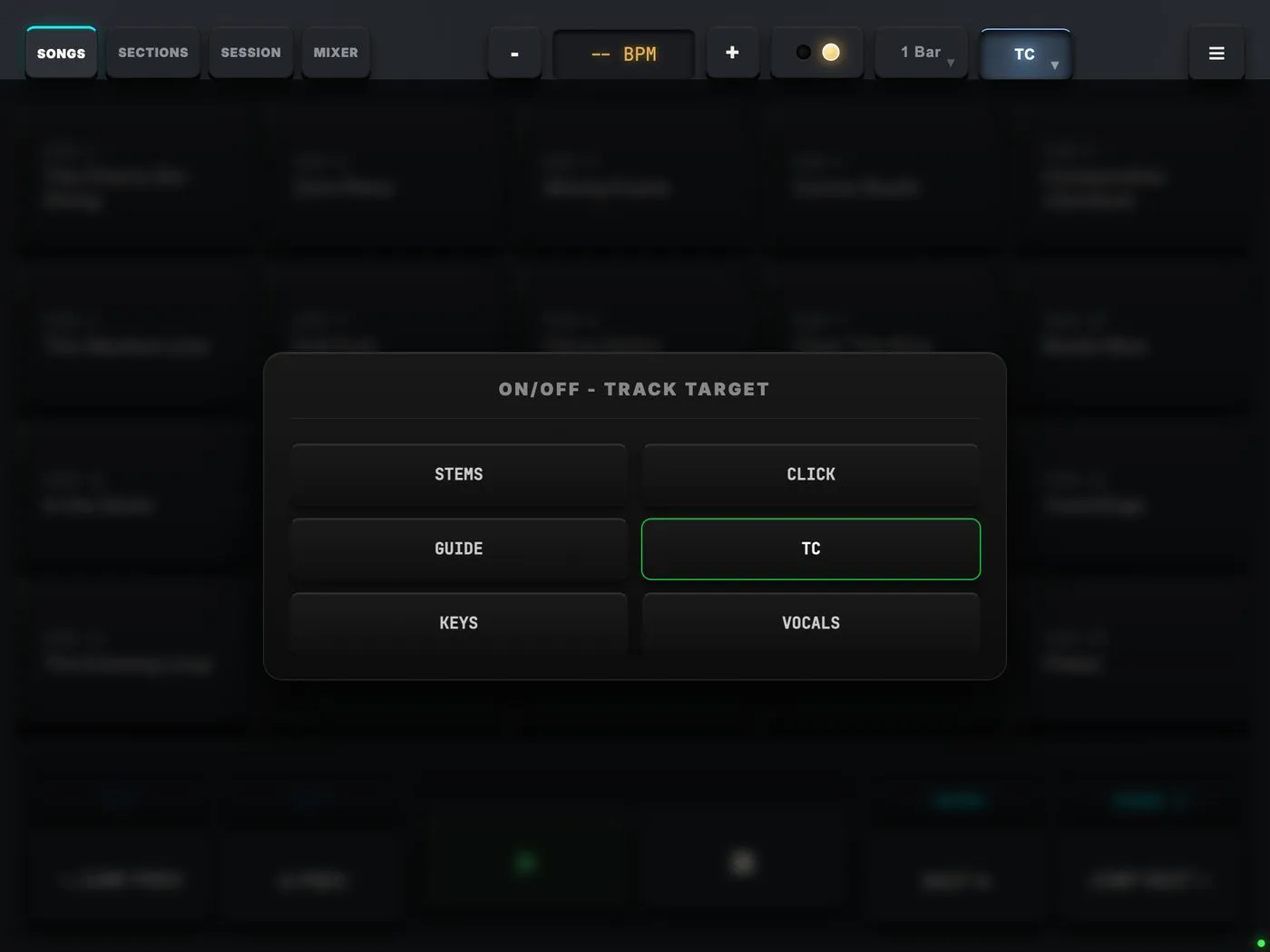
TC stands for Track Control. The TC button in the master header is a shortcut that turns one chosen track on and off (it mutes and unmutes it) from the Songs header, without opening the Mixer.
It is normally pointed at the track that has to be silenced fastest during a show: the click
or timecode track. Name that track TC and the button finds it on its own.
Choosing the target. Press and hold the TC button to open the track selector and pick any track in the Set. The button then shows the first five characters of that track’s name, so the operator can see what it is holding.
How the target is found. Latch Stage looks for a track whose name is exactly the target,
then for any track whose name contains it, and finally, whatever the target, for the first
track whose name contains the letters TC anywhere, capitals ignored. That last step also
matches names such as Latch Stage - Actions or Pitch, so keep the target’s name unique and
do not rename the track it points to.
8.5 Smart LocatorsSoloStandardSuite#
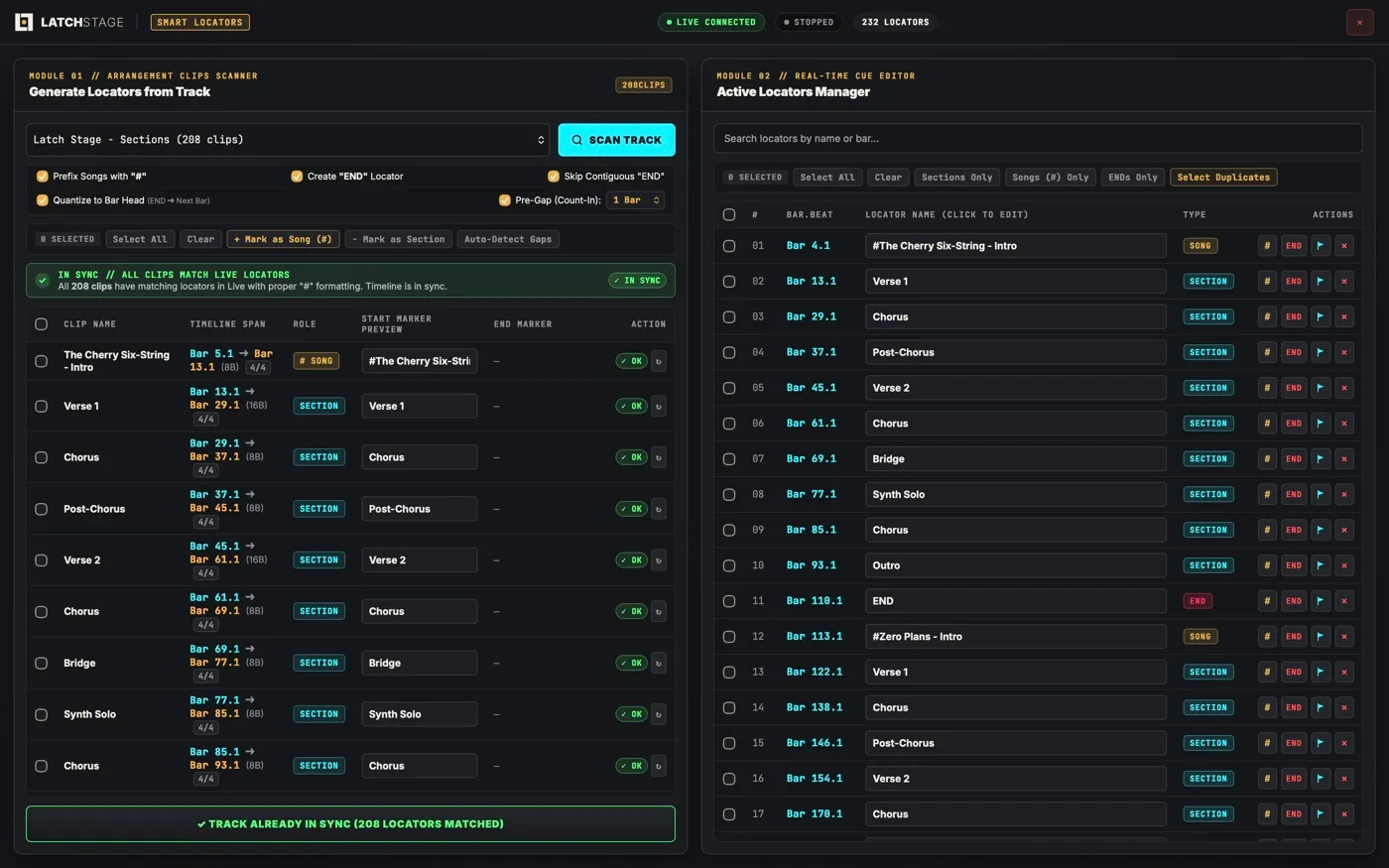
Latch Stage - Sections track, each with its bar span, its role and the name it would write; the manager on the right lists what the Set actually contains. The green banner reports that the two agree, and the header shows Live connected and the transport stopped, the state in which the batch operations are allowed to run.Naming locators by hand, as §8.2 describes, works, but stops being reasonable somewhere around the fortieth one. Smart Locators builds them from the clips you already have.
Open it from the tray menu (Open Smart Locators), from the application’s own screen, or
at /locators in a browser. It is available in every edition.
The idea. In most Sets the arrangement already says where the songs are: one clip per
song, or a run of clips per song. Put those clips on a track named Latch Stage - Sections
(§8.1) and Smart Locators turns each clip into the locators it implies: a # locator at the
clip’s start and an END at its finish.
Scanning#
Smart Locators works on one track only: Latch Stage - Sections. There is no track to
pick. The top of the window shows the track it found and its state, and follows Live as you
work. Adding, deleting or renaming a track updates it at once:
| State | Meaning | SCAN TRACK |
|---|---|---|
READY (N CLIPS) | One Latch Stage - Sections track, holding N clips | Enabled |
NOT DETECTED | No track with that name in the Set | Disabled |
DUPLICATE (N TRACKS) | Two or more tracks with that name | Disabled |
SCAN TRACK asks Live for the clips of that track and lists them with their start, end
and length. Nothing is written to the Set at this point: scanning only reads. The clip names
can then be edited, songs marked with #, and roles switched between song and section.
No other track can be scanned, and no clip on any other track is ever renamed: the window has no way to choose one, and the Remote Script refuses the request as well. A guide track or a click track is left exactly as it is.
If the track is renamed or deleted in Live, the clips already scanned are cleared and
every button that would act on them is disabled, so nothing is written from a list that no
longer matches the Set. If a second track takes the same name, a Duplicate Sections Tracks warning opens and Smart Locators stays locked until only one is left. Renaming or
removing the extra track unlocks it straight away.
Deciding what each clip means#
The list is editable before anything is created. Each clip is either a song, which gets
the # prefix and becomes a setlist entry, or a section, an internal part of the song
that came before it.
Auto-Detect Gaps decides this for you, and also runs by itself on every SCAN TRACK. The rule it applies is the one you already followed by ear when you built the arrangement:
- A clip with empty space before it starts a new song.
- A clip that butts up against the previous one is a section of that same song.
- A clip that butts up against the next one gets no
END, because the song has not ended there.
“Butting up against” means a gap under 0.25 beats (a sixteenth note). Anything tighter than that is not a gap you meant to leave.
You can override any of it: mark clips as song or section in bulk, type a custom name for
the start or the end locator of any clip, or write - or NONE (in capitals) as the end name
to suppress that END entirely. Pressing Auto-Detect Gaps again, or scanning again,
discards those changes. A clip whose name already starts with # is always read as a song.
These options govern the batch as a whole:
| Option | Effect |
|---|---|
| Prefix Locators with ”#” | On by default. Gives the locator of every clip marked as a song a leading # |
| Prefix Song Clips with ”#” | Off by default. Also renames the song clips themselves on Latch Stage - Sections in Live, adding the #. In Arrangement Clips mode this is the one that counts, because locators are never named |
| Create “END” Locator | Creates the closing END locator for each clip |
| Skip Contiguous “END” | Leaves out the END when the next clip starts where this one finishes. Auto-detection already gives such clips no END, so switching this off does not bring those back |
| Quantize to Bar Head | On by default. A start locator up to 0.45 beats after a downbeat moves back onto it; otherwise it moves to the nearest beat, if one is within 0.45 beats, or stays. An END already on a beat (within 0.05) stays; any other goes forward, to the head of the following bar |
| Pre-Gap (Count-In) | Places song locators 1 to 4 bars early, so launching one gives the band a count-in before the song proper |
Quantize to Bar Head exists because a clip dragged by hand rarely lands exactly on the grid, and a locator a few ticks off the downbeat is a locator the transport can arrive at late. The rounding follows the time signature in force at that point in the timeline, not a fixed four beats, so it stays correct across meter changes.
Pre-Gap is the one to reach for when songs are launched live. A locator sitting exactly on the first note leaves nobody time to breathe; the same locator two bars earlier gives the drummer a count-in, and the song still starts where it always did.
Creating and deleting#
Creation and deletion both run as a verified batch: Latch Stage writes one locator at a time, checks that Live actually took it, and only then moves to the next. A progress bar and a running log show what is happening, and the playhead is returned to where it was when the batch finishes.
The list on the right side is the Set’s real locators. From there you can rename one, delete
one, delete a selection, or add and remove the # prefix across many at once. Search
filters by name or by bar.
Neither operation runs while Live is playing. Both refuse with a message, and a banner in the window shows the transport state at all times (
STOPPEDorPLAYING). This is deliberate: writing locators moves the playhead, and moving the playhead during a show is not something an application should decide to do.
Large Sets are handled: the reply from Live is split into chunks before it crosses the local network socket, so a four-hundred-locator arrangement arrives intact rather than being silently truncated.
On Live 11, Smart Locators cannot name a locator. Live 11 does not let a script change a locator’s name, so locators it creates keep Live’s numbers and a rename does not reach the ruler. Live 12 has no such limit. On Live 11, set Setlist Source Mode to Arrangement Clips (§8.1): there the names belong to the clips of
Latch Stage - Sections, which Live 11 does allow a script to rename, and numbered locators are exactly what the mode expects.