
SongsSoloStandardSuite
The main screen, and the only view in Solo. This is where the show is run.
The view is called Songs because it lists what you launch. Setlist is kept for the running order itself: the order the songs play in, edited in Sections View (§11) and read by the Stage Setlist page (§12) and by Setlist Source Mode in Settings (§8.1).
10.1 The song grid#
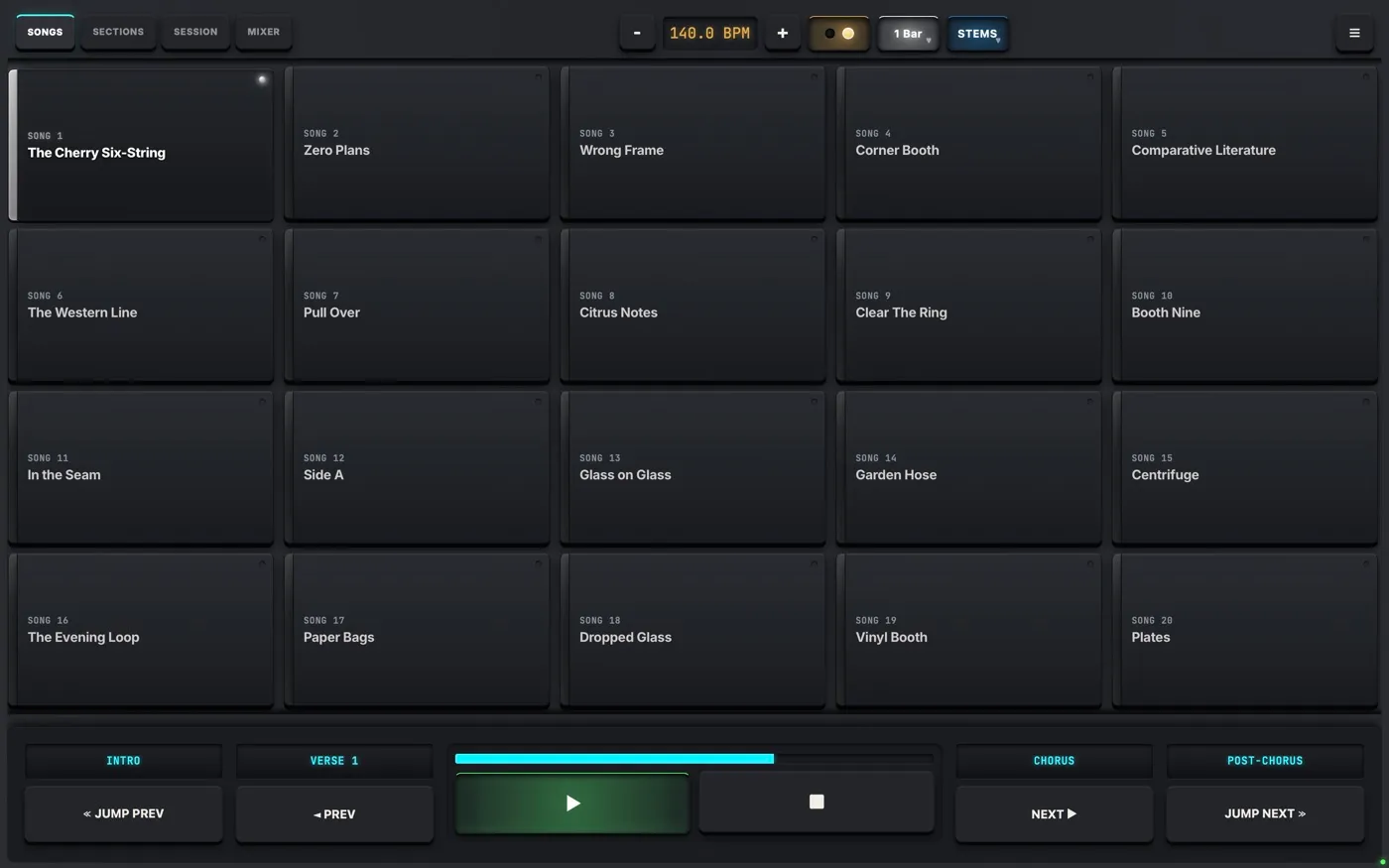
STEMS track, and the transport names the sections on either side of the playhead.Each song is a large button carrying its colour, its number in the Set (SONG 1, SONG 2,
…) and its title. The number stays with the song when the setlist is reordered in Sections
View, so it can differ from the button’s position in the grid. Appearance reports state:
| Appearance | Meaning |
|---|---|
| Pulsing | Fired, waiting for the quantisation point |
| Solid highlight | Playing now |
| Dimmed, struck through | Already played in this session |
| Normal | Not yet played |
Played marks are kept in memory and are not saved. In Timeline mode, and in Session mode when scenes use # names, a song is marked once it is actually playing, not when it is tapped (and lyrics arriving while stopped do not strike through the song). In legacy Session mode without #, the Remote Script marks a scene when it is fired. Marks clear when reloading in Timeline mode, or when another project opens in Live or Live closes. No button and no Input Map action clears them mid-show.
The grid follows the show, scrolling the playing song into view, until the operator scrolls by hand; at that point automatic scrolling stands aside.
10.2 Launching a song#
Tap the song button.
- Timeline mode: playback jumps to the song’s first locator, respecting the global quantisation setting.
- Session mode: when scenes use
#naming, tapping launches the first section of the song, respecting Live’s clip trigger quantisation. In legacy Session mode (without#), tapping fires the scene directly.
10.3 The transport bar#

INTRO is the section behind, VERSE 1 the one playing (PREV returns to its start), and CHORUS and VERSE 2 lie ahead. The current section's progress runs above the play buttons.Six buttons, with a progress bar in the centre above Play and Stop:
| Control | Action |
|---|---|
| ≪ JUMP PREV | Jump to the previous locator |
| ◄ PREV | Return to the start of the current locator — a restart, not a step back |
| Play / Stop | Start and stop Live’s transport |
| NEXT ► | Jump to the next locator |
| JUMP NEXT ≫ | Jump forward two locators |
Above each jump button a small display names the locator that button leads to, so the operator sees the destination before committing. The progress bar above Play and Stop fills across the current section.
PREV is a restart. It takes the band back to the top of the section they are in, which is the move you want after a false start. To go back one section, use JUMP PREV.
Muted sections are skipped. When the Sections View has rebuilt a song’s route (Chapter 11), every jump follows that route: a section muted there is passed over by JUMP PREV, NEXT and JUMP NEXT alike, and the displays above the buttons never name it.
In Session mode when scenes use # names, the transport buttons and displays follow the scenes and route edits exactly as in Timeline mode: PREV restarts the current scene, JUMP PREV goes to the previous section, NEXT advances to the next section, and JUMP NEXT jumps forward two sections.
10.4 The master header#

1 Bar and TC.Holds what belongs to the whole show, but not every control shows in every view. BPM, the metronome and Quantize appear in Songs, Sections and Session; Mixer shows its own display in their place. TC appears only in Songs. The header Play / Stop appears only in Sections and Session, because Songs has its own transport bar.
| Control | Action |
|---|---|
| BPM with − / + | Live’s tempo. Holding a button ramps the value continuously |
| Metronome | Toggles Live’s metronome. Two LEDs beside it beat in time, as a visual click |
| Quantize (shows the current value) | A tap changes the value at once: 1 Bar → 1/2 → 1/4 → back to 1 Bar, and any other value goes to 1 Bar. Press and hold (about 0.4 s) to open the GLOBAL QUANTIZATION panel: None, 8 Bars, 4 Bars, 2 Bars, 1 Bar, 1/2, 1/2T, 1/4, 1/4T, 1/8, 1/8T, 1/16, 1/16T, 1/32. This is Live’s global launch quantisation and it governs when every jump and scene launch takes effect |
| TC — Track Control | Tap to turn the target track on or off (mute / unmute). Press and hold to open the selector and choose a different track. Default target: a track named TC (§8.4) |
| Play / Stop | Transport, mirrored in the header |
10.5 The sidebar menu#
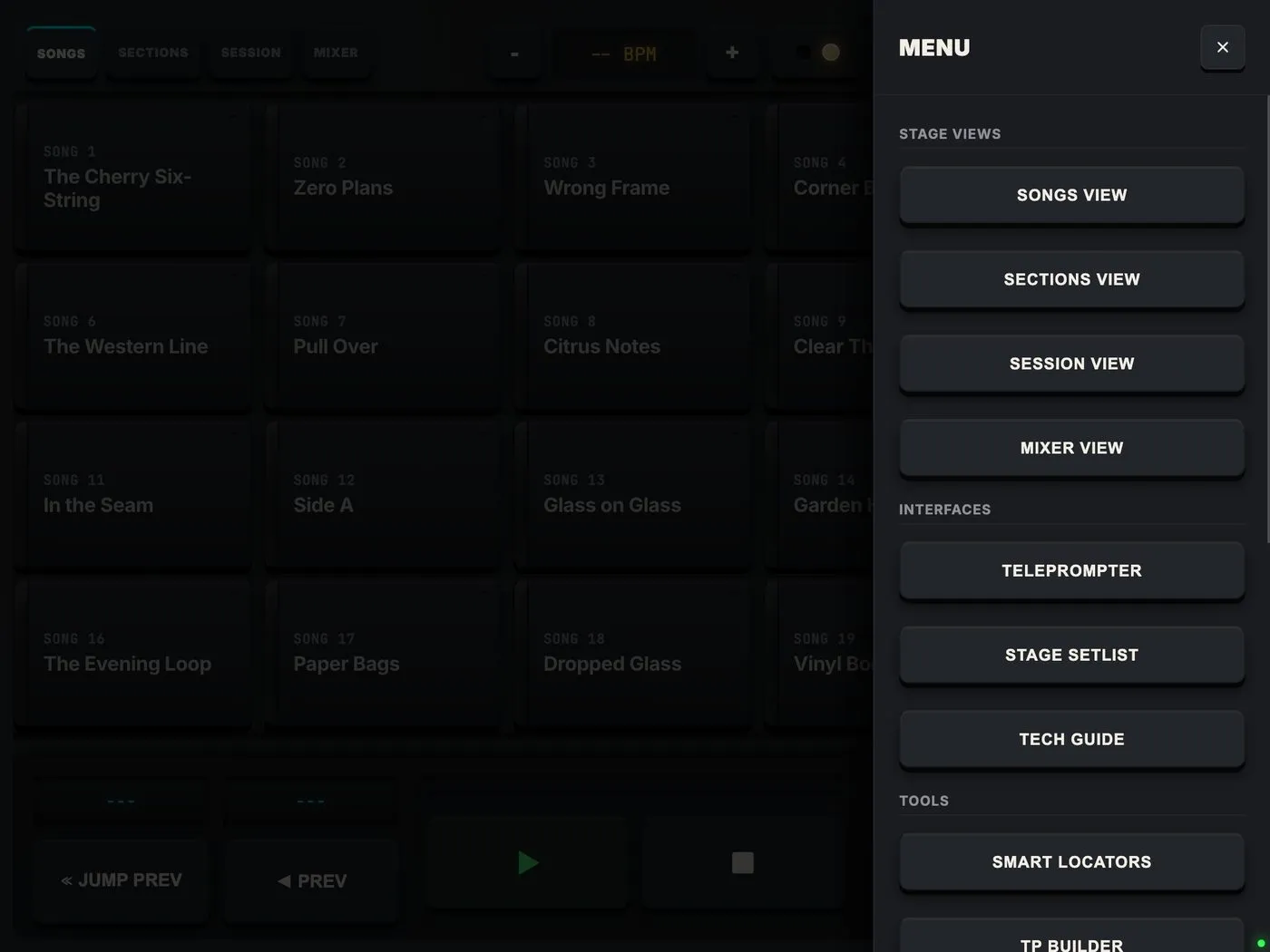
The menu is grouped by what each entry is, not by which edition unlocks it. Entries the edition does not include stay in the menu, dimmed as locked; tapping one opens an upgrade notice. Only the TP and GUIDE QR tabs are hidden when the edition lacks those pages.
| Group | Entries |
|---|---|
| Stage Views | Songs, Sections, Session, Mixer — the views inside this window |
| Interfaces | Teleprompter, Stage Setlist, Tech Guide — the pages meant for other screens |
| Tools | Smart Locators, TP Builder, MIDI/OSC — used in preparation, each in its own window |
| System | Settings |
| Connections | QR codes, address selector and network warning (Chapter 5) |
The division worth knowing is Stage Views against Interfaces. A Stage View switches what this window shows. An Interface opens a page built for somebody else’s screen (the singer’s tablet, the drummer’s phone, the technician’s laptop), and it can be opened here or reached over the network by its own address.
10.6 The show timer#
A timer starts automatically the first time a real song is fired and is shared by every screen that displays it: the Teleprompter’s setlist overlay, the Stage Setlist page and the Tech Guide. It resets when a different project is loaded or Live closes. Nothing needs to be started or stopped by hand.