
Stage TeleprompterStandardSuite
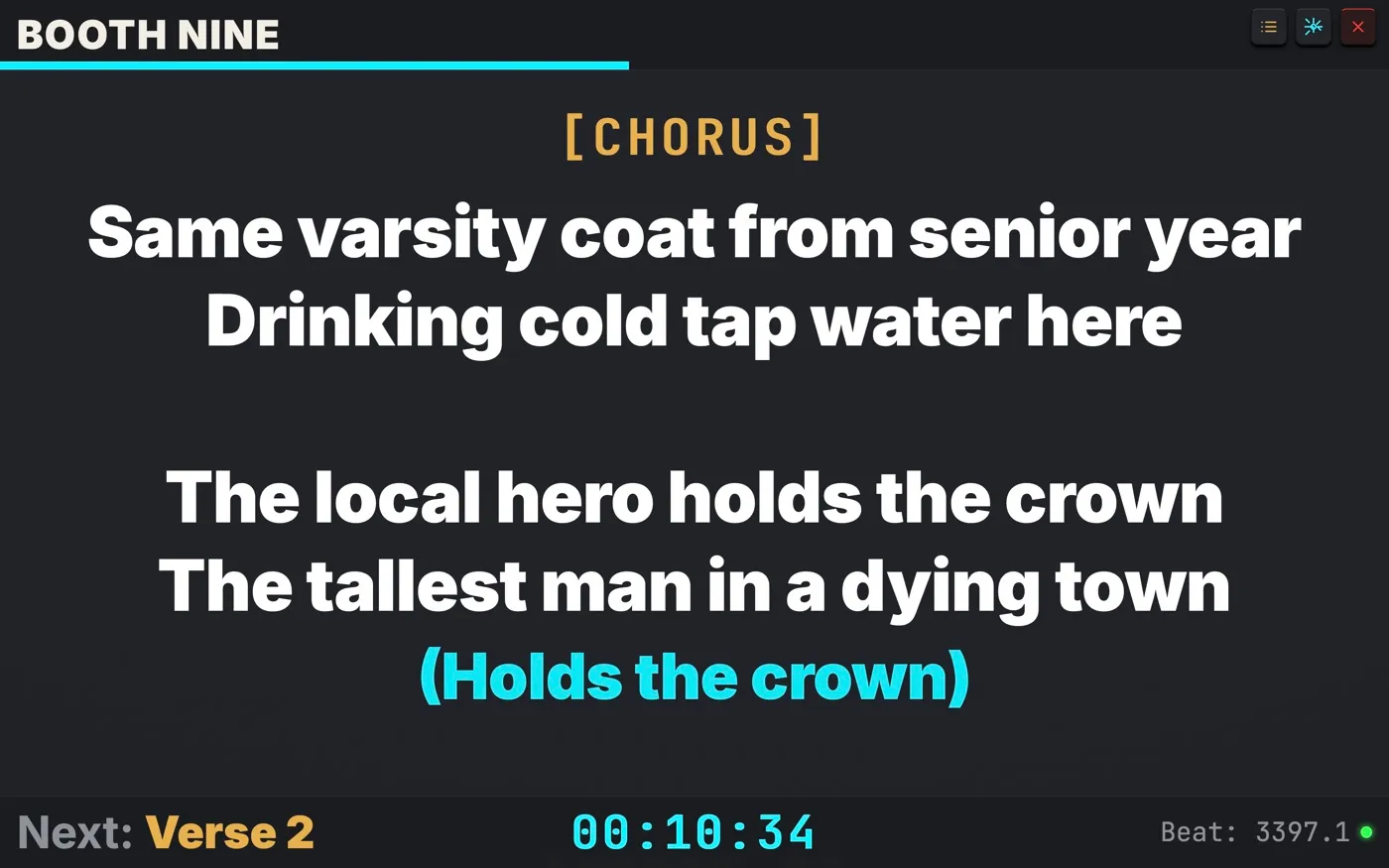
The Teleprompter (/tp) shows the lyrics of the song being played, in sync with Live, in a
form legible from a distance under stage light.
13.1 How a lyric file is found#
Lyrics are plain .txt files in the folder set at Settings → Core Engine & Connectivity →
Teleprompter Lyrics Folder (.txt).
There is no database and no import step: put the files in the folder.
When a song starts, Latch Stage matches its name against the file names, ignoring accents,
punctuation, capitalisation and a leading track number. All of these match the song
#03 - Wrong Frame:
03 - Wrong Frame.txt
Wrong Frame.txt
03-wrong frame.txt
03 – WRONG FRAME.txt
Wrong Frame - Latch Stage Demo.txt
The last one matters in practice: the artist’s name can be appended after a dash and the
file still matches, because the comparison uses the part before it. Naming the files
Song - Artist.txt keeps a shared lyrics folder readable without breaking the match.
A dash only separates when it has spaces around it. Wrong Frame - Latch Stage Demo is a title and an
artist; Six-String is one word. So the demo set’s own #01 - The Cherry Six-String is matched
whole, and is not mistaken for a song named “The Cherry Six”. The same holds for –, —, / and
:. Leading track numbers are the exception: 03-wrong frame.txt still matches #03 - Wrong Frame,
with or without the space.
If nothing matches, the Teleprompter shows the song title and a LYRICS NOT FOUND banner naming the song, so the problem is visible on stage rather than silent. The folder it searched is written only to the terminal log.
13.2 The lyric file format#
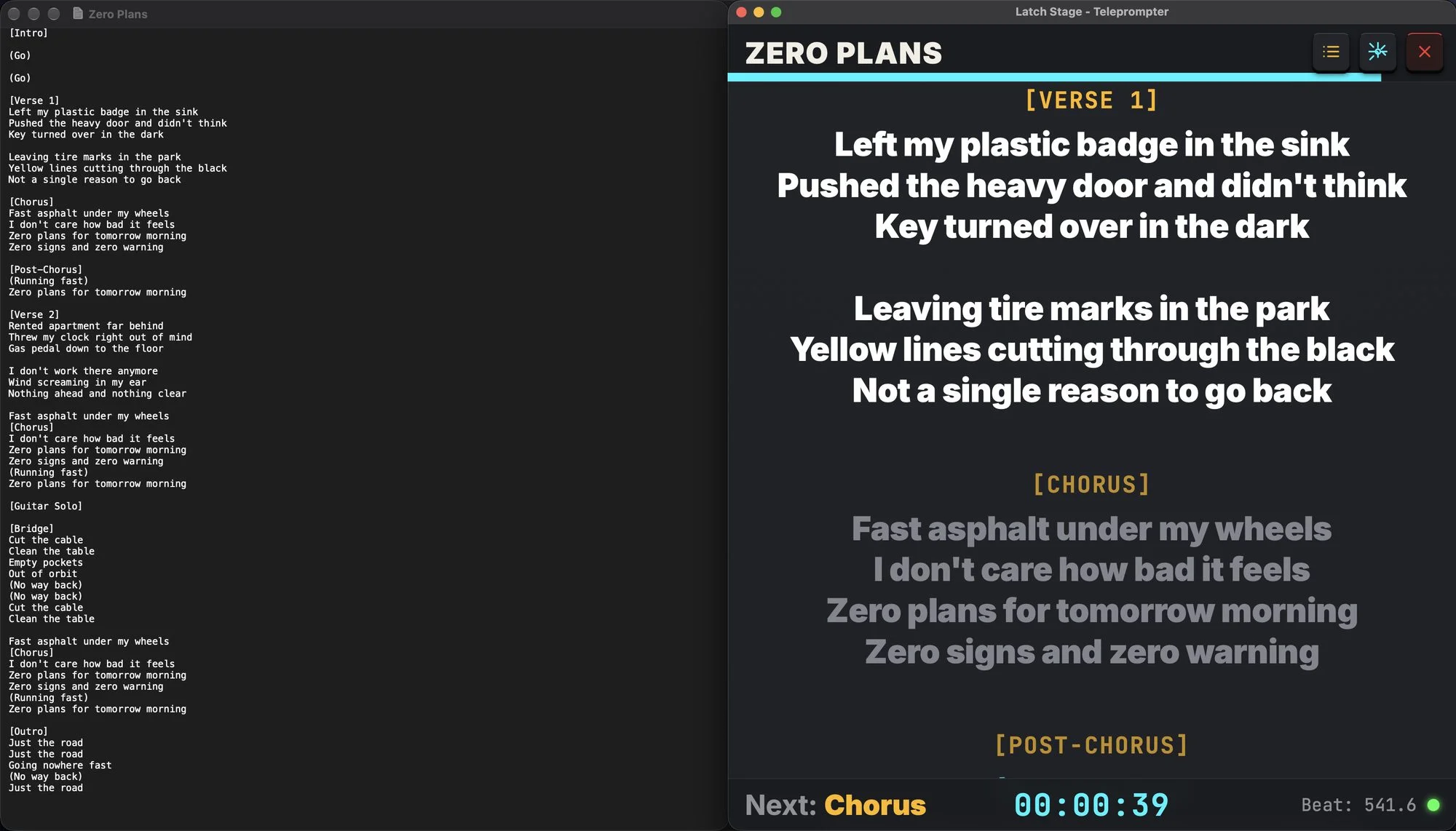
.txt file beside the screen it produces, so each marker can be matched to its result.| You write | It means | Shown as |
|---|---|---|
[Chorus] | Section tag. Marks where a section starts and links it to a locator | Section heading, in the tag colour |
_[Intro]_ | Static section. The block does not scroll, and its text is sized automatically to fill the screen | Static block, auto-fitted |
_[Intro|80]_ | Static section at a fixed size in percent (100 = normal). Supplying a value switches the auto-fit off | Static block, fixed size |
(backing vocals) | Chorus / backing line | Own colour, on its own line |
{third voice} | Voice 3 line | Own colour, on its own line |
**cue: guitar solo** | Instruction, not sung | Own colour, uppercase, between asterisks |
| A blank line | Spacing | Blank line |
About static sections. A section written as _[Tag]_ is measured against the space
between the top bar and the information box, and its text is enlarged until it fills that
area, as large as it can be while still fitting the screen. This is the form to use for an
intro, a coda or any block that must be read at a glance, and it adapts by itself to each
device’s screen size.
The percentage variant _[Tag|80]_ exists for the rare case where a fixed size is wanted,
and it turns the automatic sizing off. 100 is the normal size, 80 is smaller, 140 is
larger. The TP Builder’s [ ] Static button inserts the plain form; the percentage has
to be typed by hand.
Parentheses and braces may run over several lines; the colouring continues to the closing mark.
[Intro]
**count 4 — pad enters**

[Verse 1]
The night is over
(the night is over)
and the morning comes

[Chorus]
Hold on
{hold on, hold on}
13.3 How lyrics stay in time#
Section tags are matched to locator names. When [Chorus] matches a locator named
Chorus, the Teleprompter knows the exact beat that section begins on and scrolls to it
when playback arrives, including after a jump, a repeat or a skip made in Sections View.
Each tag is looked for among the song’s locators from the previous matched section onwards. The first locator that meets any of these rules is taken:
- The tag equals the meaningful part of the locator name. A leading
#and anything after|are ignored. A spaced-,–,—,/or:splits the name, and the last part is kept unless it starts withBPM,TEMPOorLOC. SoChorus | 4 barsandChorus - BPM 120match[Chorus], butVerse 1 - SoftgivesSoft. - The tag equals the whole locator name.
- One is the beginning of the other, when both are at least three characters:
[Chorus]matches a locator namedChorus 2.
Sections that match no locator simply follow the previous one. The first section of a song
always starts at the song’s first beat. In Session mode with # scenes, lyrics sync with scenes just like Timeline locators: section tags in the lyric file match scene names (#Song - Intro matches [Intro], Verse 1 matches [Verse 1]), scrolling follows the reference clip’s position, and jumps, loops and route edits from Sections View are tracked without reloading between sections. When playback stops, the Teleprompter clears to the
logo and waits.
13.4 The setpoint — where the lyric meets the playhead#
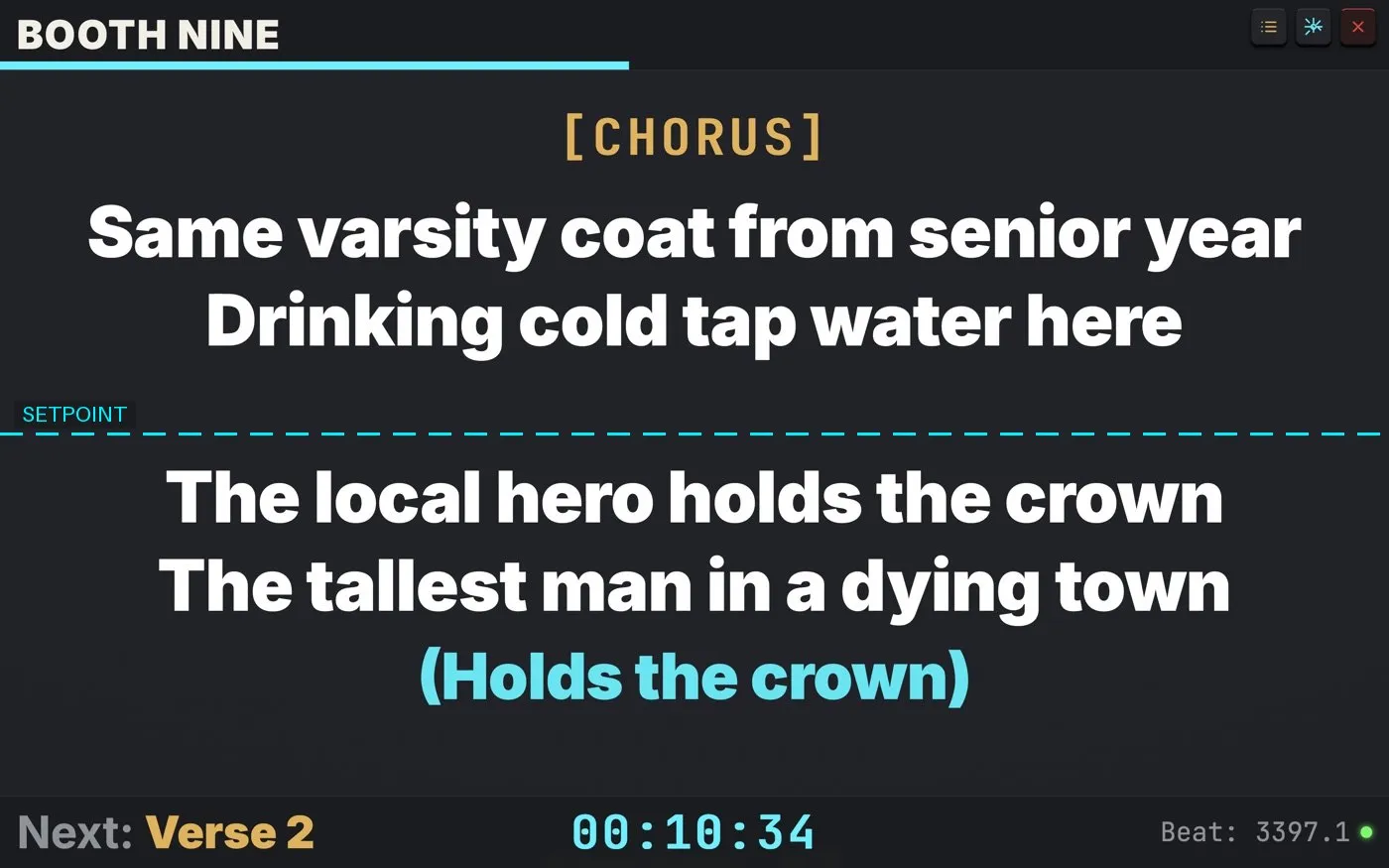
The Teleprompter does not scroll freely. There is one fixed line on the screen, the setpoint, and the lyric moves so that the right words are always on it.
By default the setpoint is the exact vertical centre of the screen. It is not drawn on screen (it is a position, not a line you can see), and it is the zero mark of the whole module: the instant the playhead reaches a section’s locator, that section’s first line is on the setpoint.
From that anchor, the two kinds of section behave differently:
- A normal section scrolls. Its first line is on the setpoint at the section’s first beat; the text then rises at a steady rate so that, at the section’s last beat, the next section’s first line arrives exactly on the setpoint. The progress bar shows how far through the section the show is.
- A static section holds. The whole block is centred on the setpoint and stays there, without scrolling, until it releases.
Releasing a static section. A static block holds the setpoint until the last locator placed inside it, then slides away over the beats that remain and hands the setpoint to the next section. Putting a locator inside a static section is therefore how the operator chooses when the block lets go; with no locator inside it, the block holds until the section’s very last beat.
Center Offset moves the setpoint, and nothing else. A positive value raises the line above centre, a negative value lowers it, up to 300 px either way. Raise it when the singer wants more of the coming lyric visible below the line; lower it when the screen is mounted high and read from below. It exists twice: in Settings, as Focus Adjustment (Offset), the default for every screen, and in the Teleprompter’s own Local Settings for one device only.
13.5 On-screen controls#
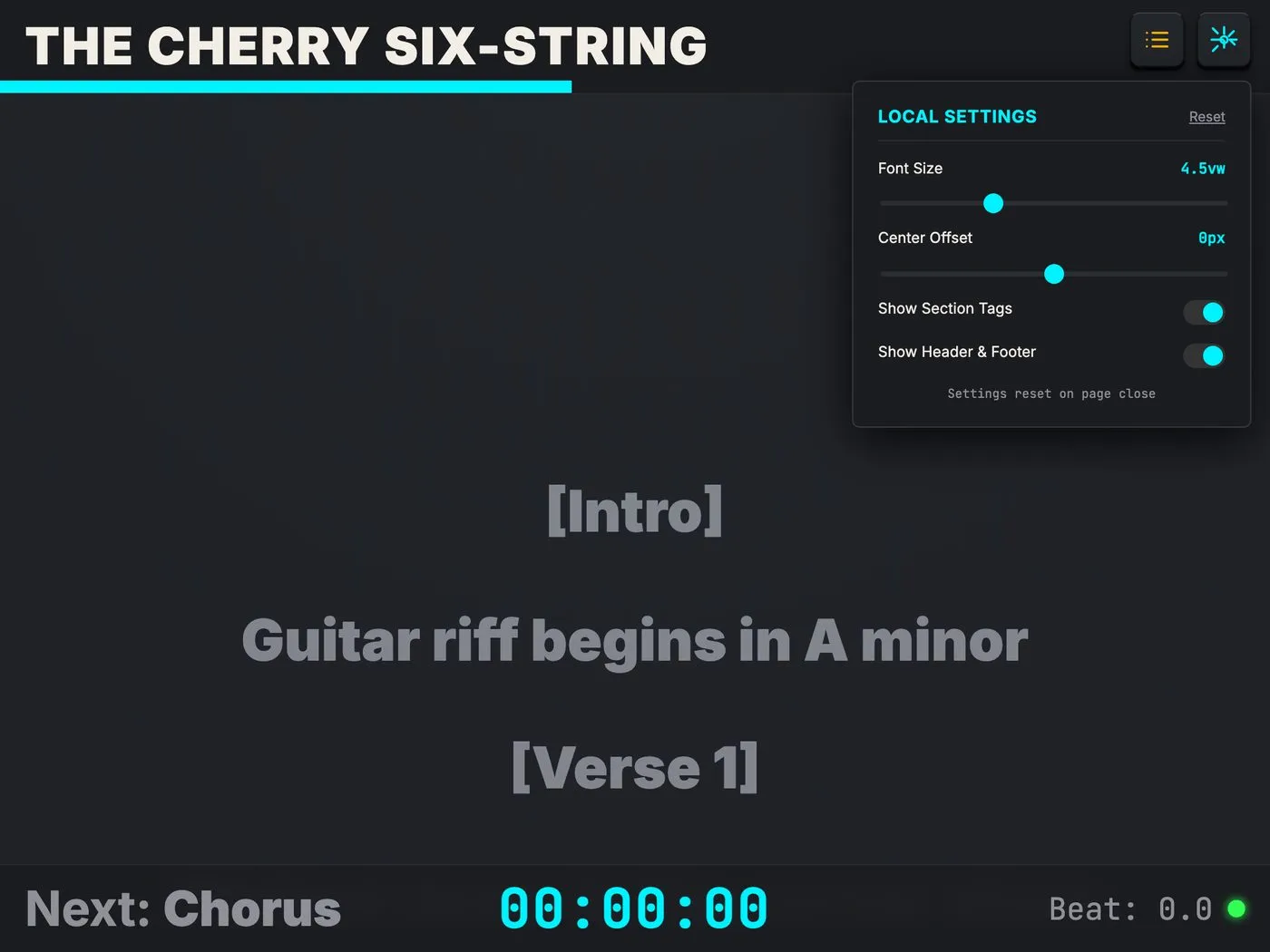
- Setlist. A full-screen setlist overlay with the show timer, from which a musician can see the whole show. It is read-only: nothing in it can be launched.
- Local Settings. Has Font Size, Center Offset, Show Section Tags and Show Header & Footer. These are local to the device, so each musician sets up their own screen without affecting anyone else’s. They reset when the page closes; Reset asks for confirmation (RESET SETTINGS) and then restores the server’s values as they were when the page was opened.
Show Header & Footer hides the title bar and the footer (Next, the timer and the status light). The section progress bar stays as a thin strip along the top edge, and the Setlist, Local Settings and Close buttons fade out; a tap near the top brings them back for a few seconds. It is for the screen that must be read from furthest away, where every line of height counts.
- Close.
13.6 Global appearance settings#
Settings → Typography, Chords & Section Formatting sets the defaults for every Teleprompter screen: base font size, centre offset, whether section tags are shown, whether the header and footer are shown, and a colour and relative size for each of the four text kinds (chorus, voice 3, tags and instructions).
Settings → Stage Monitor & Teleprompter Routing chooses the monitor the Teleprompter opens on when launched from the host machine (Teleprompter Screen), and whether it opens automatically at startup (Auto-launch TP on Start). IDENTIFY puts a numbered badge on each display so the right one can be chosen with certainty.