
Sections View and the Virtual Route EngineStandardSuite
Sections View lets the operator rebuild the shape of a song (skip a verse, repeat a
chorus, loop a section, reorder the setlist) without editing the Ableton Set. The Set on disk is never modified. It works in Timeline mode and in Session mode (when scenes use # naming).
11.1 The screen#
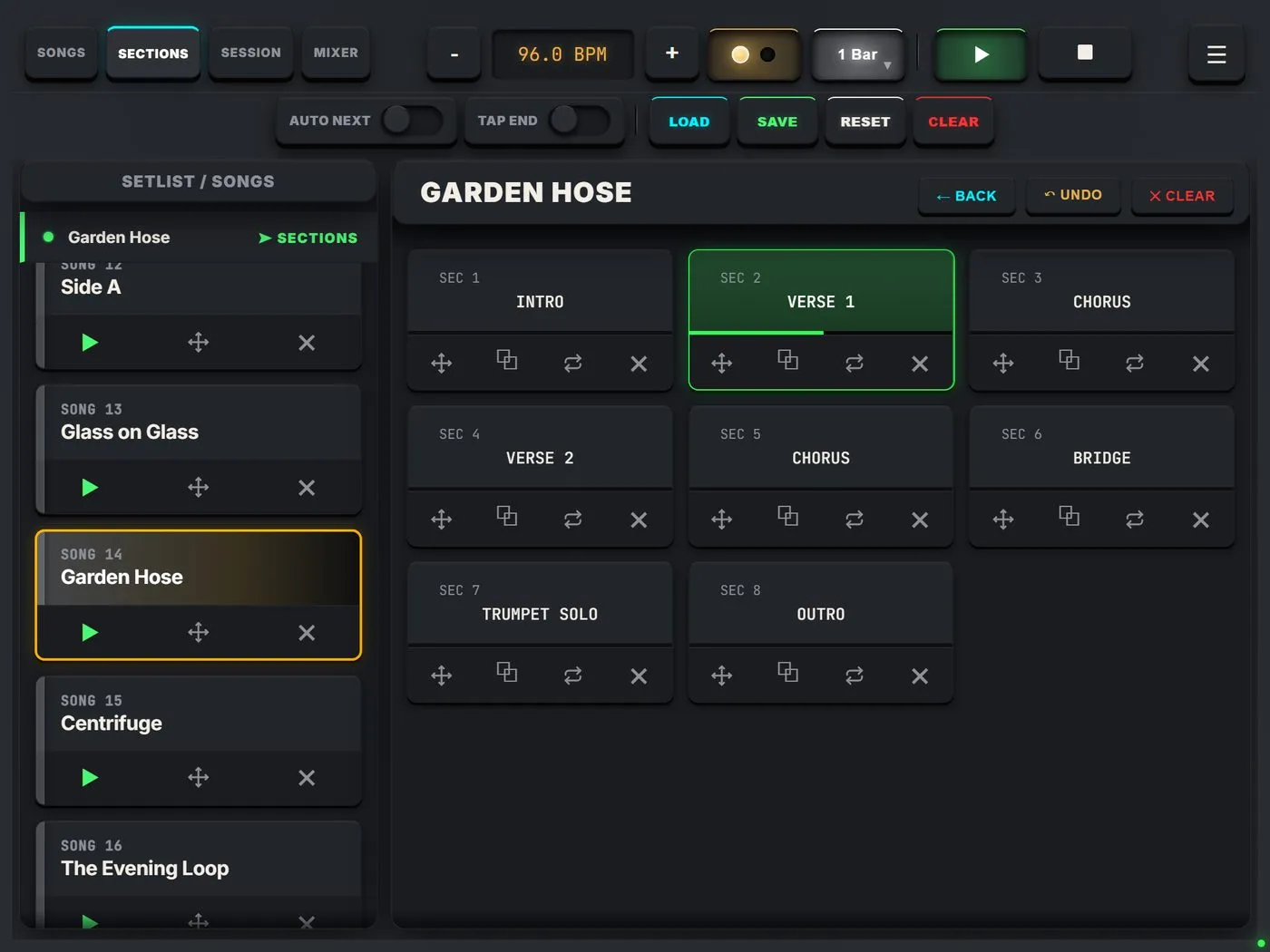
Left: SETLIST / SONGS. Every song, in play order, with a banner naming what is playing. Each song card carries four controls:
| Control | Effect |
|---|---|
| ▶ (play) | Launch the song |
| SECTIONS ➔ | Open this song’s blocks in the right-hand panel |
| Drag handle | Move the song to another position in the setlist |
| ✖ Mute | Take the song out of the show. It stays in this list, dimmed, but is skipped and disappears from the Songs grid |
Songs whose internal route has been edited are marked, so the operator can see which songs no longer run as the Set has them.
While a song’s blocks are open, the cards drop SECTIONS ➔ to make room. To open another song, press ← BACK to return to the full list; to open the song that is playing, tap the banner.
Right: the block grid. One card per locator in the selected song, in play order. These are the blocks. The header names the song and has ← BACK, ↶ UNDO and ✕ CLEAR.
11.2 What you can do to a block#
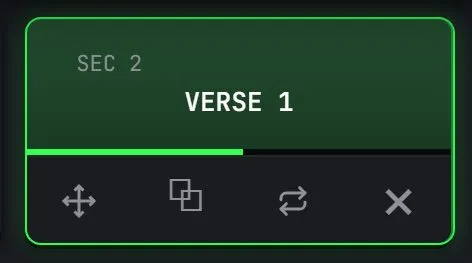
| Control | Effect |
|---|---|
| Drag handle | Move the block. The song plays the blocks in the order shown, not in timeline order |
| ⧉ Clone | Duplicate the block. The original and its copies share a family colour, so repeats are visible at a glance. This is how a chorus gets played twice |
| Loop | Loop this block indefinitely; Live’s loop brackets are set to the block’s exact range. Only one block loops at a time, and launching a song or firing any block clears it |
| ✖ Mute | Skip the block |
| Delete | On cloned blocks only: remove the copy |
Each block also carries a progress bar that fills as the section plays.
11.3 How the route is executed#
The route is a set of instructions carried out by the Remote Script inside Live, in real time:
- While a block plays, the engine watches the playhead.
- One bar before the block ends it looks at the next block in the route. If that block is the one that naturally follows on the timeline, nothing happens and playback continues without a break. If it is somewhere else (a clone, a reordered block, the block after a skipped one), the engine jumps there, so the move lands on the bar line.
- A muted block is left immediately, without waiting for its end.
- A looping block sets Live’s loop over its own range and stays until the operator moves on. Turning off a section loop disarms the loop watchdog cleanly, preventing unwanted re-activation.
- Route sync tracks blocks by id: Moving or dragging a cloned block before its original keeps the currently playing block lit and preserves playback position without restarting the section.
- Session mode precedence: In Session mode with
#scenes, route edits (muted sections, clones, reordered blocks, loops, and TAP END) override Ableton Live’s Follow Actions on those scenes by triggering the target scene in the final quantisation window. If a section is unedited, Live’s Follow Actions run as programmed. - If the route runs out of unmuted blocks, playback stops.
11.4 Firing a block by hand#
Tapping a block jumps to it, obeying the global quantisation in the master header.
11.5 TAP END#
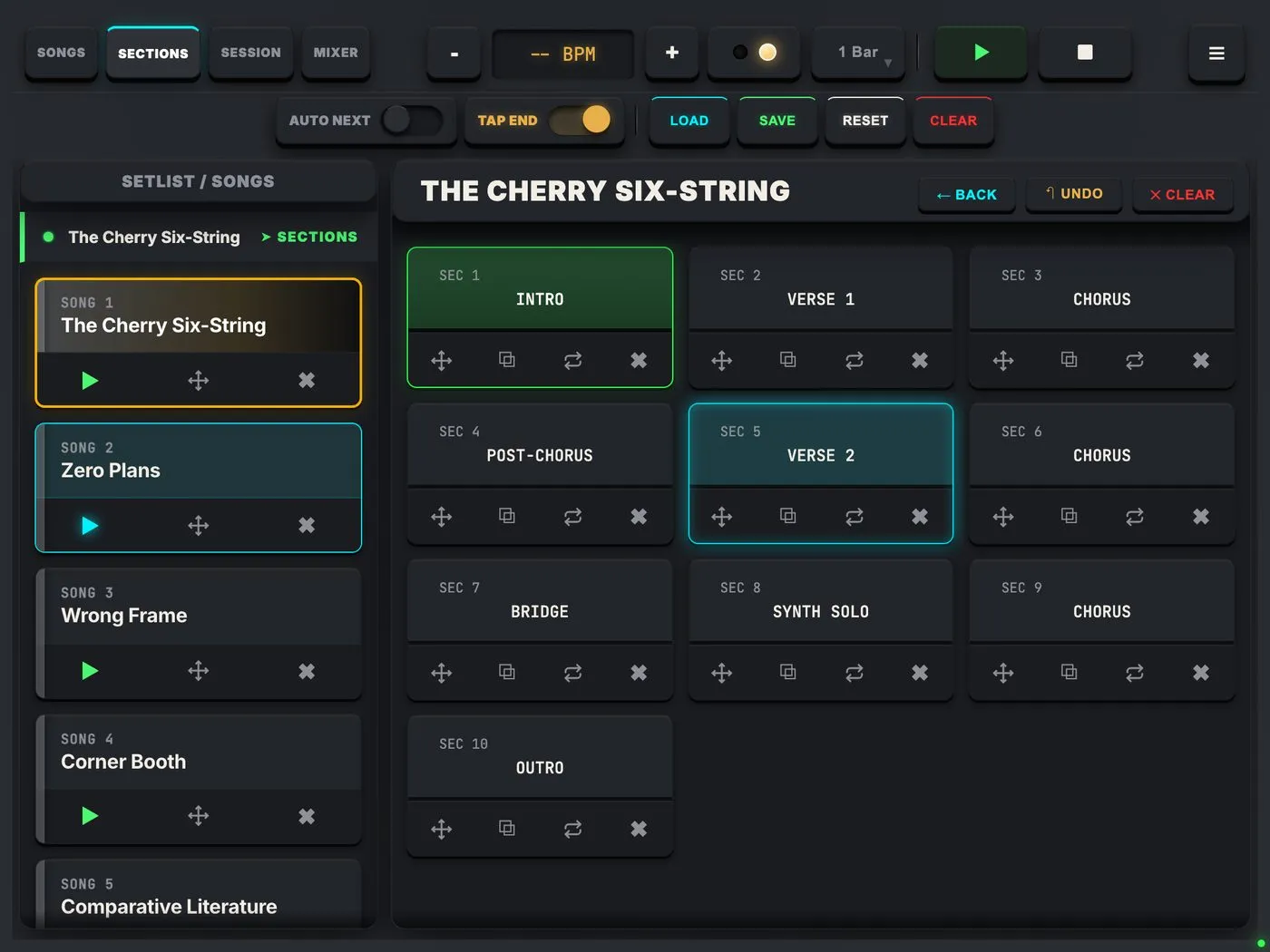
With TAP END off, tapping jumps at the next quantisation point.
With TAP END on, tapping arms the destination instead: it starts pulsing in cyan and the move happens only when the section currently playing reaches its end. This is the mode for playing with the band rather than against them: the operator chooses the destination during the verse, and the move lands on the downbeat of the next section.
Arming needs Live to be playing: while it is stopped, a tap acts as it does with TAP END off. The switch belongs to each screen: turning it on on one tablet leaves it off on the others, and it is off again when the page reloads.
What can be armed
| What you tap | What gets armed |
|---|---|
| A block in the song grid | That section |
| ▶ on a song in the setlist | That whole song |
The armed section always plays to its end. Once something is armed, Latch Stage stops everything in the Set that could cut the current section short or send playback elsewhere before the handover:
| Ignored while armed | Where it would have come from |
|---|---|
STOP | An Actions clip — and a locator named STOP, END or left unnamed |
LOC | An Actions clip |
LOOP being switched on | An Actions clip |
SCENE | An Actions clip |
NEXT SONG | An Actions clip, and the Auto Next anticipation |
| The automatic jump to the next block | The Virtual Route Engine |
Actions commands and STOP / END locators that are suppressed are written to the terminal
log as [TAP-END] … IGNORED, and a blocked next-song request as [TAP-END] … SUPPRESSED, so
the operator can see afterwards what the Set had tried to do. The Auto Next anticipation and
the route’s automatic jump are held back without a log line.
The move lands on the quantisation grid. The transition is not fired at the section’s very
last beat. Latch Stage anticipates it by the global Quantize value (one bar when Quantize is
None), so the launch reaches Live in time to land exactly on the grid. Any loop still
running is released first, so playback crosses the boundary cleanly.
Once it fires, nothing can abort it. A protection window covers the beats that remain plus a few seconds; during it, end and stop markers and Actions commands stay suppressed. The arming clears itself as soon as the playhead reaches the new section or song.
The whole transition is carried out inside Live by the Remote Script rather than by the tablet, so its timing holds even if a screen is slow or loses its connection mid-song.
Your own transport always wins. Pressing Stop in Latch Stage, or the spacebar in Live, is never suppressed. It stops the show and disarms the transition.
What disarms it
- Tapping the armed item again.
- Tapping a different item (the arming moves there).
- Tapping the block that is already playing.
- Turning TAP END off.
- Playback stopping.
Leaving the section does not disarm it. If the playhead leaves the section the arming was made from (a NEXT from another screen or a pedal, a jump made in Live), the armed move fires straight away, on the next quantisation point. The tablet drops its cyan highlight, but the jump or song launch still happens.
11.6 AUTO NEXT#
With AUTO NEXT on, reaching the end of a song advances to the next unmuted song instead
of stopping, and a STOP command from an Actions track is intercepted and turned into an
advance. In Session mode with # scenes, AUTO NEXT advances to the first section of the next song when the current song reaches its end (last section or END), overriding Live. This makes the setlist a continuous show.
11.7 The four project buttons#
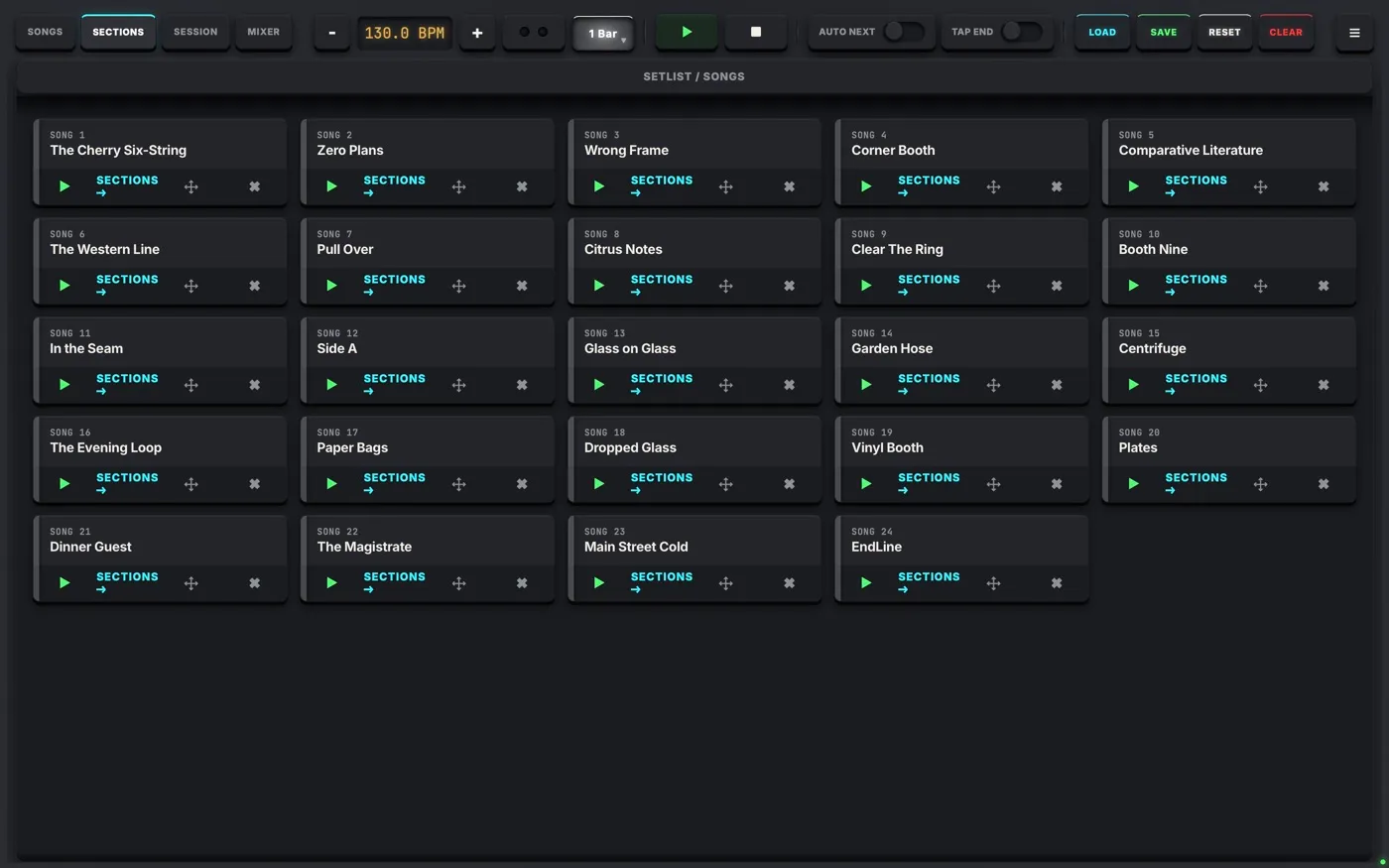
Beside the TAP END and AUTO NEXT switches, the Sections header carries four buttons. They act on the whole project, not on the song open in the panel:
| Button | Acts on | What it does |
|---|---|---|
| LOAD | Everything | Opens the preset list and loads one: routes, setlist order and muted songs, all at once |
| SAVE | Everything | Opens the save dialog — type a name, or tap an existing preset to overwrite it |
| RESET | The setlist order only | Restores the songs to the original Ableton order. Per-song routes and muted songs are kept |
| CLEAR | Everything | Wipes every route, the setlist order, the muted songs and any active loop, returning the show to the Set exactly as it is on disk |
The per-song panel, on the right, carries three more that act only on the song open in it:
| Button | What it does |
|---|---|
| ← BACK | Returns to the song list |
| ↶ UNDO | Steps back through one history of the last 40 route edits made on this screen, shared by all songs. If the latest edit was to a different song, a tap undoes that edit instead and nothing changes on screen |
| ✕ CLEAR | Discards this song’s edits only, restoring the order the Set has |
Two buttons are called CLEAR. The one in the header clears the entire project; the one in the song panel clears the open song. Only the header one is destructive to the whole show, and it acts on touch, with no confirmation. RESET and the song panel’s CLEAR each ask for confirmation first.
11.8 Project presets#
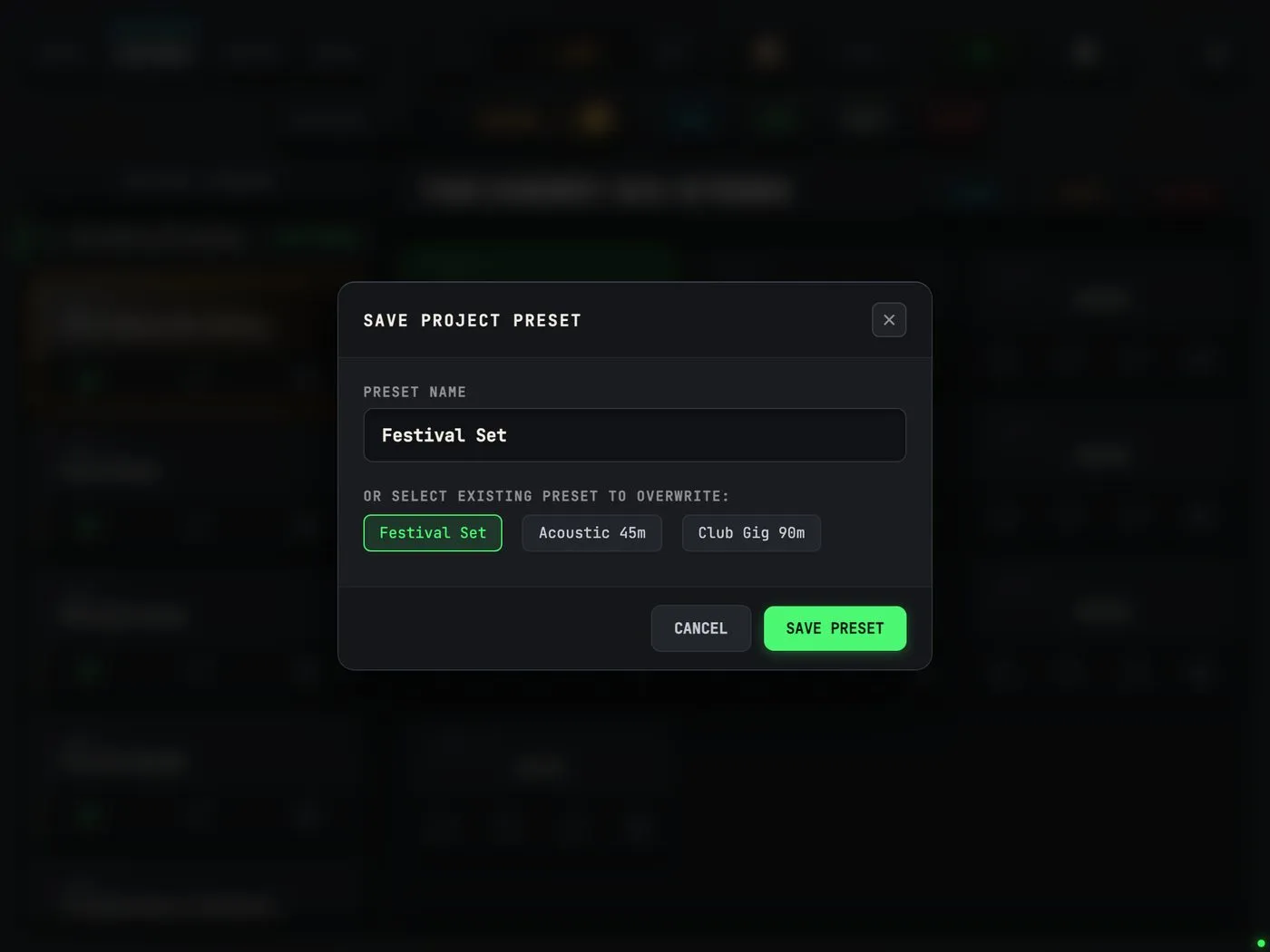
SAVE stores the complete state under a name of your choosing (Festival Set,
Acoustic 45m): every song’s route, the setlist order and the muted songs. LOAD brings it
back.
Presets let one Live Set cover several show formats: build the Set once, then keep one preset per venue length or per line-up.
Where presets are stored. Next to the Live Set, as LatchStage_<SetName>.json in the
same folder as the .als file. Copying a show to another machine means copying that file
along with the Set. If the Set has never been saved, presets go to
Projects/LatchStage_Unsaved_Project.json inside the settings folder (§22.3) instead.