
Installation
What it runs on. Ableton Live 11 or 12, on macOS or Windows.
- On macOS, packages are provided as
.dmgdisk images: one for Apple Silicon Macs (M1 and later) and one for Intel Macs. Both need macOS 11 Big Sur or later. Open the DMG and double-click Install Latch Stage; it installsLatch Stage.appin/Applications. The same window has the How to Install guide and Uninstall Latch Stage. The installer refuses a Mac with the other type of chip. - On Windows, an installer
.exeinstalls the application intoProgram Files\Latch Stageand registers control surfaces across all installed Live versions.
Everything works the same on Live 11 and 12, with one exception in Smart Locators (§8.5).
3.1 First launch and system security notices#
Latch Stage releases are signed ad-hoc and self-verified with an internal cryptographic manifest. Because Latch Stage does not use an expensive corporate platform certificate, your operating system will display a security warning the first time you run the installer:
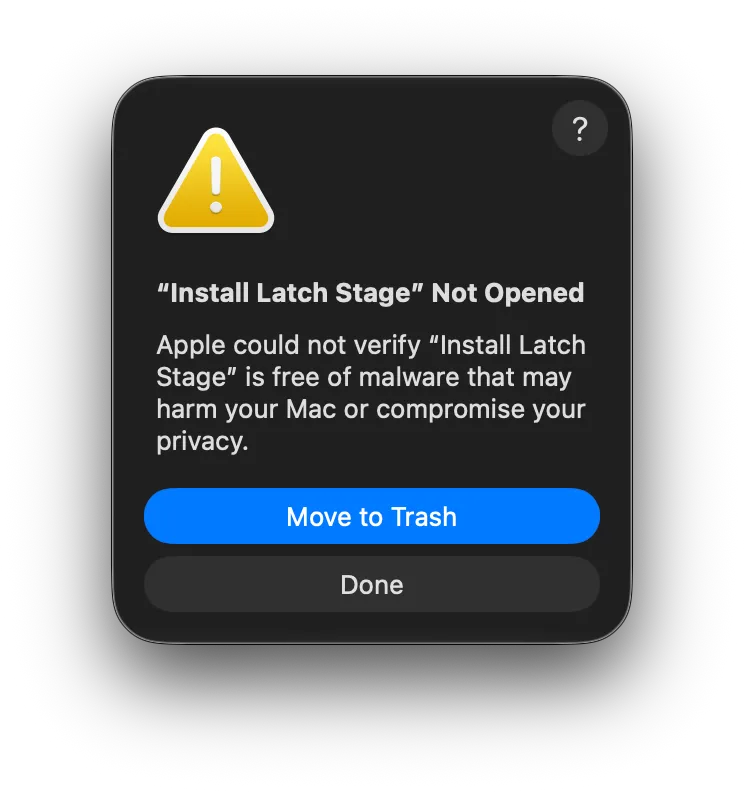
- On macOS: the first time you open Install Latch Stage from the disk image, macOS shows “Install Latch Stage” Not Opened, with the text Apple could not verify “Install Latch Stage” is free of malware that may harm your Mac or compromise your privacy. The notice has two buttons, Move to Trash and Done. Click Done (never Move to Trash), then:
- The notice has no button that takes you there: open the Apple menu (top-left corner) → System Settings… → Privacy & Security (sidebar) yourself.
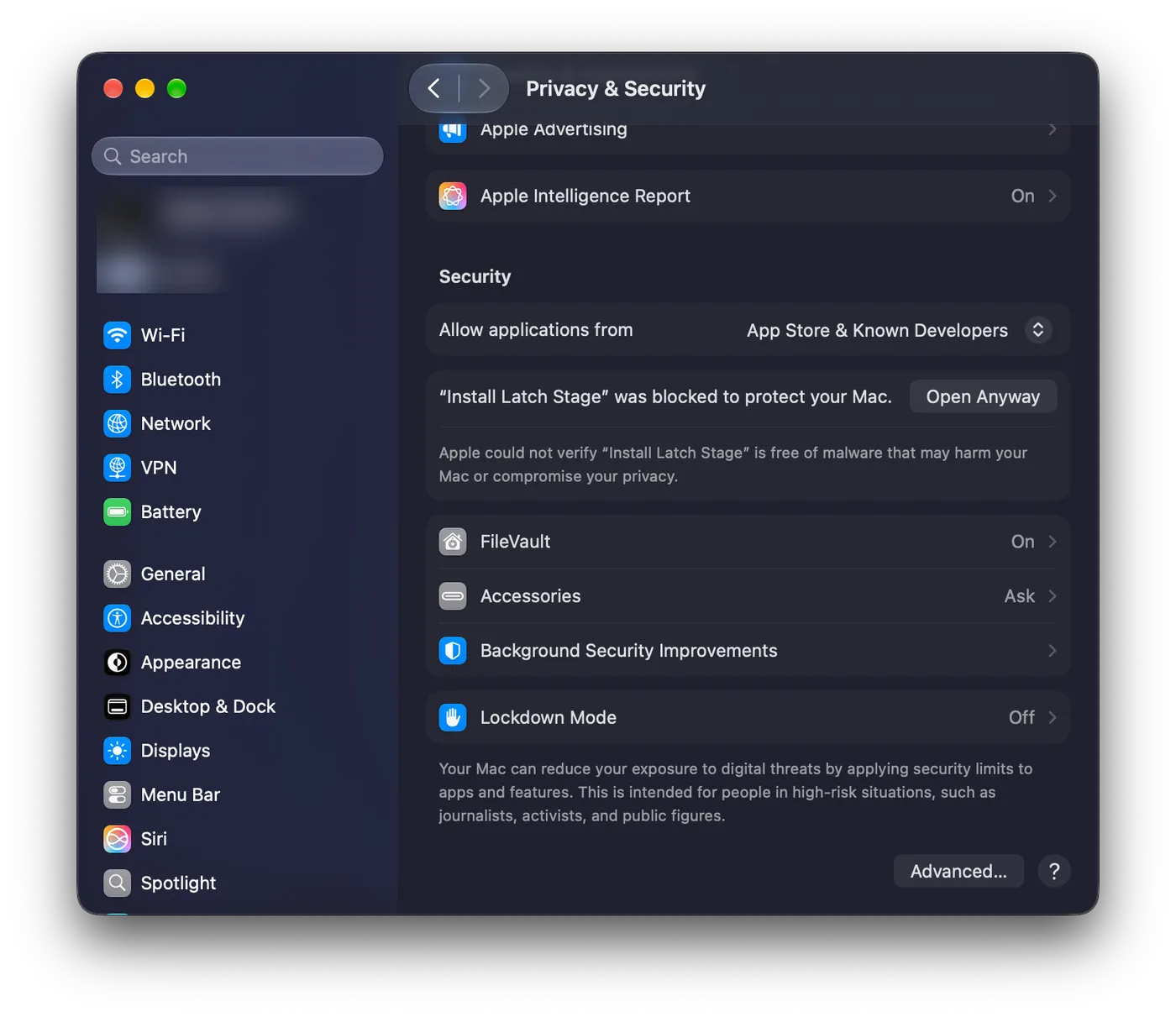
- Scroll to the bottom of the page, under Security. You will see a line saying that “Install Latch Stage” was blocked, with an Open Anyway button. Click it.
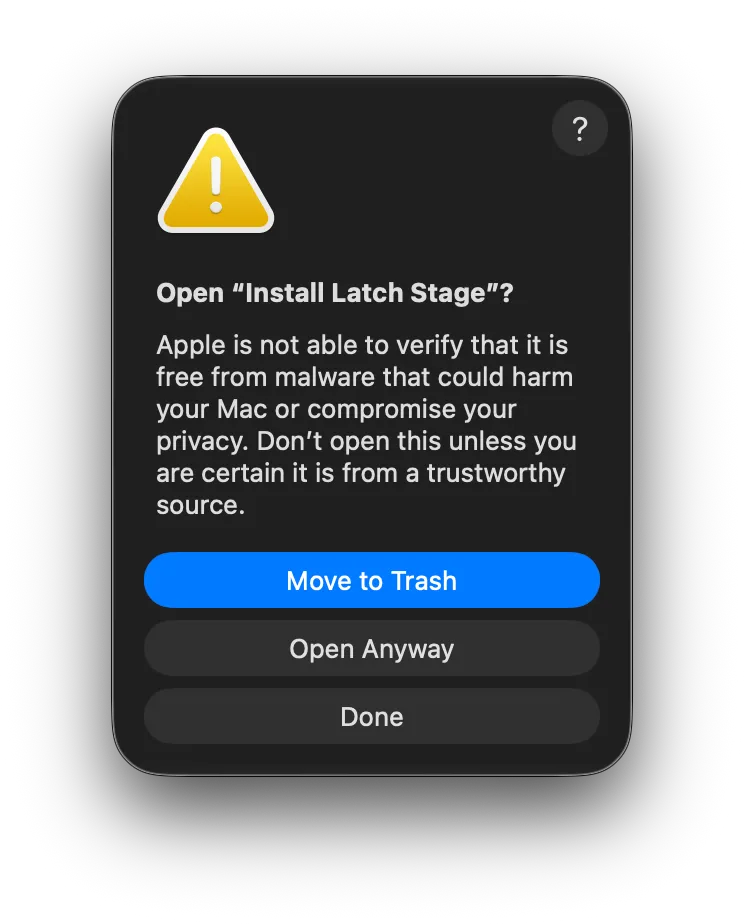
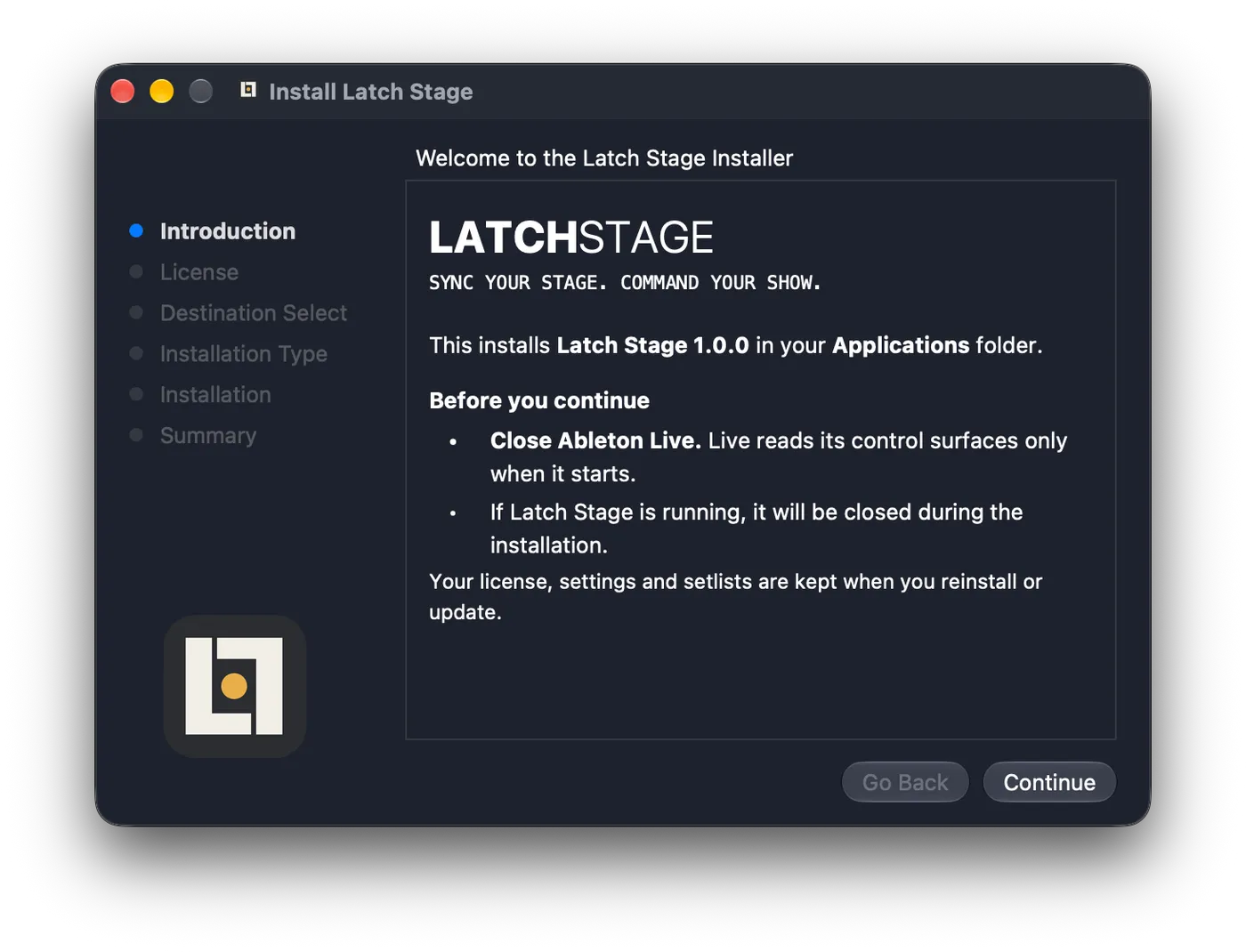
- Click Open Anyway in the dialog that follows, then confirm with your password (or Touch ID). The installer opens. Once it has installed Latch Stage, the application opens directly, without any notice. (The button only appears after you have tried to open the installer, and stays available for about an hour; if it is not there, open the installer again and go back to System Settings. Every installer you download goes through this once.) (On macOS 14 Sonoma and earlier you can also Control-click Install Latch Stage, choose Open and confirm. From macOS 15 on, only the System Settings route works.) The How to Install guide in the disk image shows each of these screens.
- On Windows: Microsoft Defender SmartScreen may display “Windows protected your PC / Unknown Publisher”.
- Click More info.
- Click Run anyway.
After that, Latch Stage opens immediately, without prompts.
3.2 What happens on deployment#
When Latch Stage runs or installs:
- System check. Any existing Latch Stage processes are terminated cleanly to release network ports.
- Ableton Remote Scripts deployment. The
Latch_Stagecontrol surface is synchronized into every Ableton Live Remote Scripts folder found on the machine. On Suite, the four virtual port folders (Latch_Stage_Port_AthroughLatch_Stage_Port_D) go with it; on Solo and Standard they are not installed, and any left from an earlier install are removed. - Integrity validation. Cryptographic signatures and local hardware bindings are initialized.
Close Ableton Live before first launch or update. Live reads control surfaces at startup and holds script folders locked while running.
After installing, updating or reinstalling, open Latch Stage from Applications first, then Live. That first launch is when the Remote Scripts are installed or updated; if Live is opened first, it starts the old scripts or, after a reinstall, does not find Latch Stage at all. Wait for the Latch Stage icon in the menu bar before opening Live.
3.3 Where things are installed#
- macOS: the application in
/Applications, settings and licence in~/Library/Application Support/Latch Stage/. - Windows: the application in
Program Files\Latch Stage\, settings and licence in%APPDATA%\Latch Stage\.
Chapter 22 lists the individual files.