
Connecting screensSoloStandardSuite
5.1 Three ways in#
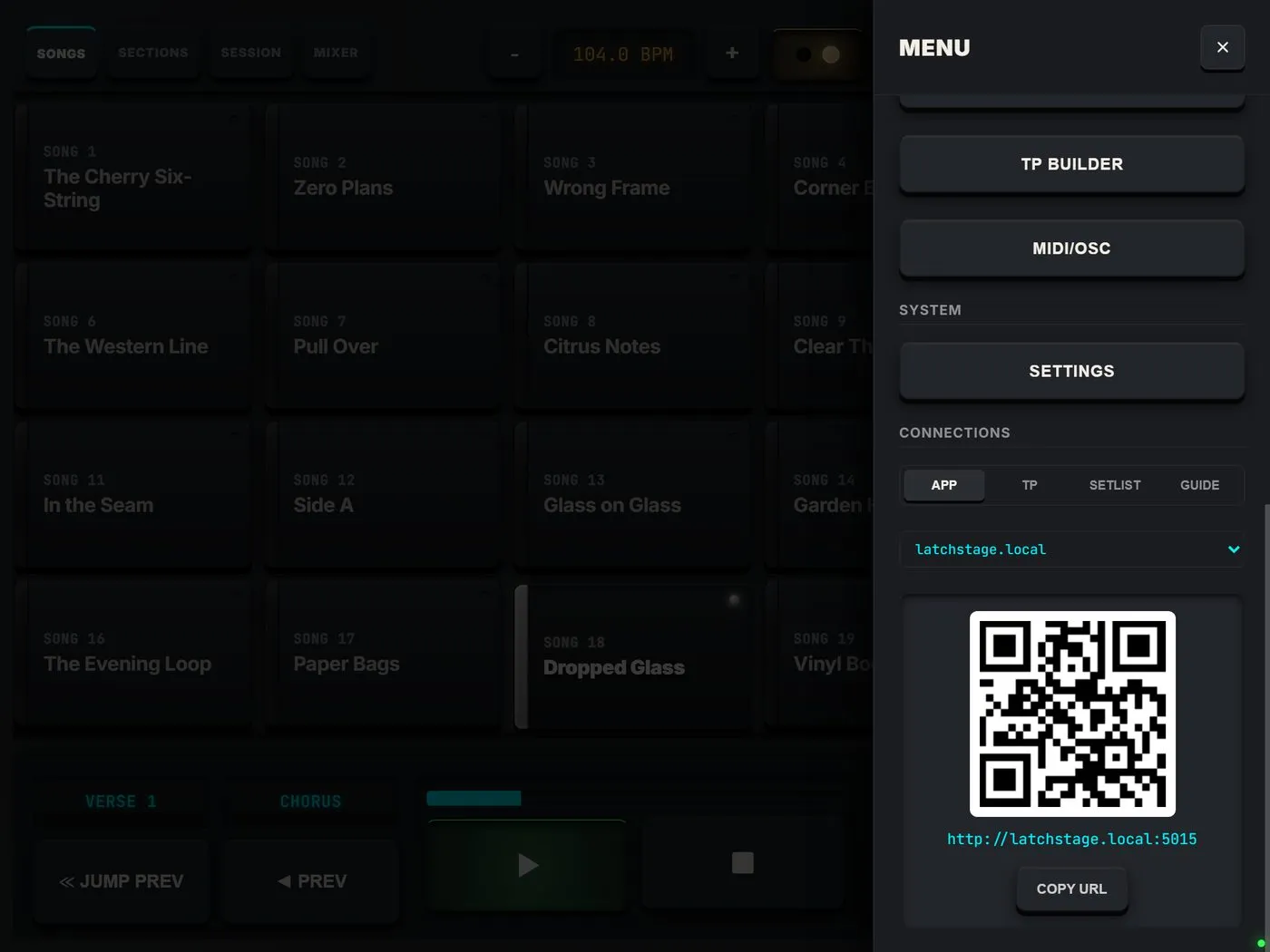
Scan the QR code. Open the sidebar menu → Connections, choose the tab for the screen you want (APP, TP, SETLIST or GUIDE) and scan. TP appears on Standard and Suite, GUIDE only on Suite. Each screen has its own address, its own QR code and its own icon. The tray menu also has Main App QR Code, Teleprompter QR Code (Standard and Suite) and Tech Guide QR Code (Suite); each opens a QR window for that one screen.
Type the fixed name. The host publishes itself on the local network as
latchstage.local, so http://latchstage.local:5015 reaches the application without
knowing the IP address. The name is announced on every active interface, so it works over
Wi-Fi and cable at the same time.
Type the address. http://<host IP>:5015, with the port from Settings.
Once open, a page can be added to the tablet’s home screen. It then launches full-screen with its own icon, like an installed app.
5.2 The address selector#
The sidebar shows a selector above the QR code with every address the host answers on:
latchstage.local, the computer’s own .local name and the IP of each network. By default
the QR code uses latchstage.local. If the host is on more than one network at once (Wi-Fi
plus a cable to the show router), choose the IP of the network the tablet is actually on and
the QR code and address are regenerated for it.
When two interfaces sit on the same address range, the sidebar shows a warning. In that situation one of them silently stops answering, and the symptom is misleading: the name resolves but the page never opens.
5.3 The access PIN#
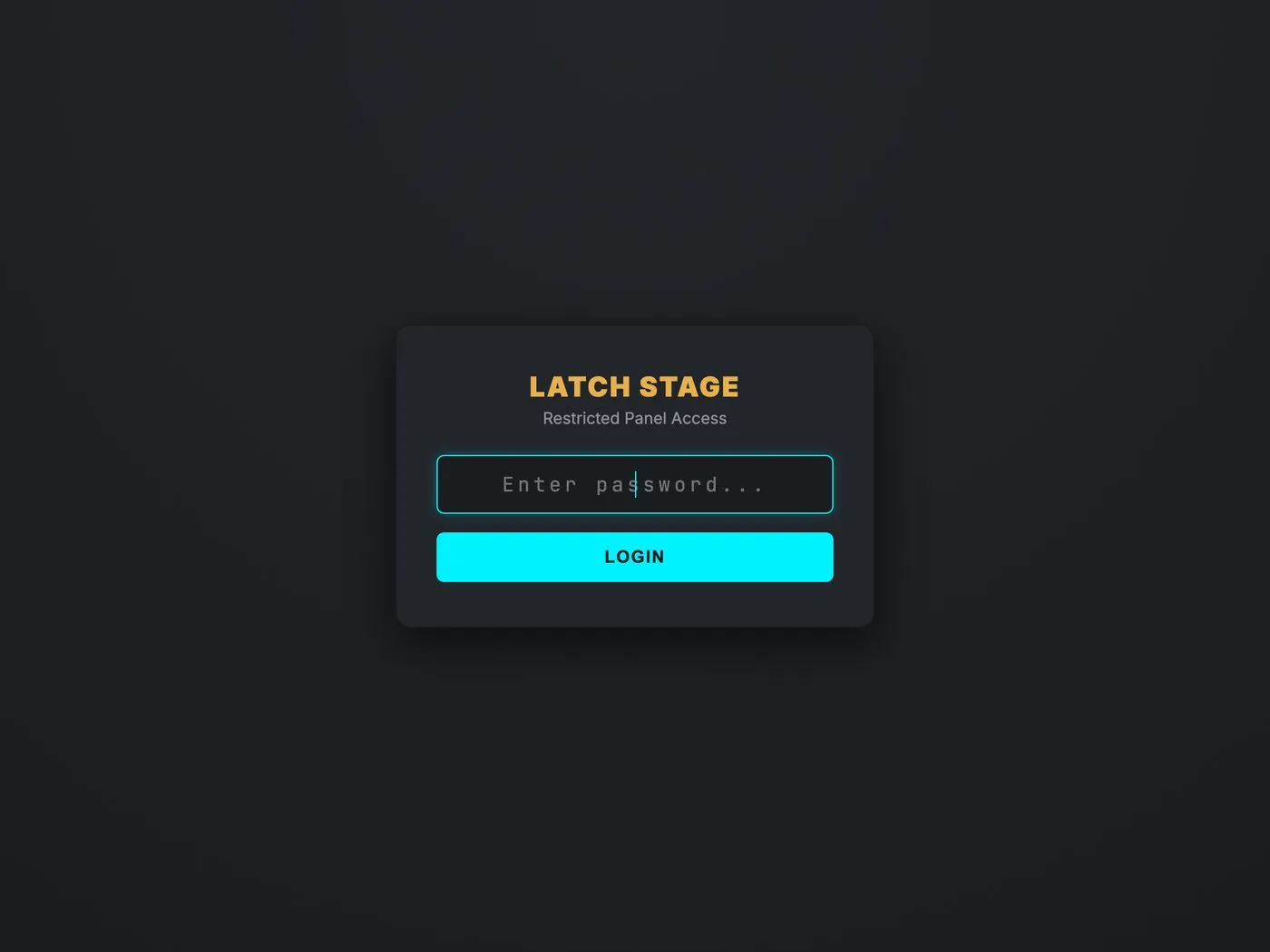
Screens that are not on the host machine are asked for a PIN before reaching the main
application, Settings or Smart Locators. The default is 1429, changed in
Settings → Core Engine & Connectivity → Remote Access PIN / Password.
The PIN also decides who may write:
- The host machine is always the operator and never needs the PIN, whether it opens
the application by loopback, by LAN address or by
latchstage.local. - A device that has entered the PIN may change settings and control the show.
- Any other device may use the screens it is entitled to, but cannot save settings and cannot edit master technical notes.
The Teleprompter, the Stage Setlist page, the TP Builder and the Tech Guide are not behind the PIN. A musician opens them by scanning and nothing else.
5.4 If the network changes mid-show#
Every screen carries a shared failover module. The server tells each screen the complete list of addresses it answers on, and updates that list whenever the network changes.
If the address a screen loaded from goes silent (router switched off, cable moved to another subnet, host Wi-Fi dropped), the screen probes the other known addresses and migrates to the first that answers, carrying its authenticated session with it. The host’s own loopback address is deliberately in the list, so an operator whose network has failed completely still has the application on the machine.
This runs on every screen, including the Teleprompter in a musician’s hands.
5.5 Tablets and phones#
The application is laid out for a tablet, and that is the screen to run a show from. A phone is supported too: below 600 pixels of width the views rearrange themselves for a narrow screen, and a phone holds the application upright: it locks to portrait when installed on the home screen or put into full screen.
A phone is the right screen for a musician who needs to see where the show is, or to fire the next song from the stage. It is not the right screen for the operator’s desk: the Mixer and the Sections View give up a great deal to fit.