
LicensingSoloStandardSuite
6.1 Activating your license#
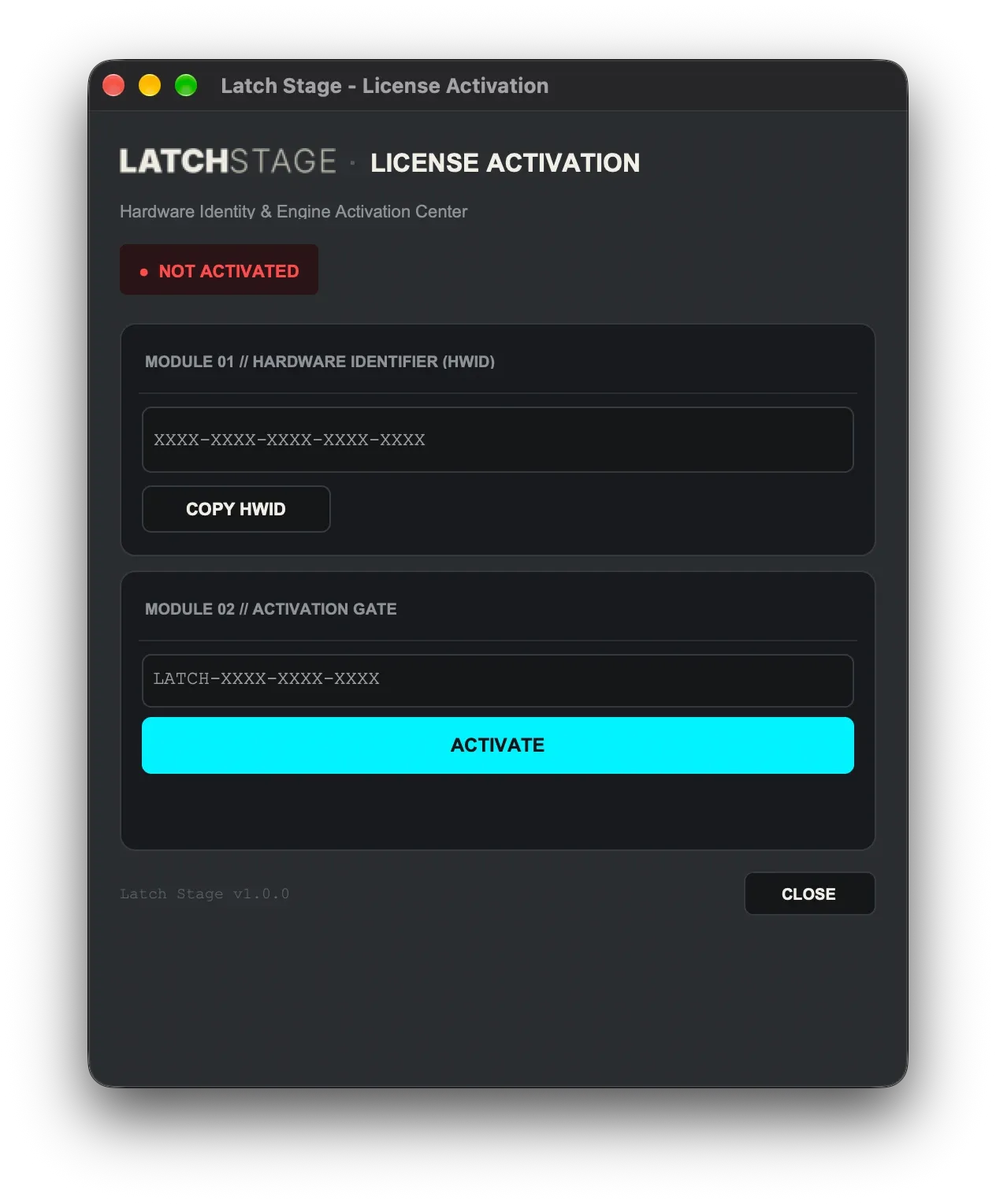
The LICENSE ACTIVATION window opens automatically on first launch if no valid licence is
found. To open it yourself, choose Open Settings in the tray menu and click LICENSE; the
Settings page in the browser (/settings) has no licence control. During a hardware grace
period the tray menu also shows a Hardware check: N days left line that opens it.
To activate:
- Make sure this computer is connected to the internet.
- In the LICENSE ACTIVATION window, type your licence key (
LATCH-XXXX-XXXX-XXXX) in the key field. - Click ACTIVATE.
Activation contacts the licence server once. If the server confirms the key, the licence is installed on this computer and Latch Stage is ready to use. You will see a confirmation message with the edition name (Solo, Standard or Suite).
If the key is already active on the maximum number of computers, Latch Stage shows which computers are using it and asks you to deactivate one of them first.
How many computers per edition: Solo allows 1 computer. Standard and Suite allow up to 2 computers. You can move your licence between computers by deactivating on one and activating on the other (see §6.3).
Version policy: A 1.x licence includes all updates for version 1 (1.x). Version 2.0 requires an upgrade.
After activation, internet is not required. Latch Stage runs fully offline with no time limit. Licences are tied to the machine’s physical hardware (firmware, internal storage, and built-in network interfaces), surviving operating system updates. The licence server is checked periodically when internet is available, but being offline never blocks the app.
The window also shows the Hardware ID (HWID) for technical diagnostics.
6.2 What activation changes immediately#
Activating or deactivating re-syncs the Remote Scripts and pushes the new edition to Ableton Live while it is running. An upgrade takes effect without reinstalling anything by hand.
The server starts on its own. As soon as activation succeeds, Latch Stage launches the background server without waiting for you to open anything else, so the screens and QR code are reachable immediately after you activate.
The active edition is shown as a badge next to SETTINGS CENTER on the Settings page
(SOLO, STANDARD or SUITE), in the first line of the tray menu as Latch Stage (Solo),
Latch Stage (Standard) or Latch Stage (Suite), and in the native Settings window at the
foot of the About & Licenses card as Latch Stage v1.0.1 — SUITE.
6.3 Deactivating#
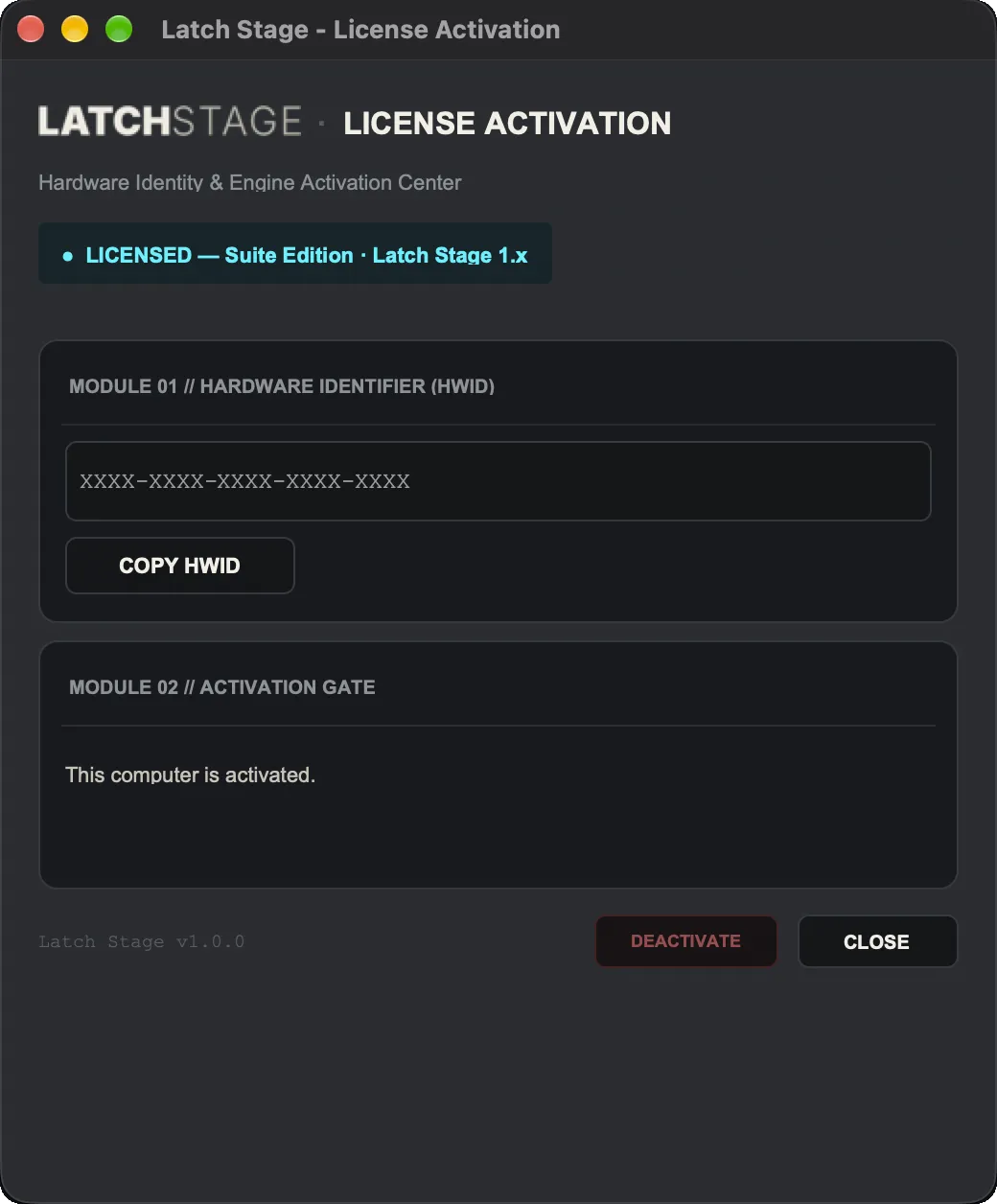
DEACTIVATE (visible in the LICENSE window when the computer is activated) releases this computer’s licence so you can activate on a different machine. It asks for confirmation first. Deactivation requires an internet connection and stops the running server.
There is a limit of 3 deactivations per licence in a rolling 30-day period. If you reach the limit, Latch Stage shows the date when you can deactivate again.
If the licence was installed by support (not through the key activation flow), the DEACTIVATE button shows “This license was installed by support. Contact support to move it to another computer.”
6.4 Free trial#
A free trial of Latch Stage Suite is available as a separate installer
(LatchStage_Trial_Setup on Windows, LatchStage_Trial_Setup.dmg on macOS).
The trial requires online activation with a trial key, which you can get at latchstage.com. Each trial key works on one computer only and cannot be moved (there is no deactivation for trial keys).
Once activated, the trial is valid for 30 days. During that period, each time you open Ableton Live, the trial runs in 15-minute sessions. When a session ends, Latch Stage stops and shows a message asking you to restart Ableton Live to begin a new session. Warnings appear at 5 minutes and 1 minute before the session ends, on the desktop and on all connected tablets.
After the 30-day period expires, the trial stops working. To keep using Latch Stage, buy a licence at latchstage.com and install the paid edition over the trial.